A folder that refuses to open after two presses can make a mouse feel unreliable. Windows mouse double click speed may simply require a shorter gap than you naturally leave between clicks. Adjusting that timing is a useful first test, provided you keep it separate from a mouse that generates an extra click by itself.
Quick Answer
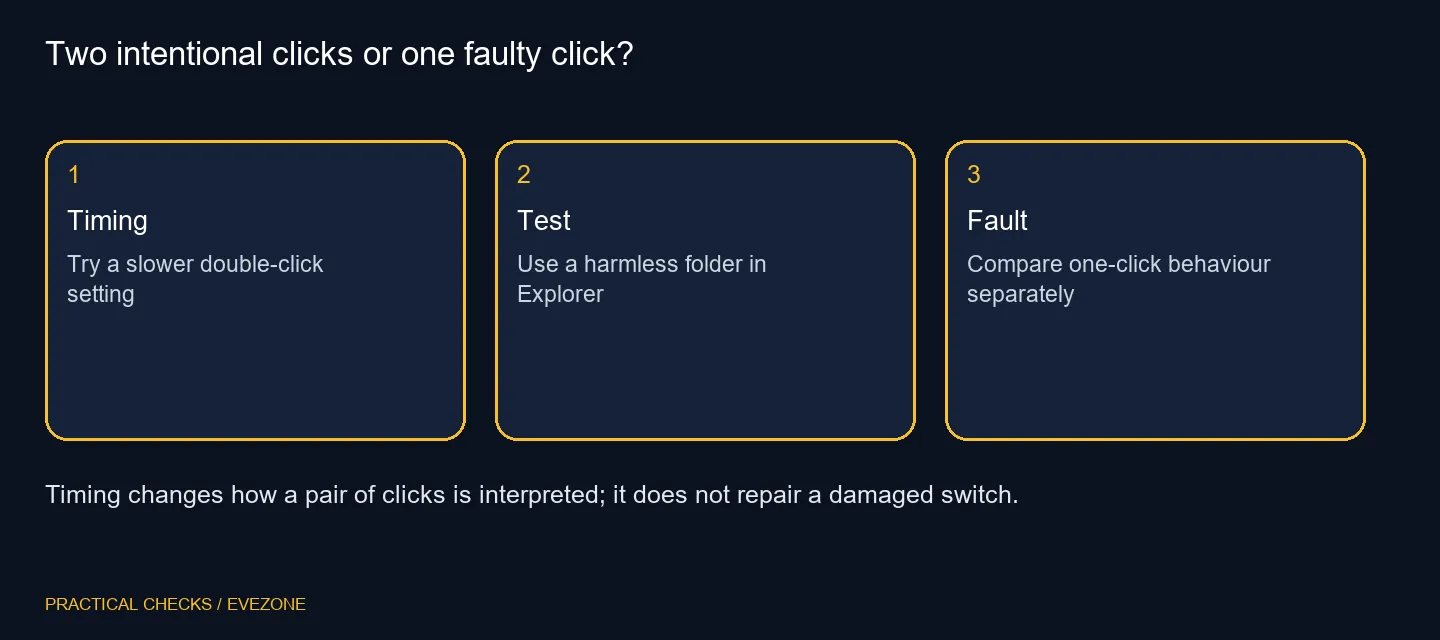
Open Mouse settings, select Additional mouse settings and use the Buttons tab in Mouse Properties. Move Double-click speed towards Slow if Windows misses your deliberate pairs of clicks, then test a harmless folder. This costs R0 in extra hardware; it will not repair a switch that sends two clicks after one press.
🖱️ Change timing without changing everything else
In Windows 11, start from Settings > Bluetooth & devices > Mouse. The additional settings link opens the older Mouse Properties window. On Buttons, find the Double-click speed slider and make a modest change rather than immediately pushing it to an extreme.
Leave movement speed, pointer precision and button assignments alone while you test. Those controls answer other problems. You want to learn whether a longer interval makes two intentional presses reliable, not whether a completely different mouse profile feels unfamiliar. Use Apply or OK to keep the selected setting.
📁 Use a simple folder as the comparison
Choose an ordinary folder with no important action attached to it. Try a single click, then a deliberate double-click at your normal pace. Repeat a few times with the pointer held still. If you move the pointer between presses, you have added a second variable that can confuse the result.
Some applications handle clicks differently. A test inside a game or a specialist tool may not behave like File Explorer, so check the Windows desktop behaviour first. If the folder still opens with one click, inspect Explorer's single-click option before blaming the timing slider.
🔍 Separate missed pairs from unwanted extras
The timing window tells Windows how to interpret a sequence of two clicks. It is different from the physical switch unexpectedly reporting more than one event. If one deliberate press repeatedly opens a folder or activates something twice, compare another mouse on the same PC where possible.
Also check whether the symptom appears in several applications or only one. Keep a short description of what one press and two presses do. That evidence is more useful for a support request than saying the mouse is slow, because it distinguishes recognition timing from a possible input fault.
💡 Replace only after the test identifies a need
The built-in adjustment is worth trying before spending money. If your mouse remains comfortable and a small timing change solves the problem, there may be no hardware purchase to make. A setting that fits your hand is a useful outcome, even if it differs from somebody else's preference.
If the fault follows the mouse to another suitable PC, compare gaming mice for a replacement with the shape and buttons you need. For a simpler work desk, office mice may be more relevant. Keep the timing preference written down so the replacement is tested under the same conditions rather than against a different setup.
Frequently Asked Questions
Where is the double-click timing control?
Open Mouse settings, choose Additional mouse settings, then use the Buttons tab in Mouse Properties.
Which direction allows more time?
Move the Double-click speed slider towards Slow to allow a longer gap between your two presses.
Will it repair a switch that clicks twice?
No. An unwanted extra click from one press needs separate hardware and software checks.
Does it make the pointer move slower?
No. Pointer movement and double-click timing have separate controls. Leave pointer speed unchanged during this test.
What can I test without changing files?
Double-click a harmless folder and compare deliberate single clicks. Avoid testing on Delete buttons or important documents.
Do I need to buy a mouse first?
No. The Windows timing control costs R0 in additional hardware. Consider replacement only after identifying a repeatable fault.
Need a mouse after testing?
Compare Evetech mice by grip and daily use, with the input fault clearly identified before you spend.