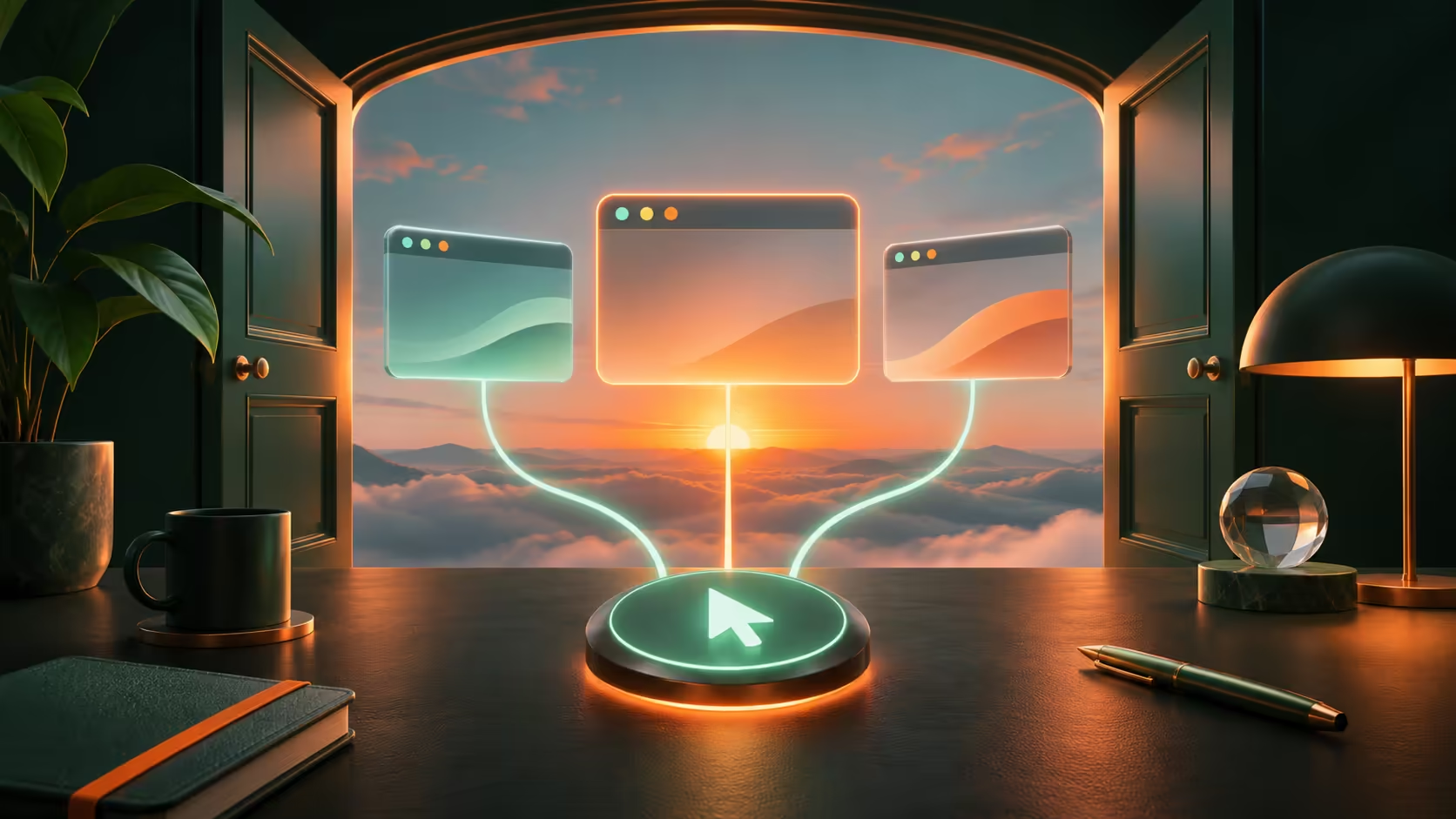
Opening the browser should not mean closing six unwanted tabs before you can work. Chrome startup pages are a small setting with a visible effect, but the Home button and the first browser session use different controls. Changing the wrong one leaves the original annoyance untouched.
Quick Answer
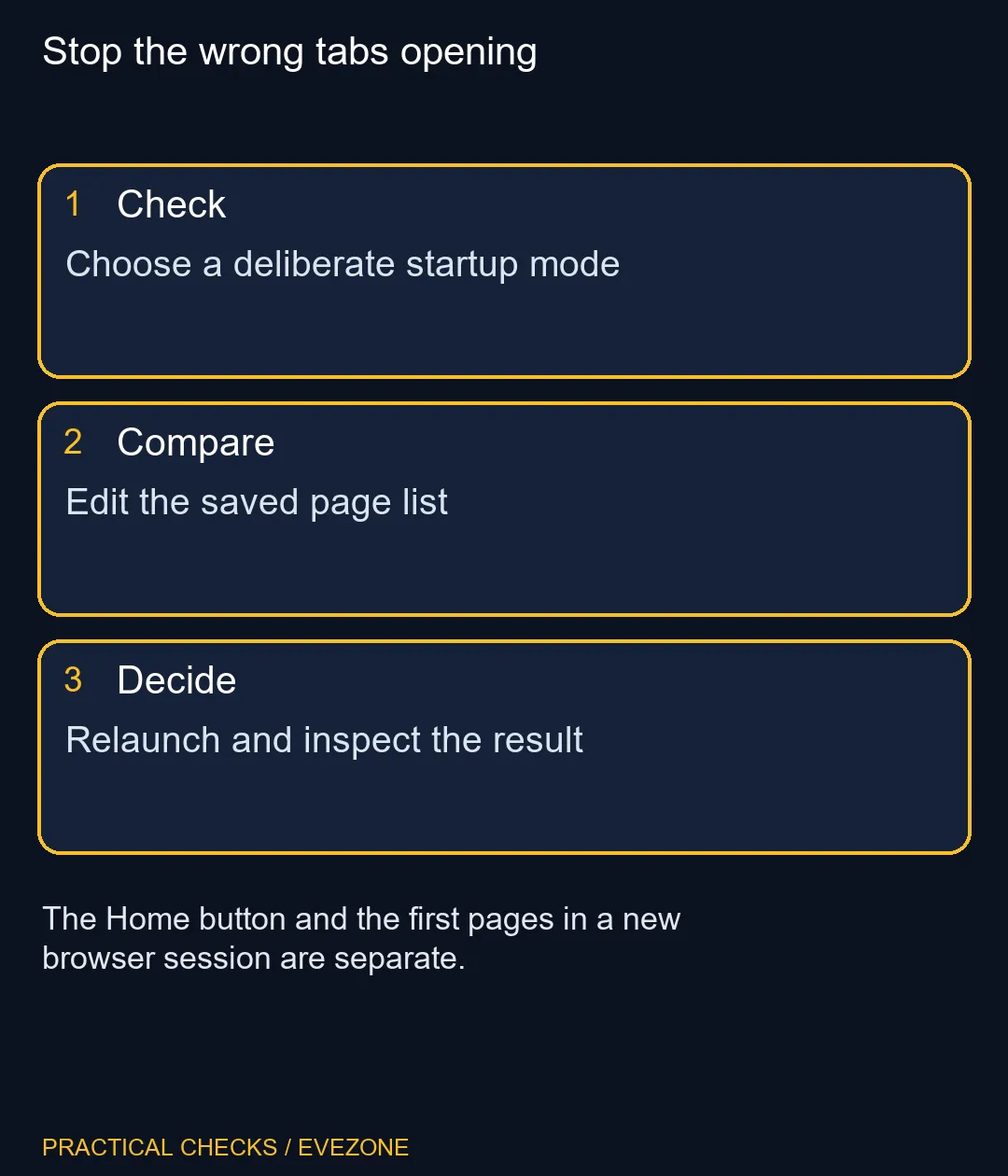
Choose On startup in Chrome Settings, then select a new tab, the previous session or a specific page set. The Home button is configured separately under Appearance. Setting a deliberate opening page costs R0 and does not require an extension.
🚪 Pick the behaviour you actually want
A new tab is the cleanest starting point when yesterday's work is finished. Continue where you left off suits a browser session you intentionally want to resume. A specific page set works well when you begin every day with the same small collection of tools.
Think about what should happen after a normal restart, not what is open right now. Saving a large temporary collection as your permanent opening set creates clutter. If you use the current-pages option, close unrelated tabs first or review the resulting list carefully before treating it as your daily routine.
🗂️ Edit the page list deliberately
Under the specific-page option, inspect each saved address. Remove an unwanted entry or edit the one that changed. Then fully close and reopen Chrome when it is safe to do so, having saved any unfinished work. Opening another window is not always the clearest test of a new browser session.
If selecting the Home button still shows something else, inspect Appearance and its Home-button setting. That is a different action with its own destination. Keep both destinations simple enough that another person using the computer can understand what happens without needing an explanation of your old session.
🧭 Investigate unexpected changes
A page that reappears after you remove it deserves a closer look at browser extensions or unwanted software. Do not install a second homepage utility just to fight the first one. A reset changes several browser preferences and extensions, so use it for a demonstrated persistent problem rather than as the first response to one unwanted tab.
If the browser is managed by your organisation, some choices may be controlled centrally. Record which option is unavailable and ask the administrator about it. Repeatedly changing a managed setting is unlikely to produce a lasting result.
When building a new desk setup, compare all laptops on special and gaming keyboards for the equipment itself. Startup configuration belongs to the browser and should be settled before spending on a replacement computer. The practical result is a short, useful opening session that you can reproduce tomorrow, with saved work kept separate from a permanent startup list.
Frequently Asked Questions
Is the Home button my startup page?
No. The Home button and On startup have separate settings unless you deliberately choose the same address.
Can Chrome reopen yesterday's tabs?
Yes. Continue where you left off restores the previous browsing session.
How do I start with one clean tab?
Select the New Tab option under On startup in Chrome Settings.
Why does an unwanted page keep returning?
Review extensions, unwanted software and any organisational management before repeatedly editing the address.
Does a reset delete saved bookmarks?
Google says saved bookmarks and passwords are not deleted by the settings reset, but several preferences change.
Do I need a startup-page extension?
No. The browser already has controls for a new tab, session restore and a specific page set.
Stop the wrong tabs opening
Choose a deliberate startup mode.