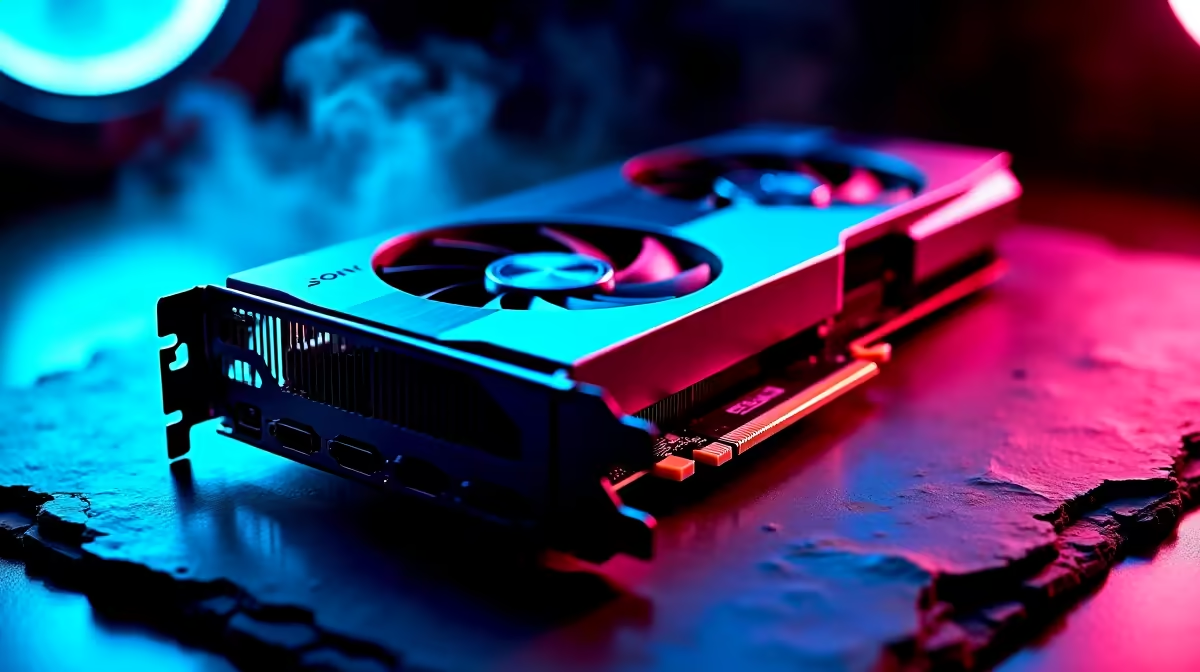
You boot up your rig, grab a coffee, and check your system stats. Suddenly, you notice your graphics card is sitting at 45 degrees Celsius... and you haven't even launched a game yet. Is your GPU temperature during idle normal, or is your hardware slowly roasting under the South African sun? Let's break down what temperatures are safe and how to keep your system perfectly chilled.
What is a Normal GPU Temperature During Idle?
For most modern setups, a normal GPU temperature during idle sits between 30°C and 50°C. If your card falls in this range, you can relax. Many of the latest graphics cards feature a smart zero-RPM fan mode. This means the fans stop spinning entirely when the system is under a light load. It keeps your setup whisper-quiet while you are browsing the web or watching series.
However, ambient temperature plays a massive role. A scorching highveld summer afternoon will naturally push your baseline temps higher. If your room is 30°C, your PC components will never drop below that. Cooling systems can only normalise to the surrounding air temperature.
Hidden Culprits Behind Higher Idle Temperatures 🚀
Sometimes your GPU temperature during idle creeps closer to 55°C. Before you panic, check your monitor setup. Running dual monitors or a high refresh rate 4K display forces the GPU memory to work harder. This naturally generates more heat even when you are just staring at your desktop.
Poor case airflow is another major suspect. If you bought a pre-built PC with a restrictive front panel, your intake fans might be starving for cool air. Good airflow is absolutely essential for extending the lifespan of your components.
If you prefer mobility, gaming laptops naturally run hotter due to their compact chassis. An idle temp of 50°C to 55°C on a high-performance notebook is completely standard. The cooling solutions in these machines are designed to handle higher thermal limits safely.
When to Take Action on GPU Heat 🔧
If your GPU temperature during idle consistently pushes past 60°C, it is time to investigate. First, check your system for dust buildup. A quick blast of compressed air can drop temps significantly. This simple maintenance task can save you thousands of ZAR in unnecessary replacement costs.
Airflow Pro Tip ⚡
Download MSI Afterburner to set a custom fan curve. If you dislike the zero-RPM mode, you can force your fans to spin at 20% during idle. This drops your resting temperatures significantly without adding noticeable noise to your room.
Next, check your background applications. Sometimes a hidden program uses hardware acceleration... secretly putting your card under load. Open Windows Task Manager and sort by GPU usage. This helps you spot rogue software instantly. Close unnecessary apps and watch your temperature monitor to see if things cool down.
If your card is several years old, the thermal paste might have dried out. Repasting can work wonders for thermal transfer. Alternatively, it might just be time for an upgrade. If you are hunting for maximum frame rates, exploring the best gaming PC deals is a brilliant way to get a fresh system with modern cooling solutions. You can also keep an eye on our weekly specials to grab premium cooling hardware at a massive discount.
Ready to Upgrade Your Cooling or Hardware? Keeping your system chilled is the secret to maximum performance and longevity. If your old card is running too hot to handle, explore our massive range of PC component specials and find the perfect hardware to keep your frame rates high and your temperatures low.