A tiny desk movement should not turn into an endless troubleshooting session. If a mouse wakes PC from sleep search brought you here, begin with Windows' wake evidence. The device permitted to wake the machine and the device that actually caused the last wake are different questions. Keeping them separate helps you change one setting without losing a convenient way back into the PC.
Quick Answer
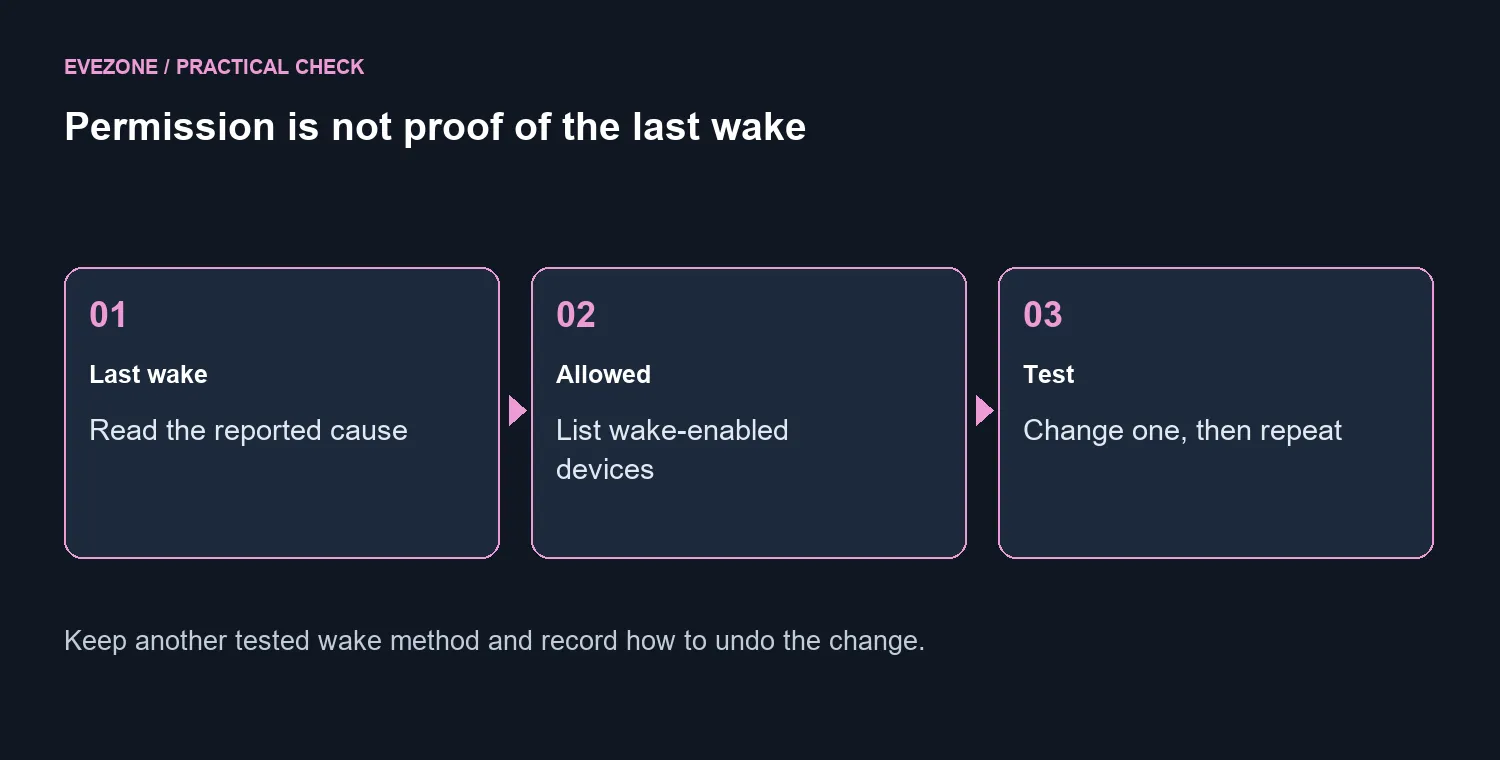
Run powercfg /lastwake, then powercfg /devicequery wake_armed, and identify the relevant mouse or receiver before changing its wake permission. This is an R0 diagnostic step. Test one device at a time and retain another working wake method; a replacement mouse can receive the same Windows permission and leave the original problem unsolved.
💤 Reproduce the wake and record it
Put the computer to sleep from Windows, leave the desk untouched briefly, then try the small movement that normally wakes it. After the machine resumes, open a terminal and run powercfg /lastwake. Save the result. If it names a different source, investigate that source instead of forcing the explanation to fit the mouse.
Next run powercfg /devicequery wake_armed. This lists devices currently allowed to wake the system. Appearance in the list is permission, not proof of the last event. The last-wake result can also be incomplete, so a repeatable physical test is useful. Record whether the mouse is connected directly, through a hub or through a wireless receiver.
🛠️ Change one permission and keep the undo
Identify the exact device name before making a change. In an administrator terminal, use powercfg /devicedisablewake "Exact device name", replacing the quoted placeholder with the name Windows returned. Do not paste a guessed mouse name or disable every item in the list. A receiver may represent more than one input function.
The reverse command is powercfg /deviceenablewake "Exact device name". Keep that command and your original output together. Before repeating the sleep test, confirm that a keyboard or normal power-button press can wake the machine. Use a brief press appropriate to the device; holding the power button is a different action and can force a shutdown.
🖱️ Retest before replacing the mouse
Repeat the same sleep-and-movement test after the single permission change. If the PC remains asleep and another wake route still works, you have a useful result. If it wakes anyway, read the wake information again. Restore changes that did not help rather than accumulating disabled devices until it is unclear which setting mattered.
The mouse range and mouse best sellers become relevant if you also need a different shape, connection or button layout. For price context, the black Razer Orochi V2 (2026) had an in-stock listing priced at R1,349 when checked on 23 September. That is not a guaranteed fix for wake behaviour. A working mouse with an unwanted permission is usually better served by diagnosis than an immediate replacement.
Frequently Asked Questions
Which command shows the most recent wake?
Run powercfg /lastwake. Its output can be incomplete, so combine it with a repeatable sleep test.
What does wake_armed list?
powercfg /devicequery wake_armed lists devices currently configured to wake the computer.
Does appearing in that list prove guilt?
No. It shows permission, not proof that a device caused the last wake event.
How do I reverse a wake-permission change?
Use powercfg /deviceenablewake followed by the same exact device name in quotes.
Should I disable wake on every device?
No. Change only the identified device and keep a tested keyboard or power-button wake route.
Will buying a new mouse certainly fix it?
No. Windows may grant the replacement the same permission. Test the cause before spending money.
Ready to choose a mouse for the right reason? Explore Evetech mice for comfort and control after confirming whether Windows wake permissions solve the interruption.