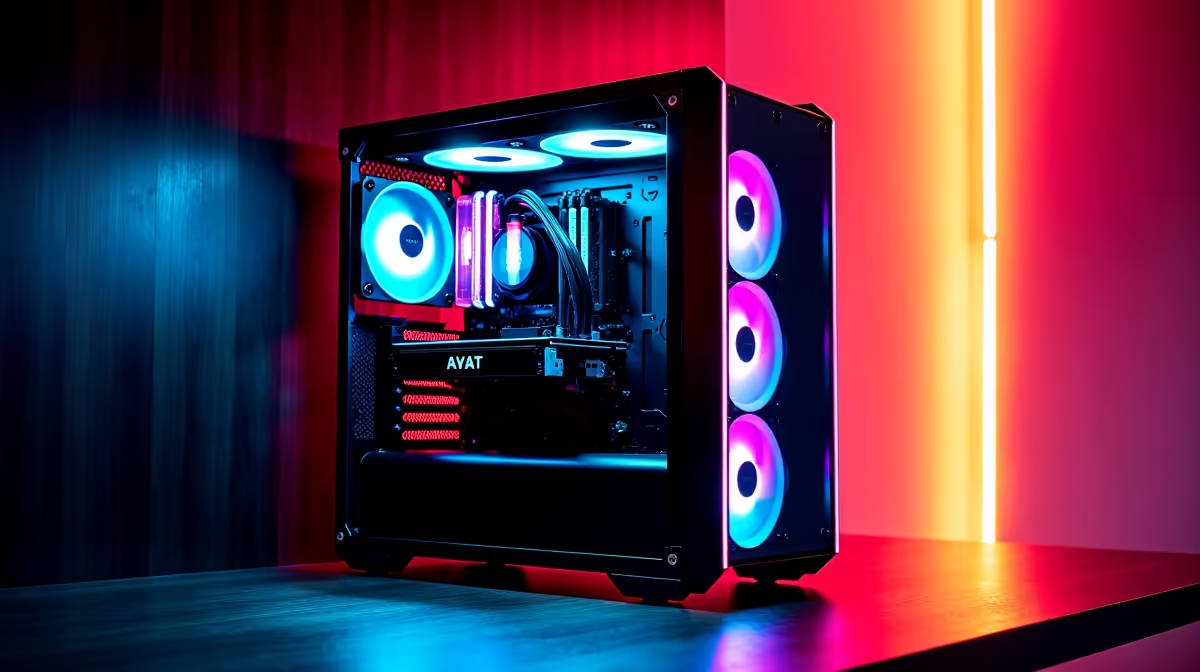
An unexpected outage making you watch your watts? High electricity costs in South Africa turning your epic gaming sessions into a source of budget anxiety? We get it. Your powerful DeepSeek PC is a beast, but it doesn't have to drain your wallet. These simple PC power saving tips will help you keep your rig running lean and mean, so you can focus on climbing the leaderboards... not your electricity bill. Let's dive in. ⚡
Fine-Tune Your Windows Power Plan
One of the easiest PC power saving tips is right inside Windows. Your operating system has built-in power plans that dictate how your computer uses energy. You can find them by searching for "Choose a power plan" in the Start Menu.
- High Performance: Uses maximum power, all the time. Great for benchmarking, but overkill for daily use and gaming.
- Power Saver: Aggressively throttles your hardware to save energy. You'll notice a performance hit.
- Balanced (Recommended): This is the sweet spot. It provides full power when you need it (like in-game) and scales back when you're just browsing or typing.
For 99% of users, sticking with the 'Balanced' plan is the best choice. You can even click "Change plan settings" to customise how quickly your display turns off or the PC goes to sleep, saving even more power during breaks.
Tame Your Thirsty Graphics Card 🐉
Your graphics card is usually the component that consumes the most electricity, especially during intense gaming. A few software tweaks can make a massive difference in its power draw without sacrificing much performance.
The goal is to stop your GPU from rendering frames you'll never see. If you have a 144Hz monitor, there's no need for your GPU to churn out 300 frames per second in a less demanding game. Capping your frame rate slightly below your monitor's refresh rate is a brilliant way to reduce PC power consumption.
Whether you're running one of our cutting-edge NVIDIA GeForce gaming PCs, you can do this easily in the NVIDIA Control Panel. For those on Team Red, the same principles apply to the latest AMD Radeon gaming PCs, where the AMD Software: Adrenalin Edition offers similar controls under the "Radeon Chill" feature.
Check Your Culprits 🕵️
Press Ctrl+Shift+Esc to open Task Manager. Click 'More details' and look at the 'Power usage' and 'Power usage trend' columns. This will instantly show you which apps are secretly draining power in the background. Often, it's a browser with too many tabs or a launcher you forgot to close!
Smart Software and Hardware Habits
Consistent, small changes in how you use your PC can add up to significant savings. Think of it as optimising your workflow for efficiency.
Declutter Your Digital Desktop
Before you start a game or intensive task, close applications you don't need. Web browsers, chat apps, and background launchers all sip power. Getting into the habit of a clean slate before you play is a great PC power saving tip that also frees up system resources for better performance.
These principles aren't just for gamers. If you're using one of our high-performance Workstation PCs for content creation, managing background processes is crucial for both smooth performance and energy efficiency during long renders.
Physical Environment Matters
Here are a few more quick wins:
- Lower Monitor Brightness: You often don't need your monitor at 100% brightness. Lowering it to a comfortable level can save a surprising amount of power.
- Keep It Clean: Dust buildup inside your DeepSeek PC can clog fans and heatsinks. This forces them to work harder and use more power to keep things cool. A quick clean with compressed air every few months works wonders. ✨
- Turn It Off: If you're stepping away for more than an hour, shutting down your PC is more effective than letting it sleep. Modern PCs with SSDs boot up in seconds, so it's hardly an inconvenience.
By combining these software tweaks and simple habits, you can seriously reduce your PC's energy footprint. You get to enjoy the incredible power of your rig without the constant worry about that next electricity bill.
Ready for a Power-Efficient Upgrade?
While these PC power saving tips will get more from your current rig, starting with a modern, efficient build is the ultimate solution. Explore our range of custom-built PCs and let our experts build you a machine that balances epic performance with sensible power consumption.