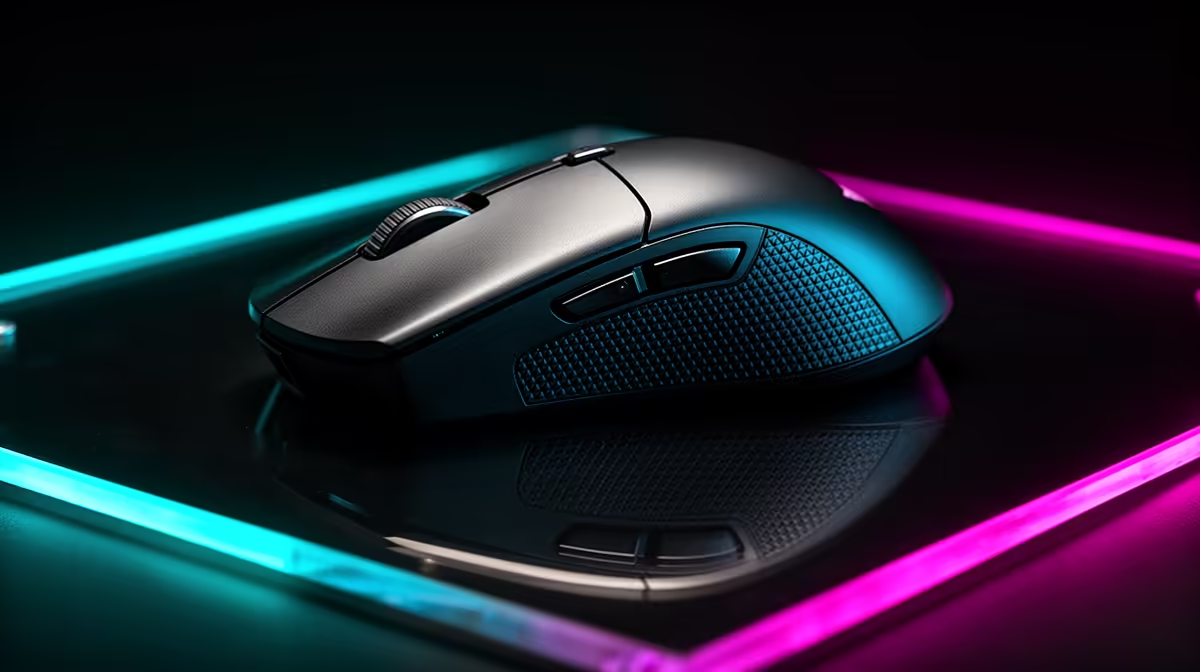
Two wireless modes can share the same band and deliver very different input behaviour. For 2.4GHz vs Bluetooth gaming, the supplied dongle, polling design, interference and device support all shape the result.
Quick Answer
A gaming accessory's dedicated 2.4GHz receiver is often tuned for lower and steadier latency than its Bluetooth mode, so it is the better starting point for competitive play. The result belongs to the exact mouse, keyboard or controller. Both technologies use the crowded 2.4GHz radio band, and a poor receiver placement can lose packets. Bluetooth can save a USB port, switch between work devices and provide good battery life. Test click or key latency, stability and runtime in each supported mode rather than treating every dongle as fast.
The label describes two different links
Bluetooth follows a shared standard and profile negotiated between the accessory and host. It is built for broad device compatibility, discovery and power management.
A proprietary 2.4GHz receiver lets the accessory maker control both ends of the link. Gaming designs can use a high report rate, tailored packet format and recovery behaviour.
That freedom can produce lower latency. It can also produce a poor product, so the receiver logo is not proof.
Both share radio space
Wi-Fi on 2.4GHz, Bluetooth devices, wireless headsets and some household equipment occupy nearby spectrum. A dedicated receiver does not own a private frequency.
Keep the receiver away from the back of a metal PC case and a busy USB 3 hub when the manufacturer provides an extension. Place it within the documented range and line of sight of the mouse or keyboard.
For Bluetooth, keep the PC antenna connected and in the open. A desktop motherboard radio with no external antenna can make the comparison unfair.
Compare latency the right way
Use a credible independent test of the exact model and connection mode. Look for method, sample size and variation, not one best click.
On your desk, run a reaction or input consistency drill with the same frame rate and display. Watch for missed reports, delayed wake and stutter.
Do not use a browser reaction score as a precision latency measurement. It can reveal a gross mode problem while your human timing dominates the number.
Check the polling mode
Some accessories reach their highest polling rate only through the receiver or cable. Bluetooth may use a lower report interval to preserve power and compatibility.
Open the official app and record the active rate. Test whether the setting remains after sleep and reconnection.
Higher polling can add CPU work and battery use. The best competitive setting is the highest stable rate your complete PC and game can use.
Measure battery on equal settings
Bluetooth can deliver long runtime on many devices, while a low-latency receiver mode can draw more power. Lighting, scan rate, sleep timers and battery size also matter.
Set equal lighting and daily hours. Record the connection mode and polling rate. A manufacturer runtime measured with lighting off cannot describe your bright profile.
Check whether the accessory can charge and play by cable. A useful low-battery warning matters during a long event.
Use Bluetooth for the jobs it suits
Bluetooth is useful for a laptop, tablet or office machine when you want no receiver. Multi-device switching can move a keyboard between systems.
Casual games, turn-based play and media control can feel fine on a good implementation. Test the exact title before declaring it unplayable.
Keep the receiver profile for competitive games. Save both modes in a way that avoids repairing the device every time.
Use 2.4GHz for a competitive baseline
Pair the accessory with its own receiver, update firmware and place the dongle well. Use a clean mouse pad or stable keyboard surface.
Close duplicate configuration tools and remove an old receiver for the same model. Check that the game sees only one active device.
Bring a cable to a tournament. Venue rules can restrict wireless equipment or require receiver inspection.
Troubleshoot dropouts
Move the receiver closer, change the supported USB port and separate it from a high-traffic hub. Test with 2.4GHz Wi-Fi moved to a planned channel or use 5GHz and 6GHz for high-throughput clients.
Do not use an unpowered extension beyond the maker's guidance. A voltage or data issue can look like radio interference.
For Bluetooth, update the host adapter driver through the PC maker and remove stale pairings. Test the accessory on another supported device.
Check compatibility before buying
Not every wireless gaming device offers both modes. Some receiver protocols need a specific dongle, while replacement availability varies.
Confirm Windows, console, tablet and mobile support for each connection. A receiver that works on PC may not work on a console USB port.
Compare peripheral best sellers by exact wireless modes and platform support. Browse gaming accessories for the complete desk after checking receiver, cable and charging needs.
Build a two-mode routine
Use Bluetooth for the work device and receiver mode for the gaming PC when the accessory supports clean switching. Label the dongle and keep it with the device.
Before ranked play, confirm receiver mode, charge and polling rate. A mouse connected to the wrong host can feel broken when it is following your last Bluetooth pairing.
Compare mode switching under pressure
Put the accessory to sleep, wake it and enter the game. Record reconnection time and whether the first key or click is lost. Repeat after the PC resumes from sleep.
Switch from Bluetooth work mode to the receiver profile without repairing. A good multi-mode device should make the active host clear through a light or software status.
Test low-battery behaviour. Some devices reduce lighting or polling before shutdown, while others give little warning. Keep the supported cable within reach.
For a shared desk, label the receiver and store it in the accessory when travelling. Proprietary dongles are easy to lose and replacement pairing may need a specific support process.
Keep voice and Wi-Fi in the comparison
A 2.4GHz headset, mouse and router can operate together, but placement and channel load matter. Test the full competitive setup with voice active and a household transfer running.
If the mouse stutters only when the headset receiver sits beside it, separate the dongles through supported ports or extensions. Move high-throughput Wi-Fi clients to clean 5GHz or 6GHz where their hardware permits it.
Bluetooth coexistence also depends on the host radio and antenna. Test the laptop and desktop separately rather than transferring one result to both.
FAQ
Is 2.4GHz always faster than Bluetooth?
No. Gaming receivers often lead, but implementation decides. Check the exact model's measured modes.
Can Bluetooth work for competitive gaming?
It can function, while receiver or cable mode often provides a better verified latency baseline. Test the event and title.
Does receiver mode use more battery?
It can at higher report rates. Lighting, firmware, sleep and battery capacity shape the complete runtime.
Test Bluetooth and receiver mode at equal settings, place the dongle in clear air and keep the connection with the cleanest latency and battery result.