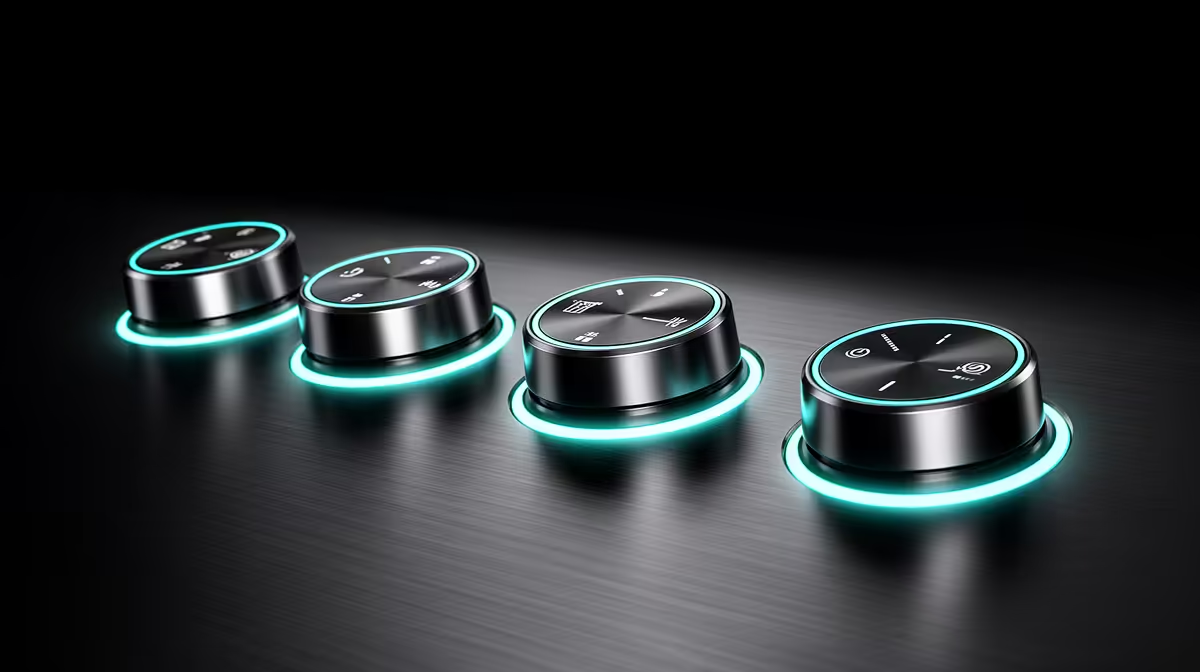
Reaching for a mouse, opening a software mixer, and dragging a slider while something is happening on stream is the kind of interruption that costs you the moment. A 4-in-1 smart control knob puts input gain, headphone volume, monitor mix and mute on a single physical dial, cycled by pressing it, so the adjustment that used to take four clicks takes one hand movement. This is what tactile audio control means in practice.
Quick Answer
A 4-in-1 smart control knob cycles through four audio functions, gain, headphone volume, monitor mix and mute, by pressing the dial to switch modes. An LED ring colour change confirms the active function. Each mode adjusts in real time so you can tweak levels live without ever opening a software mixer.
🎛️ The Four Functions and What Each One Controls
Input Gain
The first function, input gain, sets how much amplification is applied to the incoming microphone signal before it reaches your recording software or streaming application. Turning the dial clockwise raises the input level. Counterclockwise reduces it.
Getting gain right is the foundation of clean audio. Too low and your voice sits close to the noise floor, forcing you to boost in post and lifting the background noise along with the voice. Too high and the signal clips on loud transients, producing a distorted crackle that is impossible to fix after the fact. The smart knob lets you trim gain in fine increments while watching the level meter in your streaming software, dialling to the correct position without committing to a software value first.
For streamers who alternate between gaming commentary and louder content like reactions or crowd audio, the ability to pull gain back quickly during a loud moment prevents clip events without pausing the stream.
Headphone Volume
The second function controls the volume of audio reaching your monitoring headphones. This is independent of the microphone's input gain, so raising your headphone output does not affect what your audience hears or what gets recorded.
Headphone monitoring lets you catch clipping, background noise and level inconsistencies in real time rather than discovering them in the recording afterwards. The separate volume control means you can turn up the monitoring signal when you need to assess audio quality carefully, then reduce it to a comfortable level for extended streaming sessions, all without touching the stream output.
Monitor Mix
The third function is where the smart knob offers something genuinely distinctive. Monitor mix blends your direct microphone signal with the PC audio playback, the music, game audio, or guest calls happening in your session.
The blend ranges from 100 percent direct signal to 100 percent PC playback, with the full spectrum of ratios available between them. The direct signal path carries zero latency because it comes from the mic's hardware monitoring circuit rather than the computer's audio system. This means you hear your own voice in real time without the delay that occurs when audio is routed through software and back out to headphones.
Tuning the monitor mix to include both your voice and the game or music at the right ratio means you can talk naturally at consistent levels without overcorrecting because you cannot hear yourself clearly.
Mute
The fourth function cuts audio output in hardware within approximately 50 milliseconds of the press. The LED ring changes colour to confirm the muted state immediately. Hardware mute is important because it operates below the software layer. If a streaming application crashes or an audio driver update causes unexpected behaviour, the hardware mute still works. It does not depend on software being functional.
Mute is the function most creators use under time pressure: coughing, a background interruption, answering a call, or any unplanned pause. The physical button and the LED confirmation mean it is impossible to accidentally stream audio while thinking the mic is muted, and equally impossible to stay muted without realising it.
Pro Tip ⚡
Map out your typical streaming scenario before you first start adjusting the knob live. Know which function is active in each LED colour before your first live session. A colour you have not memorised under pressure can make you rotate the wrong mode during a live adjustment and briefly send the wrong signal to your audience. One practice session with the stream offline removes that risk entirely.
🔆 LED Feedback and Real-Time Confirmation
The LED ring around the base of the knob is not decoration. It serves as the active-function indicator and the confirmation that a change has taken effect.
Each function maps to a distinct colour or lighting pattern depending on the model. Pressing the dial steps to the next function and the LED changes immediately. Looking at the knob tells you at a glance whether you are about to adjust gain or headphone volume, which prevents the embarrassing mistake of boosting your headphone volume by six steps while thinking you are adjusting input gain.
Some models also use the LED brightness or a sweep pattern to indicate the current value within the active function. The visual feedback is designed to be readable in a dim gaming setup without requiring the streamer to look away from the screen for more than a fraction of a second.
🎯 Why Hardware Adjustments Beat Software Sliders
The argument for a physical dial is partly tactile and partly practical. A tactile dial gives incremental, proportional control. Rotating it three degrees produces a specific, small change. Rotating it thirty degrees produces a larger, predictable change. That physical sensitivity is difficult to replicate with a mouse on a software slider, particularly when the target click zone is small and your attention is partly on a game or a live conversation.
The practical argument is software dependency. Alt-tabbing out of a game or full-screen application to open a software mixer interrupts the stream visually and costs the streamer several seconds of distraction. During a live moment, that cost is real. The smart knob sits on the desk in a fixed position and can be adjusted without looking at it once the muscle memory for each function is established.
For South African creators streaming on modest hardware, the additional benefit is that hardware-level monitoring and mute introduce no CPU overhead. The knob's functions operate at the firmware level of the microphone, not as a running software process.
🧠 Setting Up for a Live Session
Before going live, run through each function with the knob and verify the levels. Set input gain with a live voice test, watching the level meter hit the target range consistently without peaks. Set headphone volume to a comfortable monitoring level. Blend the monitor mix so your voice and the game audio sit at the ratio you prefer for the type of content you are making.
Confirm the mute LED is off, indicating active audio, before starting. If you are making quick level changes during the stream, the habit is press to check which function is active, adjust, and glance at the level meter to confirm the result. That three-step habit takes about two seconds and keeps the stream clean without any software involved.
Frequently Asked Questions
What four functions does the smart control knob manage?
The knob cycles through input gain, headphone volume, monitor mix and mute. Press the dial once to step to the next function, confirmed by an LED colour change. Rotate the dial to adjust the active function. Each adjustment is in hardware, which means it takes effect in approximately 50 milliseconds with no software open.
How do I switch between the different knob modes during a live stream?
Press the centre of the dial once to step to the next function. Most models follow a fixed sequence through the four modes and display a colour change on the LED ring to confirm which mode is active. Once you have memorised the colour mapping, a single press and a glance at the LED is all the confirmation you need before adjusting.
What does the monitor mix mode actually do to audio?
Monitor mix blends the direct microphone signal with PC playback audio on the headphone output. Turning the dial toward the direct signal increases how clearly you hear your own voice. Turning toward PC playback increases game audio, music or call audio in the headphones. The direct signal path has no software latency, so your voice arrives in the headphones in real time without delay.
Can the knob control gain precisely enough for live adjustments?
Yes. A 270-degree rotation range mapped to a 0 to 100 scale gives fine-grained control over each increment. You can reduce input gain by a small amount to prevent a clip without making the voice inaudible, or nudge the monitor mix a few percentage points without overstepping. The tactile response of a physical dial gives proportional control that a mouse click on a software slider cannot easily match.
Is the hardware mute button actually instant?
It operates within approximately 50 milliseconds, which is effectively immediate from a listener's perspective. The LED ring changes colour to confirm the muted state, providing visual confirmation so there is no uncertainty about whether the mic is hot or silent. The mute operates at the hardware level, independent of any running software, which means it continues to work even if a streaming application becomes unresponsive.
Ready to adjust your audio levels live without breaking your flow?
Browse the USB microphone range with onboard smart control knobs for South African streamers, and keep gain, monitoring and mute at your fingertips every session.