Quick Answer
Setting up an AMD X870 motherboard involves updating BIOS to the latest version, installing your Ryzen 9000 series CPU correctly, configuring XMP/EXPO for your RAM, and enabling features like PCIe 5.0 in the settings. The process takes about 30-60 minutes and ensures you get the full performance the platform offers.
The AMD X870 platform is the high-end companion to Ryzen 9000 series processors, bringing PCIe 5.0 for both storage and graphics, USB 4 connectivity, and enhanced overclocking capabilities. If you've just picked up an X870 board locally - prices in SA typically start around R5,000 for entry-level models - getting the setup right from the start saves you headaches down the line.
First Steps: BIOS Update Before Anything Else
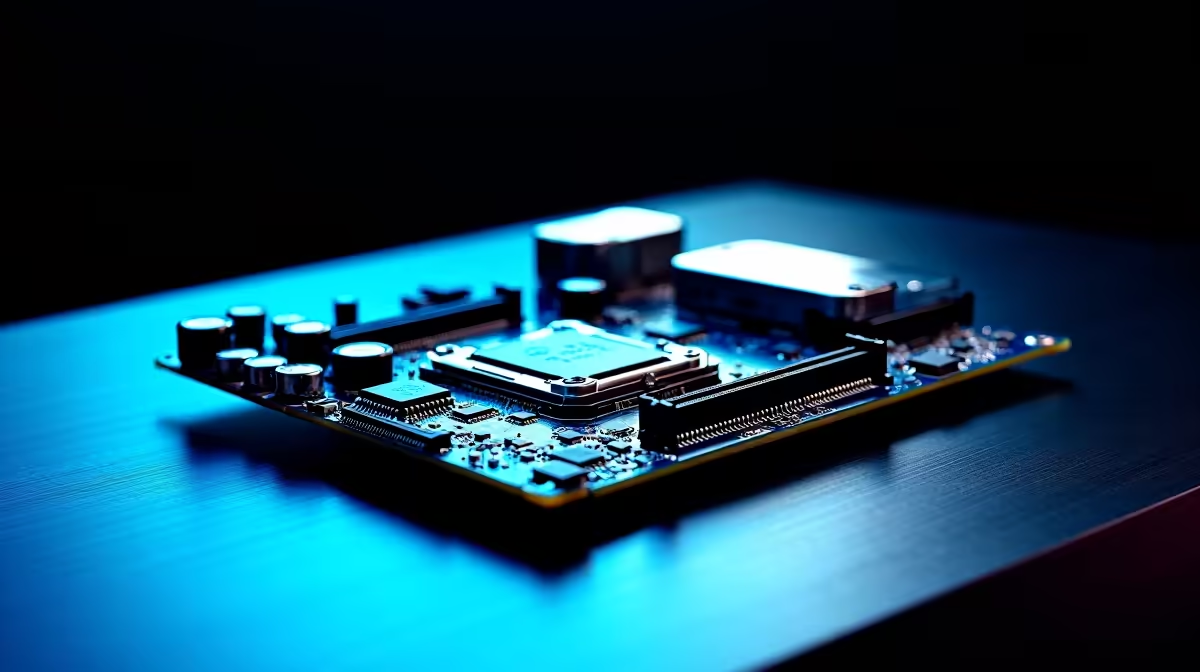
Before inserting your CPU, check whether your X870 board needs a BIOS update for Ryzen 9000 series support. Most boards ship with compatible firmware, but it's worth verifying. If your board has a BIOS Flashback button (most X870 boards do), you can update without a CPU installed: download the latest BIOS from the manufacturer's website, rename the file as directed, place it on a FAT32-formatted USB drive, and hold the Flashback button for 5 seconds. The LED flashes during the update and goes solid when complete. Once updated, install your CPU by aligning the gold triangle on the chip with the triangle on the AM5 socket - LGA sockets require no force, just place and lock the lever.
Configuring RAM and XMP/EXPO
X870 boards officially support DDR5, and getting your RAM running at its rated speed requires enabling XMP or EXPO in BIOS. On first boot, RAM defaults to JEDEC speeds (often 4800 MHz) rather than the advertised 6000+ MHz. Enter BIOS, navigate to the OC or Tweaker section, and enable EXPO (AMD's profile standard) or XMP if your kit uses Intel profiles. Select the highest stable profile your kit supports. If your system fails to POST after enabling XMP, drop back to a lower profile or manually reduce the speed by one step. For most SA users running standard DDR5-6000 kits, EXPO Profile 1 is stable out of the box.
Enabling PCIe 5.0 and Storage Configuration
X870 supports PCIe 5.0 for the primary M.2 slot and GPU slot. In BIOS under the storage or advanced settings, confirm the primary M.2 slot is set to PCIe 5.0 x4 mode if you've installed a Gen 5 NVMe drive. For GPU bandwidth, the primary PCIe x16 slot runs at PCIe 5.0 x16 by default - no changes needed. Also check that Resizable BAR (Smart Access Memory) is enabled, as this provides a measurable performance boost in AMD GPU setups. Finally, set your fan curves under the hardware monitor section - X870 boards have sophisticated fan control that's worth taking a few minutes to configure so thermals stay managed during SA summer heat.
Frequently Asked Questions
Q: Does the AMD X870 support older Ryzen processors?
A: X870 officially supports Ryzen 7000 and 9000 series CPUs on the AM5 socket. It does not support AM4 chips. Check your specific board's QVL for confirmed CPU compatibility.
Q: What is the difference between X870 and X870E?
A: X870E (Extreme) boards require PCIe 5.0 for both the GPU slot and the primary M.2 slot, and must include USB 4. Standard X870 requires PCIe 5.0 for the primary M.2 but has more flexibility on the GPU slot.
Q: My system won't POST after enabling EXPO - what should I do?
A: Clear CMOS by using the dedicated button on the board or by removing the CMOS battery for 30 seconds. This resets BIOS to defaults. Then re-enter BIOS and try enabling EXPO Profile 2 instead of Profile 1, or manually set a lower memory frequency.