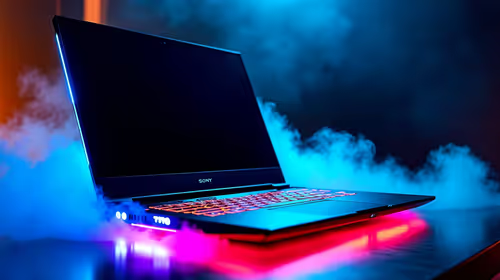
You’ve done it. You’ve unboxed your brand-new gaming laptop, peeled off the plastic, and felt the thrill of that first boot. The star of the show? That brilliant, glowing keyboard. But now what? Getting your Arc A770M RGB keyboard lighting to match your vibe is the final step in making your new rig truly yours. Let’s dive in and get those keys pulsing with personality, turning your setup into a proper battle station. 🚀
Understanding Your Arc A770M's RGB Controls
First things first, it's important to know that Intel doesn't directly provide the software for your keyboard's RGB. The control for your Arc A770M RGB keyboard lighting actually comes from the laptop manufacturer's own utility suite. Whether you have a laptop from MSI, ASUS, Gigabyte, or another top brand, you'll be looking for their specific software.
Think of it like this: Intel provides the powerful engine (the A770M GPU), but the manufacturer builds the car around it, including the dashboard controls for the lights. These apps are usually pre-installed. Look for names like MSI Center, Armoury Crate, or Control Center in your Start Menu. If you're exploring options, you'll find that many of the current laptop specials for sale in South Africa come with these powerful customisation tools built-in.
A Step-by-Step Guide to Customising Your Keyboard Lighting
Ready to get hands-on? Customising your A770M's keyboard lighting is usually a straightforward process once you know where to look. Here’s a general guide that applies to most brands.
Step 1: Locate the Control Software
Check your Windows Start Menu or the system tray (the little icons by the clock) for your laptop brand's main utility app. It’s almost always there.
Step 2: Find the Lighting Section
Once the app is open, navigate to the device customisation or features section. You’re looking for a tab or menu item with names like "Mystic Light," "AURA Creator," "RGB Fusion," or simply "Keyboard Lighting."
Step 3: Choose Your Colours and Effects ✨
This is the fun part! You'll be presented with a range of preset effects:
- Static: A solid, single colour of your choice. Clean and simple.
- Breathing: The light gently fades in and out.
- Colour Cycle / Rainbow: Smoothly transitions through the entire RGB spectrum.
- Reactive: Keys light up when you press them.
Select an effect, then use the colour wheel or enter specific RGB values to dial in the exact shade you want. While many Intel laptops on special offer this robust customisation, it's a feature you'll find across many high-performance machines.
Game Sync Pro Tip
Some software allows you to sync your RGB lighting with specific games or even music! Check for a "Game Sync" or "Ambient Link" option. This makes explosions flash red or stealth sections dim your keys for ultimate immersion.
Pro Tips for Your Arc A770M Keyboard Setup 🔧
Want to take your Arc A770M RGB keyboard lighting to the next level? Many high-end models offer more advanced controls that separate the pros from the beginners.
Per-Key Customisation
If your laptop supports it, you can assign a different colour and effect to every single key. This is perfect for creating custom layouts for games like Apex Legends or Valorant, where you can make your ability keys, WASD, and item keys stand out visually. It's a level of detail that defines many of the best gaming laptop deals on the market.
Creating Lighting Zones
Don't want to program every key individually? Create zones instead. You could make your entire number pad one colour, the function keys another, and the main typing keys a third. This is a great way to organise your keyboard visually for both productivity and gaming. This kind of flexibility isn't exclusive to one platform; you'll find similar powerful tools on many of the top-tier AMD laptops on special as well.
Saving Your Profiles
Finally, don't forget to save your creations as profiles. You can have a profile for work (maybe a simple white backlight), one for Warzone (highlighting keybinds), and another for when you just want a full-on rainbow light show. Switching between them takes just a click.
Ready to Light Up Your Gameplay?
Your keyboard is more than just keys; it’s the command centre of your gaming world. Find the perfect machine with fully customisable RGB and the power to match for performance that leaves lag in the dust.