A capture card sits between a gaming source and a recording computer, moving video with as little disruption as possible. AVerMedia's Live Gamer name covers several internal and external devices, so buying by brand alone is risky. For AVerMedia capture cards in South Africa, signal format, passthrough and software support need to match your exact console or PC setup.
Quick Answer
AVerMedia capture-card listings and Rand prices can change across specialist South African stock and cross-border routes, so no permanent channel should be assumed. An overseas card may add freight, customs duty and a remote return. Evetech's live streaming essentials range shows locally listed creator equipment to compare.
🎥 Choose internal or external capture
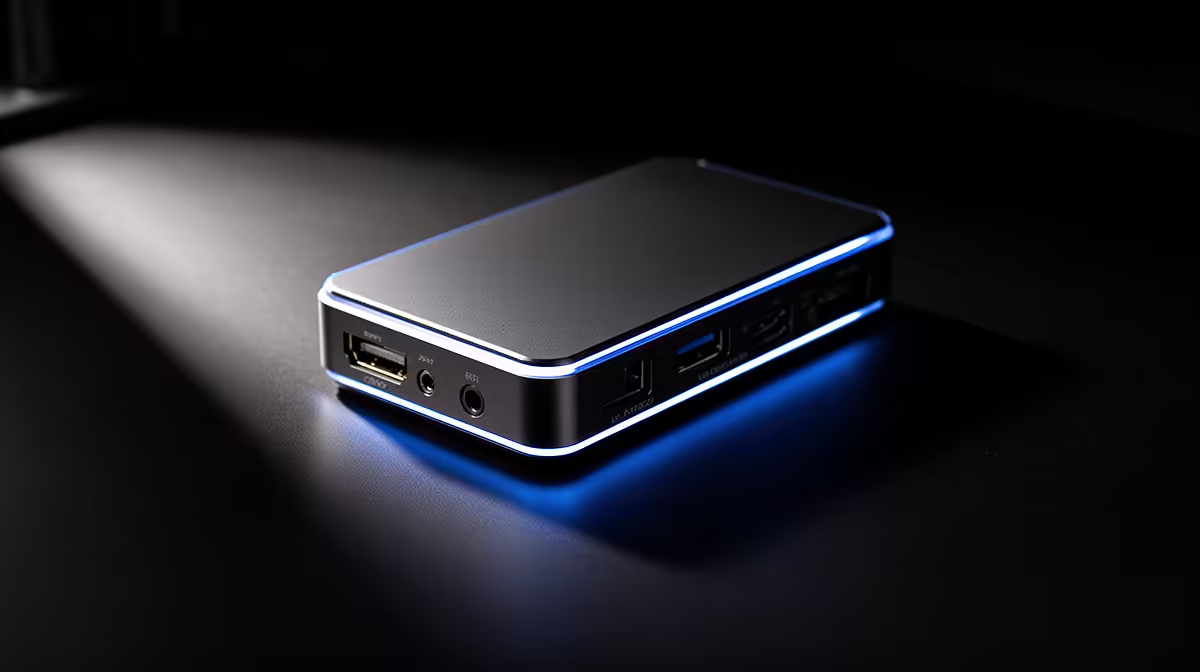
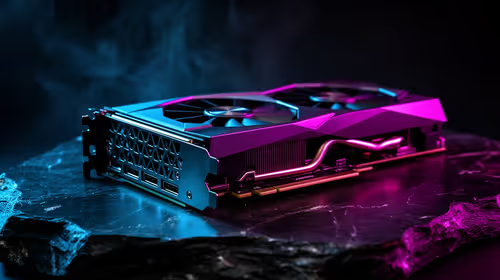
Internal capture cards install in a desktop PCIe slot. They can offer high bandwidth and a clean permanent setup.
Check available PCIe slots, lane sharing and physical clearance beneath the graphics card. A slot can exist while being blocked or disabled by another device.
External cards connect by USB and suit laptops or systems that move. The USB port must meet the card's speed requirement.
A USB-C connector does not guarantee the needed data rate. Confirm the host controller and avoid weak hubs.
Identify the exact Live Gamer model. Product names can cover different maximum capture, passthrough, HDR and variable-refresh modes.
Check whether the device captures one resolution while passing through another. A 4K display path does not promise 4K recording at the same frame rate.
Decide whether portability or a fixed high-bandwidth installation matters more. That narrows the model list fast.
🎮 Map the complete HDMI signal path
The usual chain runs from console or gaming PC to capture input, then from passthrough output to the gaming display. USB or PCIe sends the captured feed to the recording computer.
Check HDMI version and supported combinations for resolution, refresh, HDR and variable refresh. All devices and cables in the chain must agree.
HDCP-protected sources may not capture. Follow platform rules and do not expect a capture card to bypass protected content.
Use cables rated for the chosen mode. Swap one cable at a time when the signal drops.
Audio can travel over HDMI or through separate analogue and microphone paths. Plan chat capture and headset monitoring before buying adapters.
For a dual-PC setup, decide whether the gaming computer duplicates or extends its display to the capture card. Mismatched refresh settings can create stutter.
Measure end-to-end delay. Play from the passthrough display rather than the preview when preview latency is noticeable.
📦 Compare ownership and compatibility
Use a dated quote naming the exact AVerMedia model, internal or external format, included cables, seller, currency and date.
For a border purchase, price the carrier, customs assessment and possible return journey. Ask who handles HDMI faults, USB disconnects, fan noise or a card that is not detected.
Confirm driver, firmware and operating-system support. Read release notes for the current hardware revision.
Check compatibility with OBS or other recording software you use. A supported source should expose stable resolution, frame rate and audio.
Review Evetech's webcam category when the stream also needs a face camera.
Compare local streaming gear on captured modes, passthrough needs, USB or PCIe fit and warranty. A lower-spec card that matches your console and display can be the safer choice.
Keep the cables, low-profile bracket where supplied, serial details and packaging. Missing small parts can prevent installation in another case.
Check the first-fault window by running a long capture before relying on the card for an event.
Include storage and encoder capability in the project. High-quality video needs disk space and computer resources after it leaves the card.
Check whether the capture device outputs uncompressed video, compressed video or both in the software you use. The host computer and USB link need to handle that data without dropping frames.
If you capture a handheld console or camera, confirm its output resolution and clean-feed behaviour. A capture card cannot remove on-screen icons the source always sends.
Plan colour range and format from source to recording. A full-versus-limited mismatch can wash out blacks or crush shadow detail even when the signal remains stable.
Ask whether the device can pass variable refresh or high refresh when capture runs at a lower rate. The exact combination matters more than separate maximum figures.
🧪 Test capture without going live
Install the current supported driver or utility before connecting the source where the manual requires.
Set the console or gaming PC to a conservative supported mode. Confirm stable passthrough first.
Add the capture source in recording software and choose matching resolution and frame rate.
Record ten minutes of motion, dark scenes and loud audio. Check dropped frames, colour, sync and crackle.
Enable HDR or high refresh only after the basic SDR path is stable. Change one capability at a time.
Test chat and microphone routing with another person. Avoid sending their voice somewhere they did not expect.
Run a one-hour recording and monitor device temperature, USB errors and storage use.
Play the file on another computer or phone. A preview can hide encoding or audio-channel problems.
Save the working console mode, cable layout, firmware and software settings. Label HDMI input and output leads.
Keep a fallback scene or direct gaming connection. A capture problem should not stop you from using the console.
Test the card after a cold boot and after sleep. USB devices can reconnect under a different name, breaking a saved scene.
Record microphone and game audio on separate tracks where your editor supports it. This gives you control over balance without destroying the live mix.
Watch the recording rather than only the live preview. Brief glitches can be hard to notice while playing.
Keep the capture utility closed if it competes with OBS for the device. One application should own the input at a time.
Frequently Asked Questions
Are AVerMedia capture cards available in South Africa?
Listings change. Check live specialist offers and Evetech's current streaming range rather than assuming a permanent channel.
Does Evetech stock AVerMedia capture cards?
Do not infer brand stock. The linked category shows the creator equipment Evetech lists now.
What can importing a card add?
The final cost follows the carrier quote, customs assessment, parcel cover and any later service journey.
What is a Live Gamer capture card used for?
It takes video and audio from a console or PC into recording or streaming software, often with display passthrough.
Can South Africans obtain warranty support?
The seller's written route applies. Confirm where HDMI, USB or PCIe faults are diagnosed.
Which local streaming gear should I compare?
Use Evetech's current range to match source format, display passthrough, computer connection, software and warranty.
Ready to capture console or PC gameplay cleanly?
Browse Evetech's current streaming essentials and webcams, then map the full video, audio and computer path before choosing hardware.