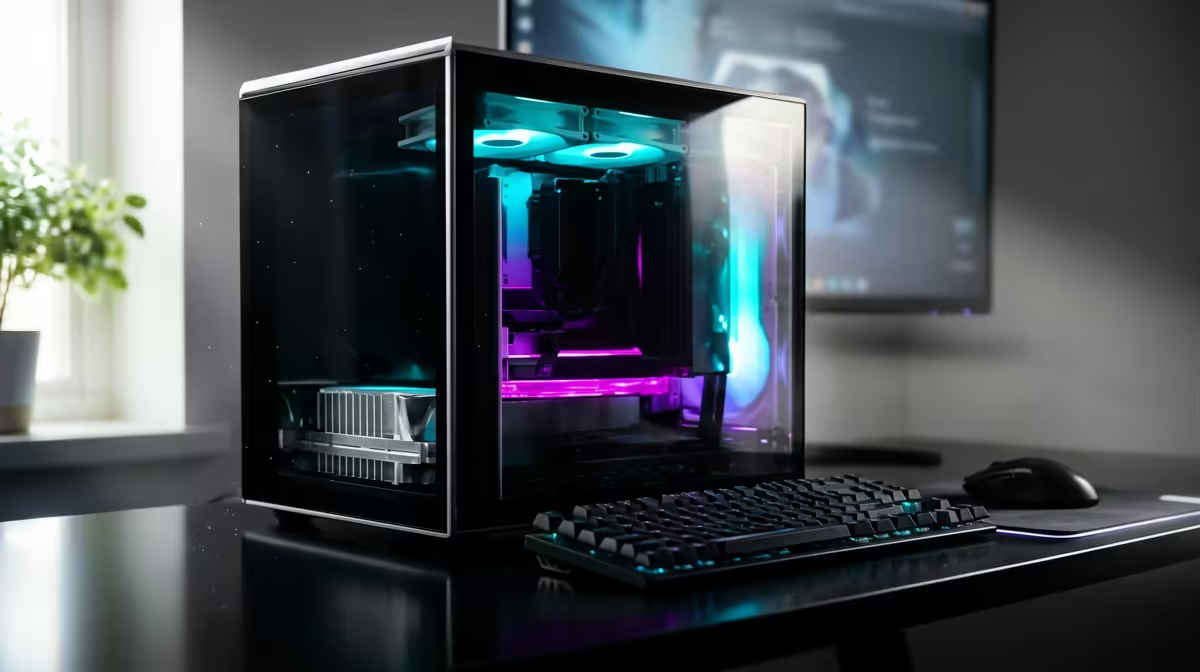
A design student does not need a render farm, but a laptop that wilts the moment Blender opens a real scene is a false economy that costs you in missed deadlines. The best creator PC for a student is a balanced tower built on a current Ryzen CPU and a mid-range RTX graphics card, the kind of machine that runs Blender, DaVinci Resolve, and CAD coursework without complaint while leaving clear room to grow as your projects get heavier. Buy it once, upgrade it twice, and it carries you from first year to final portfolio.
Quick Answer
The ideal student creator build pairs a current Ryzen CPU with a mid-range RTX GPU, 32GB of RAM, and a fast NVMe SSD. That combination handles Blender, DaVinci Resolve, and CAD coursework smoothly, starts above R8,000 for an entry configuration, and leaves the RAM and GPU upgradeable so the machine scales with your course rather than holding you back.
Why A Tower Beats A Laptop For Creators
Creative software punishes weak hardware in visible ways: laggy viewport navigation, slow renders, and exports that eat an evening. A desktop tower gives a student more performance per Rand than a laptop because it is not paying the mobility tax of compact cooling and battery design. The same money buys a faster GPU, more RAM, and a CPU that sustains full speed under long renders instead of throttling. For studio-bound coursework, where the machine sits on a desk in your residence or at home, the tower is the rational choice.
The other advantage is repairability and upgrades. When your course moves from simple models to complex scenes, you swap one part rather than the whole machine. That upgrade path is the heart of why a tower is the smarter long-term spend for a multi-year degree.
The CPU And GPU Balance
The two parts that define a creator build are the CPU and the GPU, and they do different jobs. The CPU handles simulation, timeline scrubbing, code, and the general responsiveness of the software. A current mid-range Ryzen chip with a healthy core count gives you smooth multitasking and quick CPU-bound renders without reaching for the most expensive option.
Why The GPU Carries The Load
The GPU is what makes creative work feel fast. In Blender, an RTX card accelerates rendering through its dedicated ray-tracing and CUDA cores, turning a long CPU render into a far shorter one. In DaVinci Resolve, the GPU drives real-time playback of effects and colour grading. For CAD, it pushes a smooth viewport even with dense models on screen. A mid-range RTX card hits the sweet spot for students, and for those pushing into heavier 3D and CAD, the workstation graphics card range at Evetech shows where the step up to professional cards begins to make sense.
RAM And Storage You Will Not Outgrow Quickly
Set 32GB of RAM as the baseline. Blender scenes, large Resolve projects, and CAD assemblies all hold a lot in memory, and 16GB will have you watching the machine swap to disk. Leaving two of four RAM slots free means a cheap jump to 64GB later. For storage, a fast NVMe SSD as the boot and project drive makes everything from app launches to file loads feel instant, and project files for video grow fast, so plan for capacity.
Building For The Upgrade Path
The smart student build is deliberately not maxed out on day one. You buy a strong, balanced base and leave the obvious upgrade routes open: spare RAM slots, a power supply with headroom for a bigger GPU later, and a case with room to grow. As your course demands more, you add a second drive, double the RAM, or drop in a faster graphics card without rebuilding from scratch. That staged approach spreads the cost across your studies and keeps the machine current. To see how complete, ready-balanced systems are priced and configured, the PC best sellers are a useful benchmark for what a sensible creator build costs locally.
Software-Specific Hardware Notes
The exact software you run changes where the hardware pressure falls.
Blender
Blender's Cycles renderer uses CUDA or OptiX on NVIDIA cards. OptiX is the faster modern path on supported RTX hardware, and VRAM is the real ceiling: a scene that exceeds your card's VRAM fails rather than slows. A mid-range RTX card with at least 8GB of VRAM handles typical student scenes and coursework comfortably. The Ryzen CPU handles Cycles CPU rendering and viewport interaction, where single-thread speed keeps the interface snappy during sculpting and modelling.
DaVinci Resolve
Resolve leans heavily on the GPU for real-time playback and colour grading. It uses CUDA on NVIDIA cards and scales well with VRAM and shader count. Even a mid-range RTX card accelerates playback of effects and colour nodes far beyond what CPU-only decoding can manage. For student work editing in 1080p and 4K, that mid-range card handles the workload cleanly.
AutoCAD and Fusion 360
CAD applications are more CPU-bound and less GPU-hungry than 3D rendering. AutoCAD and Fusion use the GPU primarily for viewport display, so a mid-range consumer card is perfectly adequate. The Ryzen CPU's per-core speed drives geometry manipulation and drawing regeneration, which is where the real responsiveness comes from.
Who This Build Suits
This configuration fits design, architecture, animation, film, and engineering students whose software list includes Blender, Resolve, AutoCAD, Fusion, or similar. It is enough power to do real coursework without frustration, but priced so it does not demand a top-tier budget. A student doing only light photo editing or writing does not need this much machine, but anyone whose course touches 3D, video, or CAD will feel the difference every single day.
Frequently Asked Questions
How much should a student creator PC cost?
An entry creator build starts above R8,000, with a balanced Ryzen and mid-range RTX configuration sitting higher depending on the GPU and RAM you choose. The goal is a balanced base you can upgrade, rather than spending everything on one part.
Is a mid-range RTX card enough for Blender?
Yes, for student-level work it is plenty. A mid-range RTX card accelerates Blender renders through its ray-tracing and CUDA cores, giving far faster results than CPU rendering alone, and it handles typical coursework scenes comfortably.
Do I need 32GB of RAM or is 16GB fine?
Aim for 32GB. Blender, DaVinci Resolve, and CAD assemblies all use a lot of memory, and 16GB forces the system to swap to disk on bigger projects. Leaving spare slots lets you reach 64GB cheaply when your work grows.
Can I upgrade this build later?
That is the point of it. Choose a case with room, a power supply with headroom, and a motherboard with free RAM slots, and you can add storage, RAM, or a stronger GPU over time without replacing the whole machine.
Should I get a workstation graphics card instead?
For most students, a consumer RTX card is the better value. Workstation cards matter mainly for very heavy CAD, large datasets, or certified professional software. If your course pushes into that territory, the step up becomes worth considering.
Building a creator PC that grows with your degree? Explore the workstation graphics card range and complete builds at Evetech, start with a balanced Ryzen and RTX base above R8,000, and leave the RAM and GPU room you will be glad of by final year.