Drone footage looks effortless in the air and brutal on the timeline. Those crisp 4K/60 clips arrive in heavily compressed 10-bit formats that choke a weak machine the moment you scrub through them. The best PC for editing drone footage in 4K is built to decompress that footage in hardware, so playback stays smooth and your edit does not stutter every time you hit play.
Quick Answer
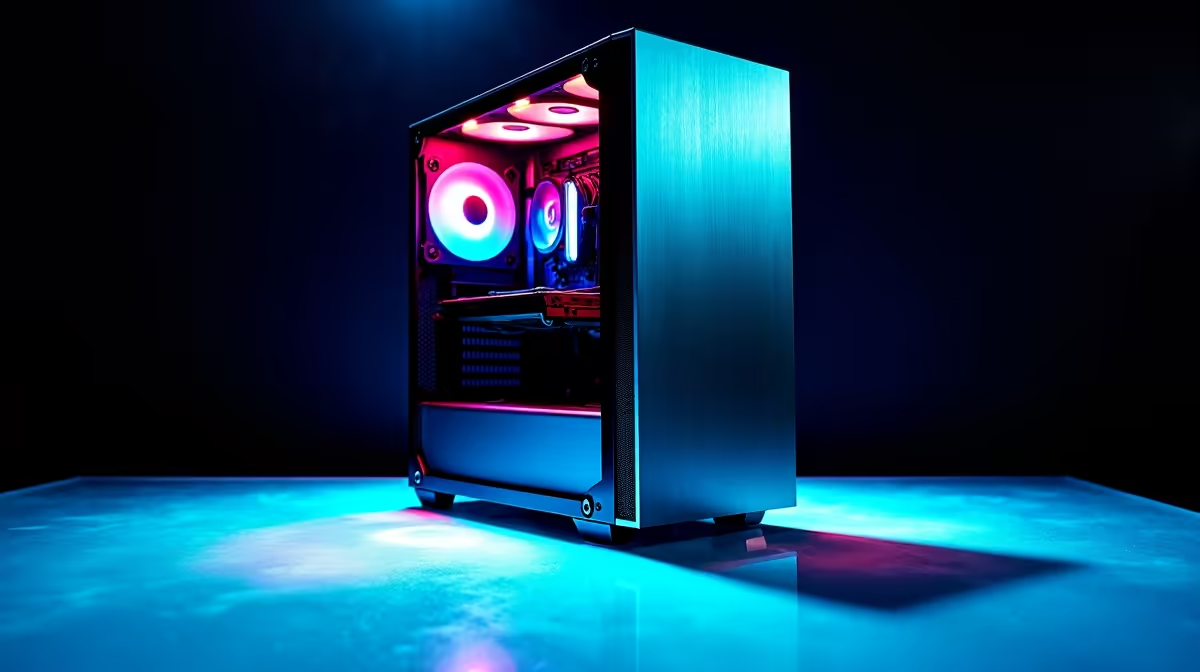
A capable 4K drone-editing PC pairs a GPU with hardware H.265 decoding, a multi-core CPU, and fast NVMe storage. That combination lets you scrub 4K/60 10-bit timelines without stutter. For SA creators, an Evetech editing build offers a local upgrade path matched to modern drone footage rather than fighting it on an underpowered laptop.
Why Drone Footage Is So Demanding
Drones record in highly efficient codecs like H.265 (HEVC) to keep file sizes manageable, often in 10-bit colour at 4K and 60 frames per second. Efficient to store, brutal to play back. Decoding that footage in real time takes serious processing, and if your hardware cannot do it, you get choppy previews, laggy scrubbing, and slow exports.
The fix is hardware decoding. A modern GPU includes a dedicated block that decodes H.265 in silicon, freeing the rest of the system. With it, 4K/60 timelines play smoothly. Without it, the CPU struggles to keep up and the whole edit drags.
The GPU: Your Most Important Editing Part
For drone work, the graphics card does more than render effects. It handles hardware decoding of your source footage and accelerates playback, colour grading, and export in editors like Premiere Pro, DaVinci Resolve, and Final Cut.
What to prioritise in a GPU
- Hardware H.265 (HEVC) decode and encode support, which nearly all current GPUs include.
- Enough video memory (VRAM) to hold 4K frames and effects comfortably; more VRAM helps with higher resolutions and heavy grades.
- Strong acceleration for your specific editor, since some lean harder on the GPU than others.
A capable modern GPU transforms the drone-editing experience more than any other single upgrade. It is where playback smoothness comes from.
CPU and RAM: Keeping the Timeline Responsive
While the GPU does the heavy lifting on footage, the CPU handles the timeline, effects that are not GPU-accelerated, and general responsiveness. A multi-core CPU keeps a complex edit with multiple tracks and adjustment layers fluid.
RAM matters for working with large projects and high-resolution media. 16GB is a workable minimum, but 32GB is the comfortable target for 4K editing, giving the software room to cache and preview without constant stalls. If you stack many effects or run other apps alongside your editor, more RAM keeps everything moving.
Storage: Fast Drives Stop the Stutter
4K footage is large and reads constantly during editing, so storage speed directly affects playback. A fast NVMe SSD reads media quickly enough to keep frames flowing; a slow drive bottlenecks even a strong GPU.
A practical setup uses an NVMe drive for your operating system and editing software, a second fast NVMe or SSD as a working drive for active projects, and larger capacity storage for archiving finished work. Editing directly off a slow external drive is a common cause of stutter that has nothing to do with the GPU.
Proxies and Optimised Media: The Software Side
Hardware is half the answer; how you edit is the other half. When footage is too heavy to play smoothly even on a good machine, editors let you generate proxies: lighter, lower-resolution stand-in clips you cut with, while the software relinks to the full-quality originals at export. Proxies make even very demanding 4K and higher footage scrub effortlessly, regardless of how punishing the source codec is.
Optimised or transcoded media works similarly, converting awkward source files into an editing-friendly format up front. The trade-off is disk space and a one-time conversion wait, but the payback is a buttery timeline. A strong PC reduces how often you need these tricks; a smart workflow makes a mid-range PC punch above its weight. The best results come from pairing capable hardware with sensible media management rather than relying on either alone.
Colour Grading and 10-Bit Footage
Drone footage often arrives in 10-bit colour, which holds far more tonal information than standard 8-bit, especially in skies and gradients. That extra data is what lets you push exposure and colour in the grade without banding appearing. It also asks more of your GPU during playback and grading, which is another reason hardware decode and ample VRAM matter.
If colour accuracy is important to your work, the display you grade on counts as much as the tower behind it. A colour-accurate IPS monitor shows you what you are actually doing, so a grade that looks right on your screen looks right everywhere. Budget for the screen as part of the editing setup, not an afterthought.
Building It for the Long Term
Drone resolutions and bitrates keep climbing, so build with a little headroom. A machine that handles today's 4K/60 comfortably will cope as your footage grows more demanding, and a GPU with current decode support protects you against newer codecs. Editing is also a workflow, not just a tower, so account for the peripherals around it: a colour-accurate monitor, fast card readers, and reliable external storage all shape the experience. A browse through the smart home and connected gear at Evetech can surface some of the connected extras and accessories that tidy up a creator's desk, and the accessory best sellers are a quick way to find the card readers and cables an editing setup leans on.
Frequently Asked Questions
What is the most important part for editing 4K drone footage?
The GPU. It handles hardware decoding of compressed H.265 footage and accelerates playback and grading. A modern graphics card with HEVC decode support is what keeps 4K/60 timelines smooth.
How much RAM do I need for 4K video editing?
16GB is a workable minimum, but 32GB is the comfortable target. More RAM lets the editor cache previews and handle large projects with multiple tracks and effects without stalling.
Why does my 4K drone footage stutter during playback?
Usually the system cannot decode the compressed footage in real time, or it is reading from slow storage. A GPU with hardware H.265 decoding and a fast NVMe working drive resolve most stutter.
Do I need NVMe storage, or is a regular SSD enough?
NVMe is strongly recommended for active 4K projects because its read speed keeps high-bitrate footage flowing smoothly. A regular SSD or hard drive is fine for archiving finished work but can bottleneck live editing.
Can a laptop edit 4K drone footage?
A capable laptop with a discrete GPU that supports hardware decoding can, but desktops generally offer more performance per Rand and easier upgrades. For heavy 4K work, a desktop build is the more comfortable choice.