Cutting the cable on PC-VR feels like magic until the picture stutters and breaks up mid-game, and the culprit is almost never the headset. Wireless PC-VR streams every rendered frame from your desktop GPU to the headset over your home network, which means your router and your wiring matter just as much as your graphics card. Get the network right and wireless VR is gloriously free; get it wrong and it is a juddering mess.
Quick Answer
For smooth wireless PC-VR, wire your gaming PC to the router with Ethernet and connect the headset over a dedicated 5GHz or Wi-Fi 6/6E channel. A Wi-Fi 6 router, a wired PC, and a bitrate tuned to your link strength are the three things that keep Air Link or Steam Link stutter-free.
How wireless PC-VR actually works
Your desktop GPU renders the game, encodes each frame into video, and streams it to the headset over Wi-Fi. The headset decodes it and displays it, all within milliseconds. This is fundamentally different from standalone VR, where the headset does its own rendering. Because you are streaming heavy video in real time, every weak link in the chain, slow router, congested channel, wireless PC, shows up as latency, blur, or dropped frames.
That streaming reality is why people who blame the headset usually have a network problem instead.
The router is half the battle
A modern router is not optional here. Wi-Fi 6 or Wi-Fi 6E gives you the bandwidth and, crucially, the channel headroom to carry a high-bitrate VR stream without competing with the rest of your household.
Why 5GHz or 6GHz, never 2.4GHz
The 2.4GHz band is slow and crowded with every neighbour's network and smart device. VR streaming needs the wide, fast 5GHz band at minimum, and the 6GHz band on Wi-Fi 6E is better still because almost nothing else is on it yet. Force your headset onto 5GHz or 6GHz and keep it off 2.4GHz entirely.
Dedicate the channel where you can
The ideal setup puts the VR headset on its own band or even its own router, so a family member streaming video does not stutter your game. A dedicated router connected purely for VR is the gold-standard fix in a busy home.
Wire the PC, not the headset
Here is the part people skip: your gaming PC should connect to the router by Ethernet cable, not Wi-Fi. The headset has to be wireless, but the PC does not, and a wired PC removes a huge source of latency and interference. The data path becomes PC to router over cable, then router to headset over the air, the shortest possible wireless hop. If your PC and router sit in different rooms, a long Ethernet run is worth the effort.
Tuning the stream
Once the network is sound, the streaming software, Air Link for Quest headsets or Steam Link, lets you set bitrate. Higher bitrate means a sharper image but demands more from your Wi-Fi. Start moderate, confirm the picture is stable, then raise it until you see artefacts and dial back one step. A rock-solid medium bitrate beats a stuttering high one every time.
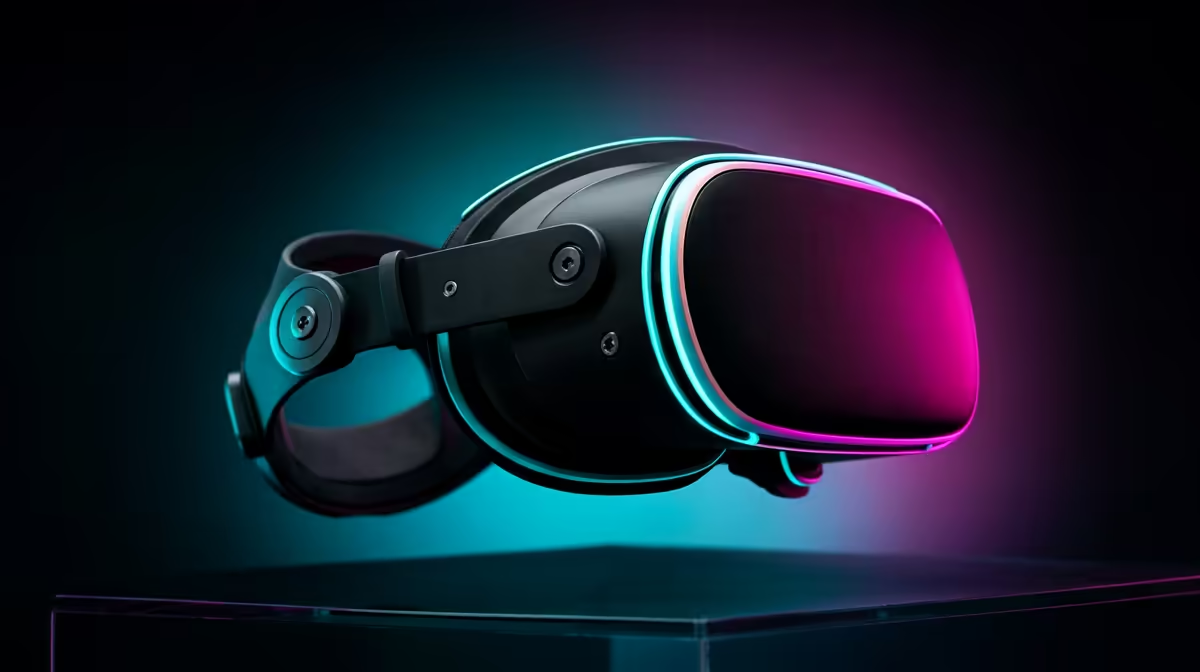
Your GPU still has to render at VR frame rates on top of all this, so the graphics card remains the foundation. The headset and lens hardware also play a role, and Evetech's AR and VR glasses category is a useful place to see what is available locally. To round out the setup with the cables, mounts, and networking extras a tidy VR rig needs, the best-selling accessories cover most of the small parts that make the difference.
Diagnosing a Broken Wireless VR Stream
When the stream stutters or shows artefacts, the fix is almost always in the network, not the headset or GPU. A fast way to narrow it down is to check which band the headset has connected to: if it has drifted onto 2.4GHz, move it back to 5GHz or 6GHz and the problem often clears immediately.
If the band is correct and stutter persists, look at channel congestion. In a dense building, the 5GHz channel your router is using may overlap with neighbours. Change to a less-used channel in the router settings. Wi-Fi analyser apps on a phone can show which channels are busy in your space and take about two minutes to run.
A wired PC that is still showing jitter is usually a switch or cable issue between the PC and router rather than a Wi-Fi problem. Swap the cable or port and retest before assuming the router needs replacing.
Finally, if you are using Virtual Desktop instead of Air Link, the bitrate settings are separate from Air Link's and you need to tune them independently. Start at the H.265 HEVC codec where supported, since it carries more visual quality per megabit than H.264, which matters when your wireless link is not running at maximum throughput.
Who this setup is for
Wireless PC-VR suits anyone who already owns a capable gaming PC and wants room-scale freedom without a tether. It rewards a household with decent networking and punishes a crowded, slow one. If your PC is strong but your router is years old, upgrade the router first, it is the cheaper and more impactful fix.
Frequently Asked Questions
What router do I need for wireless PC-VR?
A Wi-Fi 6 or Wi-Fi 6E router. Wi-Fi 6 gives you the bandwidth and channel headroom for high-bitrate VR streaming, and 6E adds the clean 6GHz band that almost nothing else uses, which keeps the stream stable in a busy home.
Should my PC connect by Wi-Fi or Ethernet?
Ethernet. The headset must be wireless, but wiring the PC to the router removes a major source of latency and interference. The ideal path is PC to router by cable, then router to headset over the air.
Why does my wireless VR stutter even on a strong PC?
Almost always the network. A 2.4GHz connection, a congested channel, a Wi-Fi-connected PC, or too high a bitrate will all cause stutter regardless of GPU power. Fix the network before blaming the headset or graphics card.
How do I set the right bitrate?
Start at a moderate bitrate, confirm the image is stable, then raise it until you notice blur or artefacts and step back down one level. A stable medium bitrate always beats a high one that drops frames.
Can I use the same router for VR and the rest of the house?
You can, but a dedicated band or a second router just for the headset prevents other devices from interrupting your stream. In a busy household, dedicating capacity to VR is the single biggest stability upgrade.