Running Windows and Linux on one gaming rig sounds tidy until a Windows update silently overwrites your boot menu and your Linux install vanishes from the list. The cleanest way to dual-boot Windows and Linux for gaming sidesteps that entirely: give each operating system its own SSD. With separate drives, Windows cannot trample the Linux bootloader, because it never touches that drive.
Quick Answer
The most reliable dual-boot gaming setup uses one dedicated SSD per operating system. This stops the classic conflict where a Windows update overwrites GRUB and breaks Linux booting. A 1TB NVMe drive per OS is affordable in SA now, keeps both installs fully independent, and gives each its own fast storage.
Why one SSD per OS beats partitioning a single drive
Squeezing both systems onto one drive with partitions works until it does not. The trouble is the shared bootloader region. When Windows updates, it often rewrites the boot files in that shared space, knocking out GRUB and leaving you staring at a Windows-only boot. Recovering it means booting a live USB and repairing the bootloader, a chore nobody wants on a gaming night. Two physical drives remove the shared region from the picture. Each SSD holds its own OS and its own boot files, so an update on one cannot reach the other. You simply pick the drive to boot from in your motherboard's boot menu. The drives and components for a build like this sit across our PC components and storage range.
Picking the drives: capacity and speed
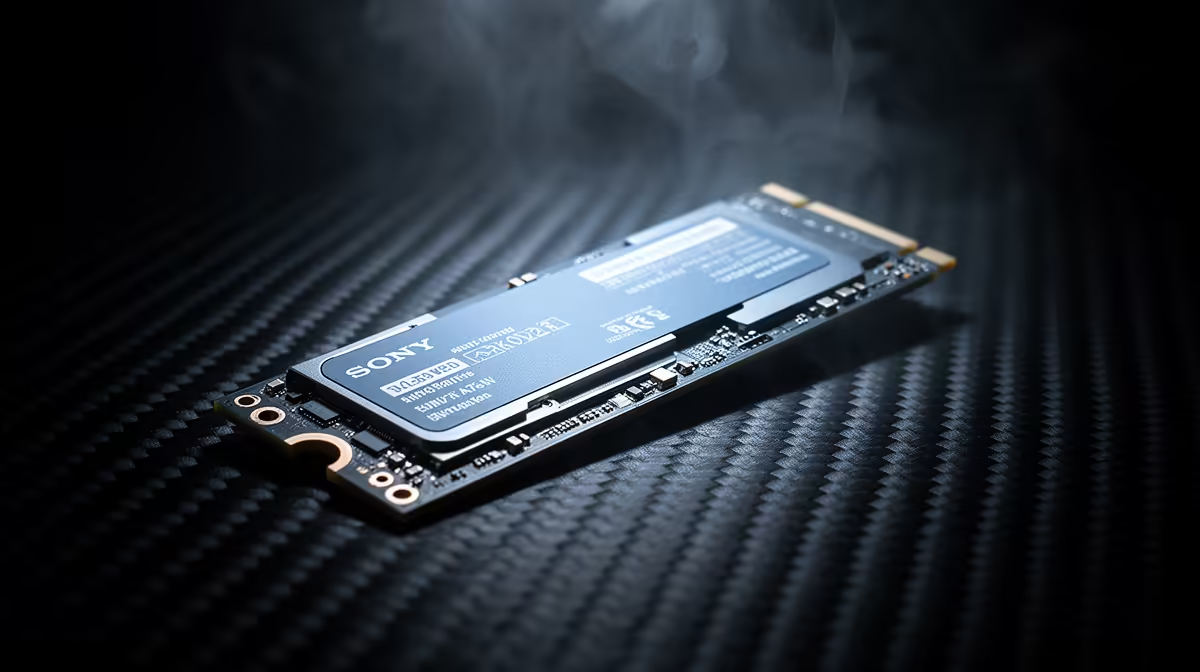
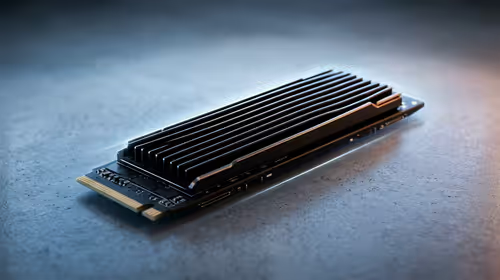
A 1TB NVMe per OS is the sweet spot for most gaming dual-boots. Windows plus a few large modern titles fills space fast, and Linux gaming through compatibility layers also keeps full game copies. Two 1TB drives give each side room without constant uninstalling. If your library is huge, size one or both up to 2TB. For raw speed, a PCIe 4.0 NVMe drive loads games and shaders quickly on both systems, and the gap to a slower SATA SSD is noticeable on large open-world titles. Match the drive interface to what your motherboard's M.2 slots support so you get the speed you pay for.
Setting up cleanly
The install order is important. Connect only the Windows drive when installing Windows, so that OS lays its boot files entirely on its own SSD with no awareness of the second drive. Once Windows is installed, shut down, connect the Linux drive, then boot the installer and point it at that second drive. From this point each drive carries its own complete, self-contained boot environment. You switch between them using the motherboard's one-time boot menu, typically accessed at startup with F12, F11, or Esc, or set a permanent default in the BIOS. Because each OS is on its own physical drive, a Windows update touching one drive cannot reach the other.
Sharing a games library across both
A neat trick for dual-booters: a third drive formatted in a filesystem both systems read can hold game files accessible from either OS, cutting duplicate downloads. It takes a little setup but saves a lot of storage on a large library. NTFS is readable on both Windows and Linux, though Linux needs write access configured, while exFAT avoids some of those quirks but is simpler for storage rather than an active game library. If you would rather keep it simple, separate libraries on each OS drive is perfectly fine and avoids any filesystem fuss. When you are speccing the full machine, the best-selling PC builds and parts are a useful reference for matching drives to a capable gaming platform.
PCIe 4.0 versus PCIe 5.0: does it matter here?
PCIe 5.0 NVMe drives offer significantly faster sequential speeds than PCIe 4.0, but real-world game loading differences are modest because most games are not purely sequential reads. For a dual-boot gaming build, PCIe 4.0 NVMe is a practical sweet spot: substantially faster than SATA, widely available in South Africa, and more affordable than cutting-edge 5.0 drives. If your AM5 motherboard supports PCIe 5.0 M.2 slots and the price is within reach, the upgrade is a nice future-proof, but it is not the deciding factor in gaming experience.
Is dual-booting still worth it for gaming?
Linux gaming has come a long way through compatibility layers, and many titles run beautifully. Some competitive games with strict anti-cheat still favour Windows, which is exactly why dual-booting appeals: keep Windows for the holdouts, run Linux for everything else. The separate-SSD approach makes living in both worlds stable enough that you stop thinking about it, which is the whole point.
Frequently Asked Questions
Why does Windows break the Linux bootloader?
Windows updates frequently rewrite the boot files in the shared boot region of a disk. If Linux's GRUB lives in that same region, the update overwrites it. Giving each OS its own drive removes the shared region entirely.
Can I dual-boot with just partitions on one SSD?
You can, and it works, but you risk the bootloader conflict and recovery hassle. Two drives is the more robust route, and with NVMe prices where they are, the extra drive is a modest cost for the reliability.
What size SSD do I need per OS?
1TB per drive suits most gamers, covering the OS and a handful of large titles. Scale to 2TB if your library is big or you keep many games installed at once.
How do I switch between Windows and Linux?
Use your motherboard's boot menu at startup to select which drive boots, or set a default boot drive in firmware. Because each OS is on its own drive, there is no shared menu to corrupt.
Is PCIe 4.0 or 5.0 NVMe better for a dual-boot gaming rig?
PCIe 4.0 NVMe is the practical choice for most gaming builds. It loads games significantly faster than SATA, is well-priced in South Africa, and the real-world gaming gap versus PCIe 5.0 drives is small. PCIe 5.0 is a welcome upgrade if your board supports it and budget allows, but not essential.
Will Linux run my games well?
Many titles run excellently through modern compatibility layers, though some anti-cheat games still need Windows. A dual-boot keeps both options open so you are never locked out of a game you want to play.