Free Windows 10 updates stopped on 14 October 2025, which leaves a home user on an ageing PC with a real decision rather than a vague worry. Running an unpatched machine online gets riskier every month, so the honest question is whether to upgrade an old Windows 10 PC, buy yourself a year of breathing room, or replace it. The right answer depends almost entirely on whether your current hardware can run Windows 11.
Quick Answer
You have three routes: upgrade to Windows 11 if your PC meets the requirements, enrol in free Extended Security Updates to stay patched until 13 October 2026, or replace the machine. For many SA households a fresh entry-level desktop or mini PC, starting in the low thousands of Rand, costs less over a year than the risk of running an unsupported PC online.
Route one: upgrade to Windows 11 for free
If your PC meets the Windows 11 requirements, the upgrade is free and the cleanest fix. The usual sticking point is TPM 2.0 and a supported processor, which rules out a lot of machines made before roughly 2018. Check Windows Update or the PC Health Check tool to see whether your machine qualifies.
When it does qualify, this is the option to take. You get current security patches, ongoing feature updates, and no looming deadline. A machine running a reasonably modern processor, carrying 8GB of RAM or more, and equipped with an SSD will handle Windows 11 comfortably.
Route two: enrol in free ESU until October 2026
If your PC cannot run Windows 11, Microsoft's Extended Security Updates programme keeps you patched through 13 October 2026. For consumers there are three ways in, and one of them costs nothing: turn on Windows Backup to keep your settings backed up to a Microsoft account, and you are enrolled at no charge. The alternatives are redeeming 1,000 Microsoft Rewards points or paying a one-time fee equivalent to about thirty US dollars in local currency.
Treat ESU as a bridge, not a destination. It buys you critical and important security updates for one more year so you can plan a proper move, but the patches stop after October 2026 and the machine does not get features or full support in the meantime.
When ESU is the smart play
ESU makes sense if the PC still does its job, the budget is tight this quarter, or you simply want time to research a replacement properly rather than rushing. Enrol now so you are covered, then use the year to decide.
Route three: replace the machine
Sometimes the old PC is just past it: slow, on a mechanical hard drive, low on RAM, and ineligible for Windows 11. At that point pouring money into upgrades rarely pays off, and a new machine running Windows 11 out of the box is the better value.
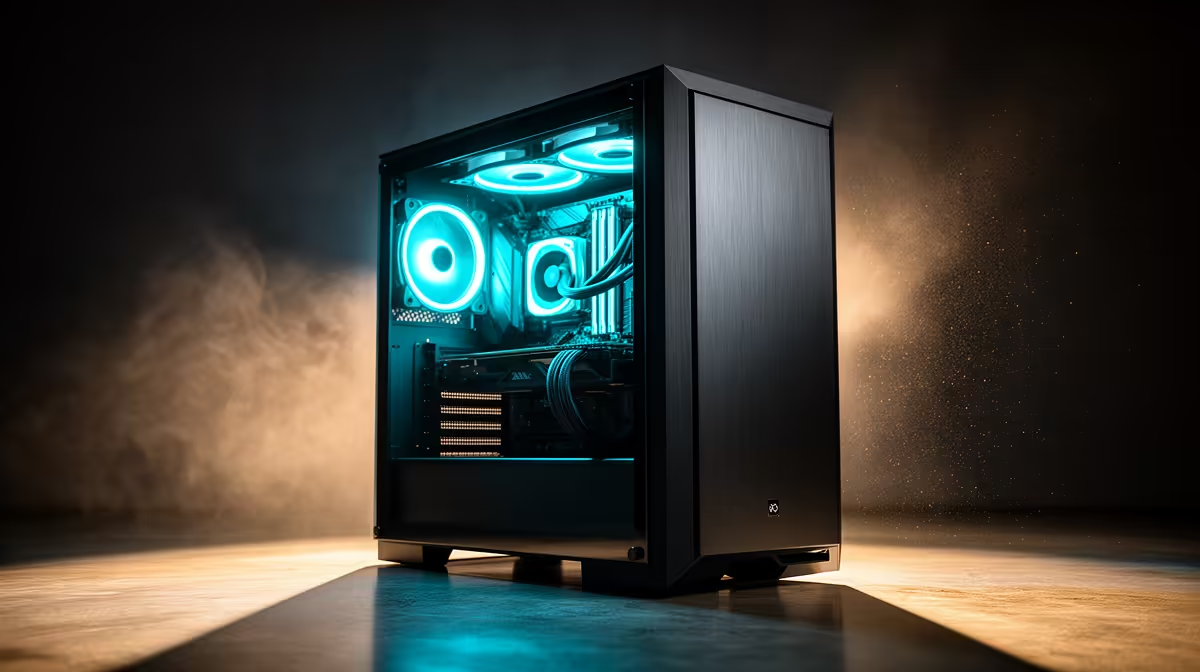
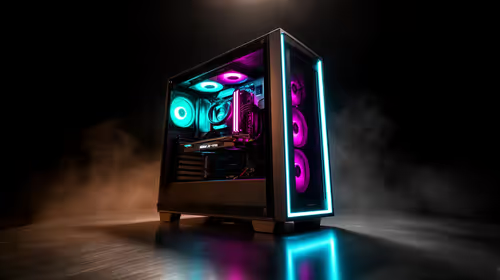
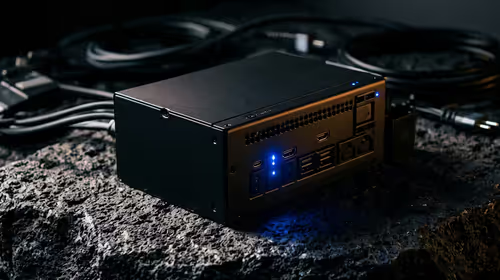
For a typical home user who browses, streams, does admin and light productivity, you do not need anything elaborate. A modern entry-level desktop, or a compact mini PC if desk space and tidiness matter, handles all of that easily and ships with years of support ahead of it. Mini PCs in particular suit SA homes where the machine lives on a desk or behind a monitor and quiet, low-power running is welcome.
If a small, tidy machine appeals, the mini PC range at Evetech lists compact builds that run Windows 11 happily for everyday home use. For a broader view of complete desktops at different budgets, the best-selling PCs are a quick way to gauge what good value looks like right now.
How to choose between the three
Start with one check: does your PC qualify for Windows 11? If yes, upgrade and you are done. If no, decide between ESU and replacement based on the hardware. A PC that is merely a few years old and still feels responsive is worth keeping on ESU for a year. A genuinely tired machine on a slow drive is better replaced now, because the running cost of an unsupported, sluggish PC quietly adds up.
Before you upgrade: what to check and back up
Whether you are upgrading in place or moving to new hardware, a few checks before you start save frustration later.
Confirm your Windows 10 version
The free ESU programme and the Windows 11 upgrade path both require you to be on Windows 10 version 22H2. Open Settings, go to System and then About, and confirm the version shown. If you are on an older release, run Windows Update to reach 22H2 first before doing anything else.
Back up what matters
An in-place upgrade to Windows 11 preserves your files and apps, but hardware failures and interrupted installs happen. Use an external drive or OneDrive to back up documents, photos and anything irreplaceable before you begin. This step costs nothing and removes the risk of losing work if something goes wrong mid-process.
Check your software will follow you
Almost all mainstream home software, office suites, browsers and productivity apps runs on Windows 11. If you rely on any older specialist program, check the vendor's compatibility notes or run a quick search before upgrading. Obscure older software and some very old peripherals are the most likely to need attention.
What the move actually costs
Upgrading a qualifying PC in place is free. ESU enrolment via the sync route is free. The real cost only arrives when the hardware cannot run Windows 11 and you need new gear. Entry-level Windows 11 desktops start in the low thousands of Rand; compact mini PCs sit at a similar entry point and include Windows 11 out of the box. When you total the time, patches and gradual risk of keeping an unsupported machine running for another year, the case for spending on a supported replacement often comes out ahead.
Frequently Asked Questions
Is Windows 10 dangerous to use now?
It still works, but it no longer receives security updates as standard, so new vulnerabilities go unpatched. Enrol in ESU to stay protected through October 2026, or move to a supported version, especially for online banking and email.
How do I get the free Windows 10 ESU?
Turn on Windows Backup to keep your settings synced with a Microsoft account and you are enrolled at no cost. You can alternatively redeem 1,000 Microsoft Rewards points or pay a one-time fee of around thirty US dollars in local currency.
Why will my old PC not upgrade to Windows 11?
The common blockers are a missing TPM 2.0 chip and an unsupported processor, which affects many machines from before roughly 2018. Use Windows Update or PC Health Check to confirm exactly which requirement your PC fails.
Is a mini PC powerful enough for home use?
For browsing, streaming, email and office work, yes comfortably. A modern mini PC running an SSD handles Windows 11 smoothly and takes up almost no space, which suits a tidy home desk.
Should I upgrade the old PC or just buy new?
Upgrade if it qualifies for Windows 11 and still feels quick. Replace it if it is ineligible, slow, and running a mechanical hard drive, since the cost and effort of patching it up rarely beats a new supported machine.
Old PC out of free updates? If yours cannot run Windows 11, browse the mini PC range at Evetech for a compact, supported replacement, or compare full systems in the best-selling PCs to find the right fit for your home.