


Using GitHub Copilot: Complete Beginner's Guide for SA Developers
Using GitHub Copilot: Complete Beginner's Guide for SA Developers. Everything you need to know with SA-specific pricing and recommendations.
Read moreChecklist: 1) Prepare hardware & tools; 2) Set color, HDR & gamma targets; 3) Validate for gaming and color work. Calibrate 4K HDR OLED monitor with pro steps, tool picks, and profiles 🎯🖥️
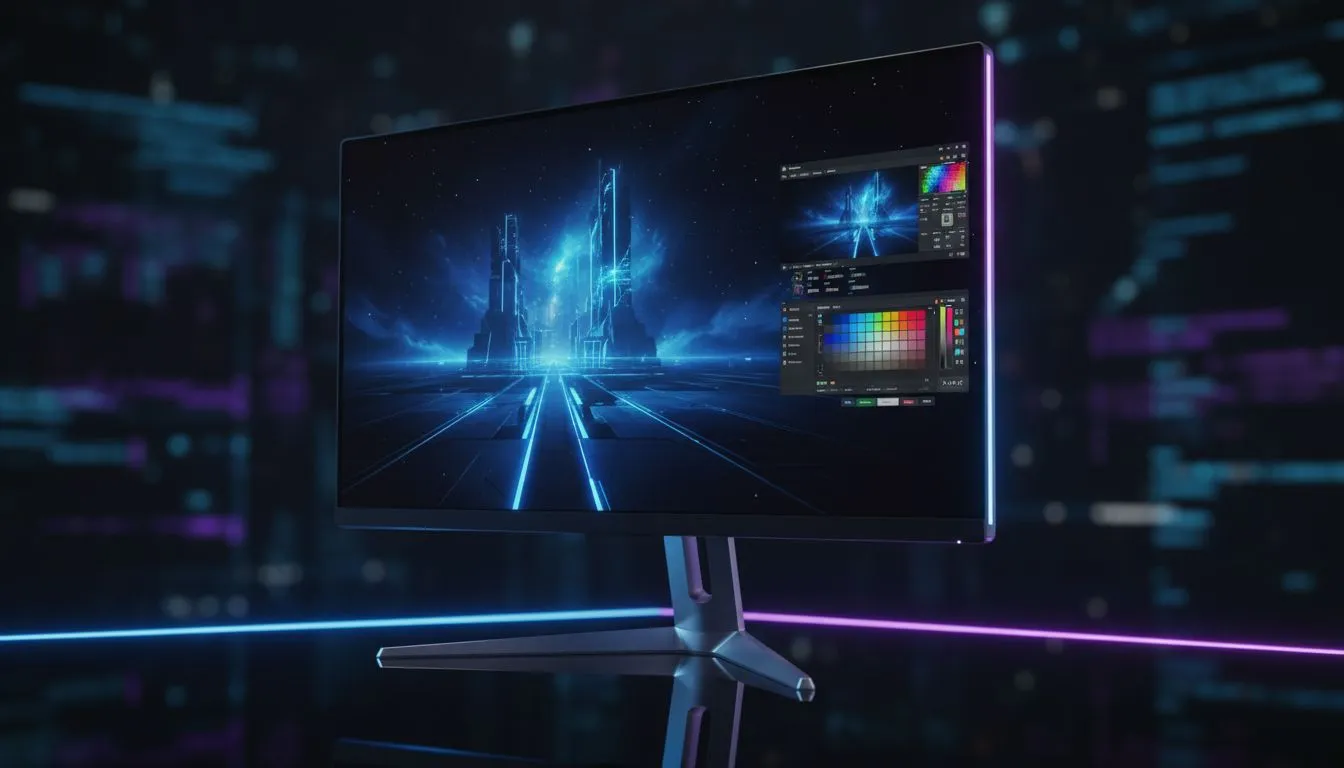
If you play competitively or edit for clients, your 4K HDR OLED's default settings can lie to you. Calibrate 4K HDR OLED monitor settings once and you’ll see truer colours, better shadow detail and consistent results across devices — essential when deadlines and ranked matches are on the line. For deals and comparisons, start with Evetech’s best PC monitor deals to see current ZAR pricing and model availability. https://www.evetech.co.za/best-pc-monitor-deals/x/047.aspx
Before you touch controls, gather the right kit. A hardware colourimeter plus calibration software gives the most repeatable results; check Evetech’s monitor accessories for reliable colourimeters and hoods. https://www.evetech.co.za/PC-Components/buy-monitor-accessories-368.aspx
If you’re testing GPU-managed HDR, use a machine that can output true 10-bit colour and a DisplayPort 1.4 or HDMI 2.1 connection. For portable setups or second rigs, consider a portable monitor for spot checks. https://www.evetech.co.za/buy-portable-monitors/x/1590.aspx
Calibrate in a neutral room lighting condition. Avoid direct sunlight on the panel and let the monitor warm up for 30 minutes. If you’re unsure which monitor family to compare against, Evetech’s PC monitors category helps you pick models by panel tech and specs. https://www.evetech.co.za/PC-Components/pc-monitors-89.aspx
Use a target white point of 6500K for general creative work and sRGB-based deliverables. For cinematic colour grading, choose DCI-P3 or a higher white point only if your workflow and delivery require it. Calibrate with the same brightness you intend to work in; lowering brightness after calibration shifts perceived contrast.
For creators working in 4K or 5K timelines, ensure your reference monitor supports the resolution and gamut you need; Evetech’s 4K and 5K monitor list is handy when upgrading. https://www.evetech.co.za/buy-5k-4k-monitors/x/1591.aspx
Small micro-story: I once calibrated a streamer's 4K OLED before a ranked night and found a factory preset that over-saturated reds. A 20‑minute recalibration cut false positives in HUD elements during the stream… they won more rounds and switched to the edited profile permanently.
If you need new hardware or want to compare models, browse Evetech’s full monitors selection to find panels that prioritise calibration controls and factory reports. https://www.evetech.co.za/PC-Components/pc-monitors-89.aspx
And if you’re budget shopping, keep an eye on deals; Evetech’s monitor deals page lists ZAR prices and timed discounts. https://www.evetech.co.za/best-pc-monitor-deals/x/047.aspx
Ready to Find Your Perfect Match? The Mac vs Windows debate is complex, but for maximum power, choice, and value in South Africa, Windows is hard to beat. Explore our massive range of laptop specials and find the perfect machine to conquer your world.
Use a colorimeter and calibration software, set HDR targets and gamma, enable game mode only after color is tuned for lowest latency and accurate color.
A reliable colorimeter (e.g., X-Rite or Datacolor), calibration software (DisplayCAL or vendor tools), HDR test patterns, and an ICC profile workflow.
Target HDR10 PQ curve, set peak brightness per content, calibrate black level and tone mapping, and lock color temperature to 6500K.
Calibration optimizes settings; it can reduce lag if you disable post-processing. 'Reduce input lag OLED calibration' helps balance responsiveness and color.
Run a full calibration sweep with your colorimeter and save the ICC profile via DisplayCAL or the monitor's software for accurate color grading.
Recalibrate every 4–8 weeks for critical work, or after firmware updates or major lighting changes to keep color accurate.
You can use test patterns and visual checks, but accurate HDR and color-critical profiles require a colorimeter or spectrometer for reliable results.
Using GitHub Copilot: Complete Beginner's Guide for SA Developers. Everything you need to know with SA-specific pricing and recommendations.
Read more
Back-to-School Headset Buying Guide for SA 2026. Everything you need to know with SA-specific pricing and recommendations.
Read more
Mesh Front Panel Setup and Configuration: Complete Tutorial. Comprehensive coverage with SA insights, Rand pricing, and practical recommendations.
Read more
Black Screen: Troubleshooting Guide #1. Everything you need to know with SA-specific pricing and recommendations.
Read more
The Complete 2026 Guide to Storage in South Africa. Everything you need to know with SA-specific pricing and recommendations.
Read more
1000W PSU Not Working After Load Shedding: Recovery Guide. Everything you need to know with SA-specific pricing and recommendations.
Read more
AMD RX 9050 XT: Rumoured Specs, Price & Release. SA-focused analysis with local pricing data, real-world insights & actionable buying advice.

Can RTX 4080 Super Run AI Workloads for SA Developers Detailed answer with SA data, expert analysis & practical recommendations for local buyers.

Can RTX 4090 Run AI Workloads for SA Developers Detailed answer with SA data, expert analysis & practical recommendations for local buyers.

Top Settings for Intel Arc B580 at Ultrawide 1440p picks evaluated on performance, value & SA availability with current Rand pricing from Evetech.

RTX 4060 CS2 Low Settings at 1080p: FPS Results. Real-world benchmark data, FPS numbers & performance analysis. What SA gamers can actually expect.

Visual Artifacts: Possible GPU Issue Issue #1. Diagnosis steps, proven fixes & when to seek professional help. SA-specific support info included.

Can the RTX 4090 Handle 1440p 144Hz Gaming. Performance testing verdict with real data & practical recommendations for SA buyers.

Top ASUS GPU Under R15000 picks evaluated on performance, value & SA availability with current Rand pricing from Evetech.

GTA 6 Max Settings on RTX 5070. Tested & verified settings for best FPS and visual quality on SA hardware budgets.

Cyberpunk 2077 Max Settings on RTX 5080. Tested & verified settings for best FPS and visual quality on SA hardware budgets.

Starfield Max Settings on RTX 5070 Ti. Tested & verified settings for best FPS and visual quality on SA hardware budgets.

Top RTX 5090 Under R5000 picks evaluated on performance, value & SA availability with current Rand pricing from Evetech.