Two large screens can remove constant window switching, but they also demand more deliberate planning than a single display. A complete guide to dual 23.8-inch business monitors therefore begins with tasks, desk fit and laptop outputs before it reaches refresh rate or folding.
Quick Answer
The R6,899 UPERFECT Delta Mega combines two 23.8-inch 1920 x 1080 IPS panels with 100Hz refresh and 14ms response. Windows and Mac compatibility, Type-C plus HDMI, 360-degree folding, built-in speakers and low blue light support a laptop workflow with two persistent task zones.
🧭 Define the two-screen job
Begin by naming the windows that need to remain visible together. Examples include a source and draft, spreadsheet and dashboard, timeline and preview, or meeting and notes. If the second display lacks a recurring role, the setup risks becoming extra glass rather than a productivity tool.
Rank the roles by attention. Sustained work should sit nearest the comfortable gaze, supporting material can take the second panel, and the laptop can carry a third lightweight role. The laptop need not remain open merely because it is connected; keeping it active is useful only when its screen has a clear purpose.
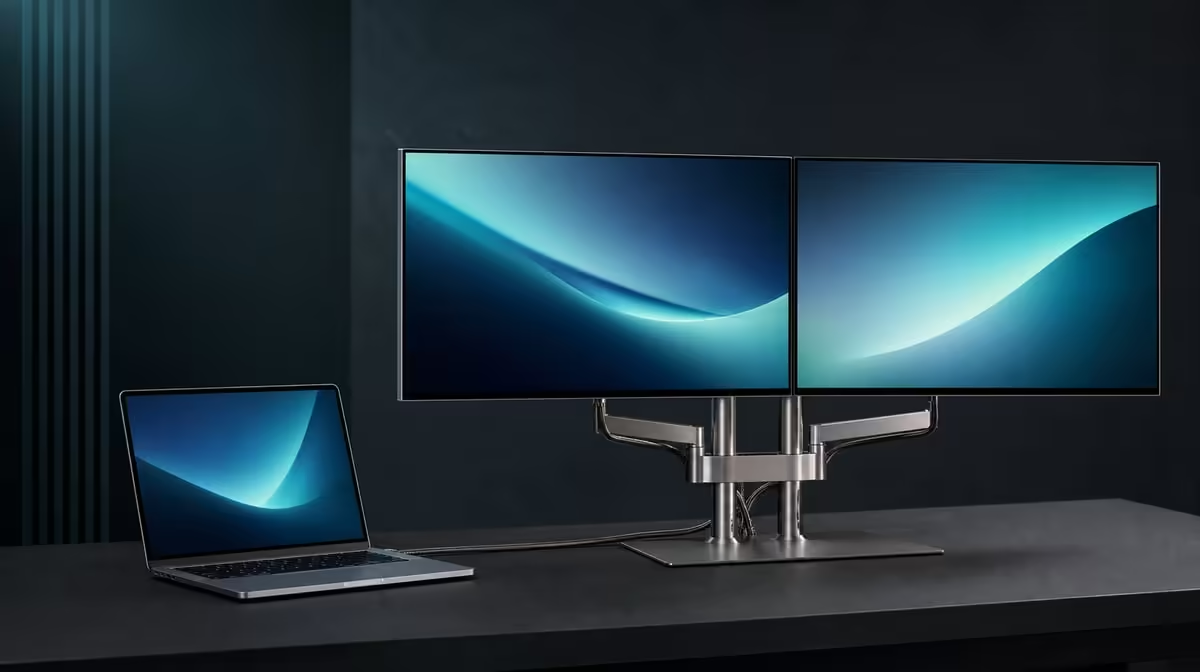
Two 23.8-inch panels create broad physical and digital work areas. Measure the desk with the keyboard, pointer space, stand and laptop included. Horizontal use needs width, while a vertical stack requires height and a safe upper viewing line. The Delta Mega is intended to reduce neck strain when stacked, but comfort still depends on body position, chair height, angles and which task is placed above.
Draw the intended screen boundary on the desk before buying. Check walls, shelves, lamps and the path used by the 360-degree fold. A final arrangement may fit even when the movement required to reach it does not.
Evetech's portable monitor catalogue offers a useful starting point for comparing laptop-based workspace shapes.
🖥️ Read the display specifications separately
Each Delta Mega panel has a Full HD resolution of 1920 x 1080. Set that native resolution first, then select scaling that makes text comfortable at the actual viewing distance. Matching scaling is a sensible baseline; change one screen only when distance or task genuinely differs.
IPS describes the panel type. Judge representative documents, graphics and video from the chair, including any off-centre angle used in a folding or sharing layout. Keep brightness sensible and control room reflections before deciding whether colour or readability is satisfactory.
The 100Hz refresh rate can make supported scrolling, pointer movement and animation look smoother than 60Hz. It does not add detail or screen area. Confirm the chosen rate for both displays after the source path is stable, because one correctly configured screen does not establish the other.
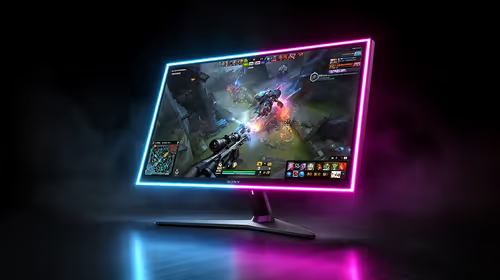
The listed 14ms response measures pixel transitions and becomes more significant as content moves. Office productivity often depends more on layout and readable text; casual gaming and moving previews give the response figure a larger role. Refresh and response are related to motion but are not the same measurement.
Low blue light adds a viewing option for longer reading, while built-in speakers can cover ordinary meeting or media sound. Treat both as conveniences to test, not replacements for good lighting, breaks or dedicated audio when those are needed.
Evetech's wider PC monitor selection helps compare this paired format with a conventional desk display.
🔗 Establish the laptop connection
The monitor works with Windows and Mac systems, and offers Type-C plus HDMI as its connection routes. Platform compatibility does not promise that every laptop port or cable provides the same display capability.
Inspect the laptop's real outputs. A Type-C connector may look suitable without carrying display video. HDMI is another supported route, but the intended two-screen mode and refresh still depend on the computer, adapters if used and the cable path. Avoid assuming one-cable operation when that behaviour has not been established.
Connect in stages. Start with the laptop and one external display, select native Full HD and confirm a stable picture. Add the second panel, choose an extended desktop and position its digital screen map in the same order as the hardware. Move the pointer across each edge and open a labelled test window on every screen.
Only then enable 100Hz where available. Test the actual applications, not just the desktop. If something fails, change one variable at a time: panel, route, cable, output or setting. This method reveals whether the issue follows a connection or remains with a particular screen.
Leave cable slack around moving joints. Support the screens before folding, and recheck the software map after switching between wide and stacked positions. A flexible physical layout is most useful when the digital desktop follows it predictably.
🧪 Turn setup into a buying decision
Use a one-week trial plan on paper even if the purchase must be made sooner. Assign a task pair to each day: writing and research, accounts and documents, meeting and notes, or creation and preview. Estimate how often both areas would stay active and which position would serve them.
Score five items separately: readable workspace, motion, connection reliability, physical comfort and convenience. This keeps a strong result in one area from hiding a weakness in another. Someone may love 100Hz but lack desk depth, or value the stack while rarely using the speakers.
Add a recovery column beside those scores. Record what happens after sleep, reconnection, a switch from horizontal to vertical use and an application moved between panels. Business equipment earns trust when the owner can restore it quickly, not only when the initial demonstration succeeds.
At R6,899, the Delta Mega should replace repeated friction. The case is strongest when two 23.8-inch surfaces, folding options and cross-platform routes solve daily problems together. Buyers who need only a single static window should compare simpler formats rather than forcing a dual-screen answer.
Review Evetech's monitor best sellers with that task scorecard beside the product pages.
Finish the evaluation with one plain-language buying reason. It should name two recurring windows, a workable desk pose and a confirmed laptop connection. If none can be stated yet, more investigation is needed before the specification list becomes a complete recommendation.
Frequently Asked Questions
What workspace do two 23.8-inch panels create?
They create two full-size Full HD task areas that can hold separate applications or different parts of one workflow.
Which motion specifications are included?
The Delta Mega lists a 100Hz refresh rate and 14ms response time, which describe different aspects of moving imagery.
How can computers connect?
Supported routes include Type-C and HDMI for Windows and Mac laptops, subject to the actual output and cable capabilities.
What layouts does folding make possible?
Its 360-degree range supports horizontal, vertically stacked and sharing arrangements.
How can a vertical stack affect posture?
It can reduce wide side turns, but the most-used work should remain at a comfortable height and the upper panel needs a suitable angle.
What convenience features come built in?
Built-in speakers handle simple audio, and low blue light supplies an additional viewing mode.
Which first setup sequence is sensible?
Confirm native resolution and both screens first, map their physical order, set scaling, then select the intended refresh rate and test real applications.
Build the decision around two jobs that need to stay visible.
Measure the desk, verify the laptop route and score the Delta Mega's workspace, motion and folding options against a real week of business tasks.