

Using GitHub Copilot: Complete Beginner's Guide for SA Developers
Using GitHub Copilot: Complete Beginner's Guide for SA Developers. Everything you need to know with SA-specific pricing and recommendations.
Read moreSetting Up Smart Lights. Everything you need to know with SA pricing, step-by-step instructions & expert recommendations.
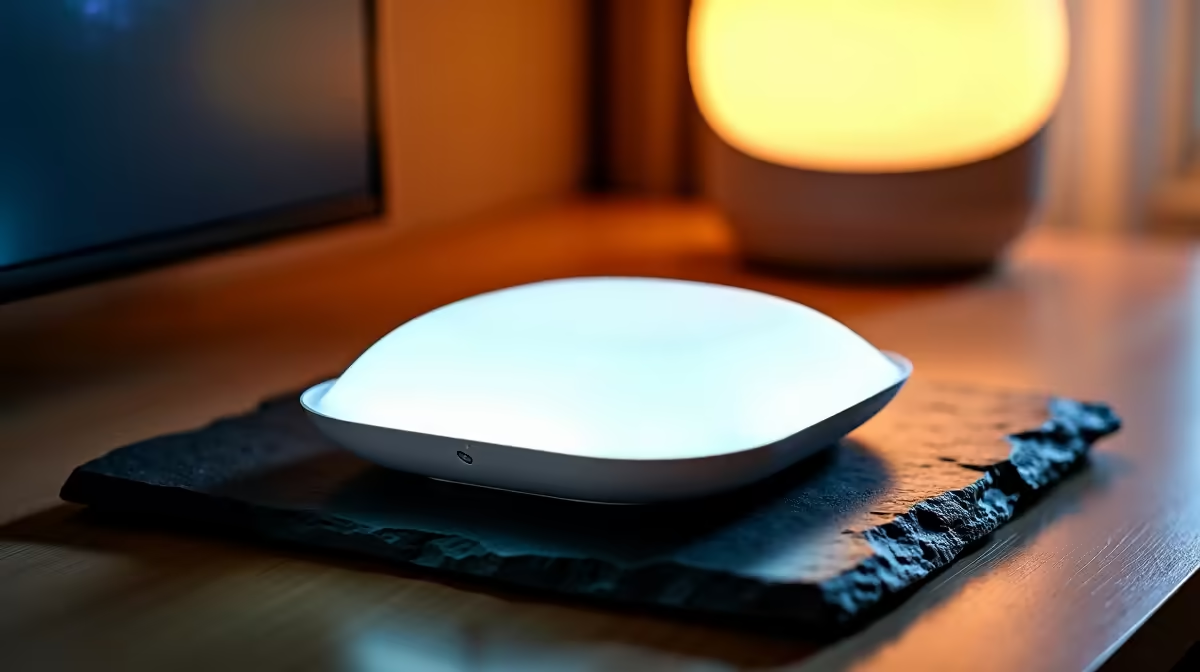
Setting up smart lights involves connecting the bulbs or light strips to your Wi-Fi network through a dedicated app, grouping them by room, and linking the system to a voice assistant or smart home hub if needed. Most smart lighting setups take 15 to 30 minutes from unboxing to working.
Smart lighting is one of the most accessible smart home upgrades available - you don't need to rewire anything, and the setup process is straightforward with modern app-driven systems. Whether you're building a gaming setup ambiance, automating your home office lighting, or just adding convenience to your living space, here's how to get smart lights working correctly from the start.
Before purchasing smart bulbs or light strips, decide which ecosystem you're building into. The three dominant options are Philips Hue (premium, Zigbee-based, requires a bridge), IKEA Tradfri (affordable, also Zigbee), and Wi-Fi direct options like Govee, Kasa, or generic Tuya-based bulbs. Wi-Fi direct bulbs connect straight to your home network without a hub, making them the easiest starting point. Zigbee-based systems like Hue require a bridge device but offer more reliable performance and lower latency for automations. All major ecosystems work with Amazon Alexa, Google Home, and Apple HomeKit, so voice assistant compatibility is rarely the deciding factor.
Screw the smart bulbs into the light fitting with the wall switch in the OFF position. Turn the switch ON - smart bulbs need constant power; the wall switch controls whether power reaches the bulb at all, not the bulb's smart state. Open the manufacturer's app (Philips Hue, Govee Home, Kasa, etc.) and follow the in-app pairing process. For Wi-Fi bulbs, you'll enter your Wi-Fi password and the app will discover the bulb automatically. For Zigbee bulbs, ensure the bridge is connected to your router by Ethernet before pairing. Name each bulb by location (e.g., "Desk Left," "Bedroom Ceiling") during setup to make voice commands intuitive later.
Once bulbs are paired, group them by room in the app. Room groupings let you control all lights in a space with a single command ("turn off bedroom lights") rather than individual bulbs. Set up automations for common patterns - lights that gradually brighten at your wake time, dim automatically at 10pm, or switch on when motion is detected. Link your smart light app to Google Home or Amazon Alexa through the app's account settings to enable voice control. For gaming setups, Govee and Philips Hue both offer screen sync features that react to on-screen colours in real time, which adds genuine ambiance without requiring complex configuration.
Q: Can I use smart bulbs without a smart speaker or hub? A: Yes. Smart bulbs work through their own apps on your phone without any additional hardware. Voice assistants and hubs add convenience but aren't required to use the basic colour and schedule features.
Q: Why do my smart bulbs disconnect from Wi-Fi regularly? A: Smart bulbs are sensitive to 2.4GHz network congestion. If you have many devices on 2.4GHz, the bulbs may drop off. Ensure your router's 2.4GHz channel isn't overcrowded, or consider a Zigbee-based system with a hub for more stable connectivity.
Q: Can I still use wall switches with smart bulbs? A: Standard wall switches cut power to the bulb, which removes smart functionality. Either tape the switch in the ON position and use app or voice control instead, or replace the wall switch with a smart switch that sends commands to the bulb without cutting power.
Ready to Find Your Perfect Match? Complete your smart setup with a gaming PC that powers your connected home experience.
Complete Guide: Setting Up Smart Lights available at Evetech.co.za with local warranty and fast delivery.
Complete Guide: Setting Up Smart Lights - check Evetech for latest stock and SA pricing.
Depends on your use case. Complete Guide: Setting Up Sma offers good value at current Rand pricing.
Using GitHub Copilot: Complete Beginner's Guide for SA Developers. Everything you need to know with SA-specific pricing and recommendations.
Read more
Back-to-School Headset Buying Guide for SA 2026. Everything you need to know with SA-specific pricing and recommendations.
Read more
Mesh Front Panel Setup and Configuration: Complete Tutorial. Comprehensive coverage with SA insights, Rand pricing, and practical recommendations.
Read more
Black Screen: Troubleshooting Guide #1. Everything you need to know with SA-specific pricing and recommendations.
Read more
The Complete 2026 Guide to Storage in South Africa. Everything you need to know with SA-specific pricing and recommendations.
Read more
1000W PSU Not Working After Load Shedding: Recovery Guide. Everything you need to know with SA-specific pricing and recommendations.
Read more
AMD RX 9050 XT: Rumoured Specs, Price & Release. SA-focused analysis with local pricing data, real-world insights & actionable buying advice.

Can RTX 4080 Super Run AI Workloads for SA Developers Detailed answer with SA data, expert analysis & practical recommendations for local buyers.

Can RTX 4090 Run AI Workloads for SA Developers Detailed answer with SA data, expert analysis & practical recommendations for local buyers.

Top Settings for Intel Arc B580 at Ultrawide 1440p picks evaluated on performance, value & SA availability with current Rand pricing from Evetech.

RTX 4060 CS2 Low Settings at 1080p: FPS Results. Real-world benchmark data, FPS numbers & performance analysis. What SA gamers can actually expect.

Visual Artifacts: Possible GPU Issue Issue #1. Diagnosis steps, proven fixes & when to seek professional help. SA-specific support info included.

Can the RTX 4090 Handle 1440p 144Hz Gaming. Performance testing verdict with real data & practical recommendations for SA buyers.

Top ASUS GPU Under R15000 picks evaluated on performance, value & SA availability with current Rand pricing from Evetech.

GTA 6 Max Settings on RTX 5070. Tested & verified settings for best FPS and visual quality on SA hardware budgets.

Cyberpunk 2077 Max Settings on RTX 5080. Tested & verified settings for best FPS and visual quality on SA hardware budgets.

Starfield Max Settings on RTX 5070 Ti. Tested & verified settings for best FPS and visual quality on SA hardware budgets.

Top RTX 5090 Under R5000 picks evaluated on performance, value & SA availability with current Rand pricing from Evetech.