Quick Answer
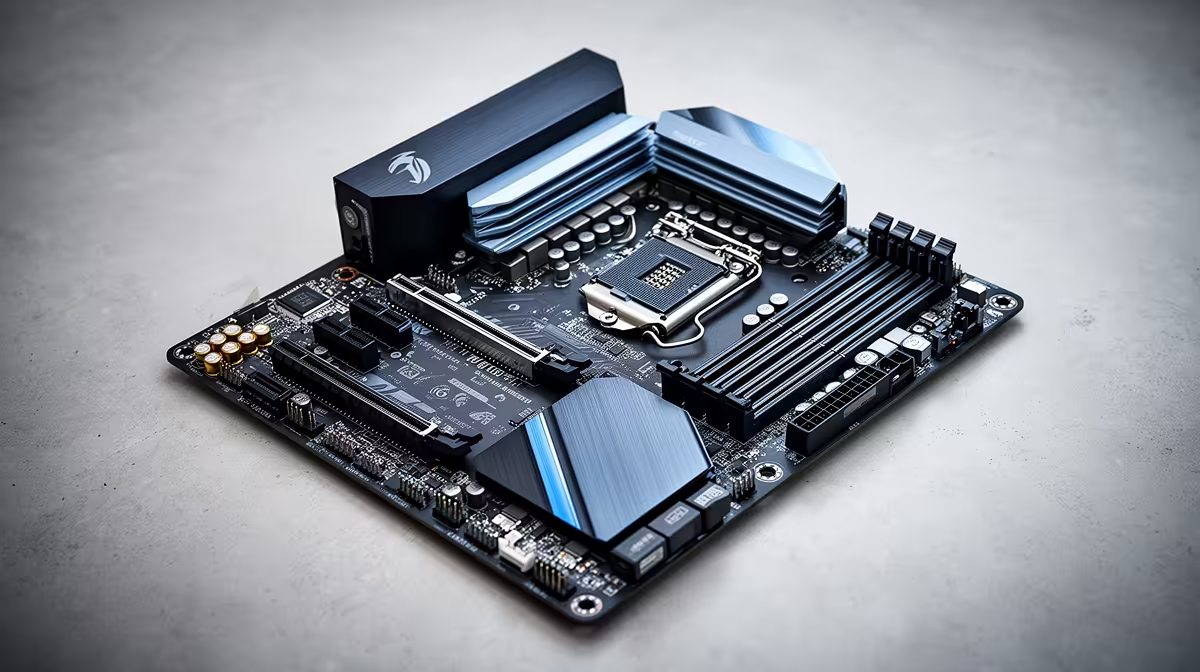
The best motherboard for content creation on the Core i5-14400F is the MSI MAG B760M MORTAR WIFI DDR4 (R3,100 at Evetech) — it offers three M.2 PCIe 4.0 slots for project, asset, and export NVMe drives, 2.5GbE for fast NAS transfers, Wi-Fi 6, USB 3.2 Gen2 on the front and rear panel, and a 10-phase VRM that keeps the 65 W i5-14400F cool during sustained Premiere Pro and DaVinci Resolve sessions. Pair with 32 GB DDR4-3200 dual channel (R1,700) for comfortable multi-track video editing.
Content Creation Requirements on the i5-14400F
The i5-14400F handles most student-to-prosumer content creation tasks well:
- 1080p video editing in DaVinci Resolve/Premiere Pro: Smooth with GPU acceleration (RTX 3060 recommended)
- Photo editing in Lightroom/Photoshop: Excellent — these apps are single-thread-heavy and the i5-14400F is fast
- 3D modelling (Blender, Fusion 360): Adequate; complex scenes with 50+ objects may benefit from an i7 or i9
- Audio production (FL Studio, Ableton): Low CPU overhead — the i5-14400F comfortably runs 50+ VST instances
Key Motherboard Features for Content Creators
USB 3.2 Gen2 (10 Gbps) front panel: External SSDs used as project drives transfer at 1,000 MB/s on Gen2 vs. 640 MB/s on USB 3.0 — meaningful when ingesting 4K footage from a camera's SSD card reader.
Three M.2 PCIe 4.0 slots: Separate drives for OS, active projects, and exports ensure no storage I/O bottleneck during renders. A 1 TB Samsung 990 Pro per slot (~R1,400 each) gives a clean, fast three-drive workflow.
2.5GbE: Pulling 4K RAW files from a Synology NAS at 295 MB/s vs. 118 MB/s on 1GbE cuts daily project setup time noticeably for video creators on home networks.
GPU for Content Creation on the i5-14400F
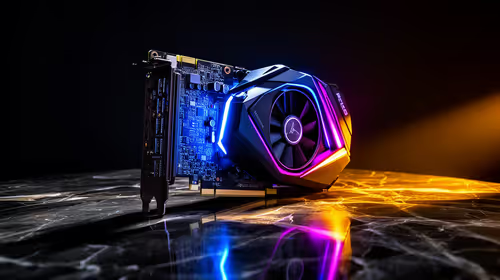
- RTX 3060 12 GB (~R5,500): GPU-accelerated encoding in DaVinci Resolve; 12 GB VRAM handles 4K timelines. Best value for content creators.
- RTX 3070 8 GB (~R8,500): Faster renders; 8 GB VRAM is adequate for 4K but can feel tight with multiple GPU-accelerated effects stacked.
- RTX 4070 12 GB (~R11,000): Significant step-up for 4K+ colour grading — worth it if client delivery timelines matter.
FAQ
How much RAM does a content creation i5-14400F build need?
32 GB DDR4-3200 dual channel is the recommended minimum for video editing — 16 GB works for 1080p timelines but fills quickly with multiple 4K clips, browser references, and colour grading tools open simultaneously. 64 GB DDR4 makes sense for 4K or multi-cam work where After Effects and Premiere are both running. Always run in dual channel (two matching sticks) for the best memory bandwidth on the i5-14400F.
Is the i5-14400F or the i5-14600K better for DaVinci Resolve?
The i5-14600K's additional cores (14 vs. 10) provide 20–30% faster CPU renders in DaVinci Resolve. However, DaVinci Resolve uses GPU acceleration for most timeline effects — the GPU choice matters more than the CPU for real-time playback. If your GPU budget is R5,500+ (RTX 3060), the i5-14400F on a B760 board with money saved going to the GPU often outperforms an i5-14600K with a weaker GPU.
Does the i5-14400F support Thunderbolt for video editing peripherals?
No — Thunderbolt is not natively supported by the i5-14400F or B760 chipset. Thunderbolt 4 requires a discrete Intel JHL8540 controller, found on premium Z790 and some B760 boards where explicitly listed. For connecting external SSDs and docks, USB 3.2 Gen2x2 (20 Gbps) on some B760 boards is the highest available speed without Thunderbolt — check the specific board's rear I/O spec sheet.
Resolve on an i5-14400F build, go to Preferences → Memory and GPU → GPU configuration and enable GPU processing mode — set to CUDA (Nvidia) or OpenCL (AMD). This single setting dramatically reduces timeline rendering load on the i5-14400F's CPU cores, improving real-time 4K playback performance.