

Back-to-School Parent Guide: GPUs in SA
Back-to-School Parent Guide: GPUs. Everything you need to know with SA pricing, step-by-step instructions & expert recommendations.
Read more🚀 Stop light pollution in dark offices. Learn how to disable stealth LED lights on business laptops for distraction-free work. 💡
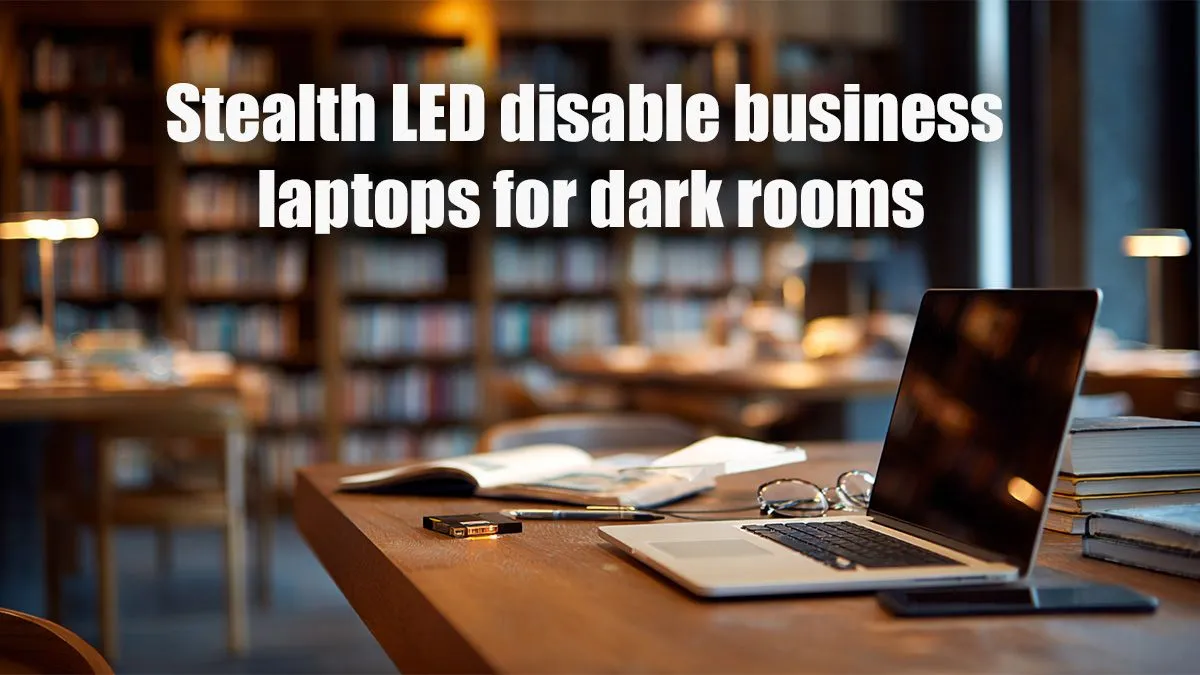
Ever been deep into a late-night coding session, catching up on series, or maybe just trying to game discreetly after everyone else is asleep? That relentless glow from your business laptop's LED indicators can be a real mood killer. In South Africa, where loadshedding often dictates our work and play schedules, optimising your environment is key. Want to truly immerse yourself without those distracting pinpricks of light? Let's figure out how to disable stealth LED light on business laptops for dark rooms.
Whether you're presenting in a dimly lit boardroom, enjoying a cinematic experience at home, or simply trying to avoid waking a sleeping partner, persistent LED lights on your laptop can be incredibly annoying. Modern business laptops are designed for efficiency and status updates, often featuring bright power, charging, or status indicators. While useful during the day, these tiny beacons become glaring distractions in a dark room. Learning to turn off LED lights on business laptops isn't just about aesthetics; it’s about focus, comfort, and maintaining a truly discreet presence.
Achieving that perfect, light-free environment usually involves a few key steps. It's not always as simple as a toggle switch, but with a bit of digging, you can tame those luminous nuisances. ✨
This is often your first and most effective port of call for core system LEDs. Restart your laptop and repeatedly press the designated key (often F2, Del, F10, or F12) to enter the BIOS/UEFI setup. Navigate through menus like 'Power Management,' 'System Configuration,' or 'Advanced Settings.' Look for options related to 'LED Control,' 'Power LED Indicator,' or 'Charging Status Light.' Here, you can often disable these lights entirely or adjust their behaviour. Remember to save your changes before exiting!
Many top laptop brands provide dedicated software suites that offer granular control over various hardware features, including lights. For instance, Dell users might find options in 'Dell Power Manager,' HP users in 'HP Command Center,' and Lenovo owners in 'Lenovo Vantage.' These tools are designed to optimise your laptop's performance and user experience, often including settings to manage indicators or keyboard backlighting. It's worth exploring these applications for a user-friendly way to disable laptop LED indicators.
Always check your laptop's specific model manual online. Manufacturers often hide unique LED control options or keyboard shortcuts that aren't obvious in general guides. A quick search for "[Your Laptop Model] disable LED" can save you time. 🔧
While less common for built-in status LEDs, some software can manage keyboard backlighting or even peripheral device lights. For screen brightness, simply use your function keys (Fn + F-key) to dim it completely. For external USB devices with their own LEDs, unplugging them or using a USB hub with individual power switches can provide immediate relief. Remember, the goal is to reduce light emission for a truly dark room experience.
Once you’ve mastered how to disable stealth LED light on business laptops for dark rooms, you’re well on your way to a more focused and comfortable computing environment. But why stop there? Optimising your laptop goes beyond just turning off lights. Perhaps you’re realising your current machine isn't quite cutting it for those late-night grind sessions or intense gaming marathons. Evetech offers an incredible range of laptop specials for sale in South Africa, ensuring you find a machine that perfectly matches your needs and budget.
For the serious gamers, a dedicated gaming rig is non-negotiable. Explore our best gaming laptop deals to upgrade to something that delivers raw power without compromise. Whether you lean towards the formidable processing prowess of AMD laptops on special or the tried-and-tested reliability of Intel laptops on special, Evetech has a solution tailored for you. Invest in a laptop that not only performs but also respects your need for discretion when the lights go down. 🚀
Ready for a Stealthier Setup? Don't let a tiny light ruin your focus or fun. Explore Evetech's extensive laptop range today and find the perfect machine that gives you control over every detail, even in the darkest rooms. Shop now at Evetech for performance that leaves lag in the dust.
Access the BIOS settings or use manufacturer-specific software to disable LED lights like HP's HP Command Center.
Yes, use laptop management software such as Lenovo Vantage or Asus Armoury Crate to control LED indicators.
LED lights reduce glare and eye strain in dark environments, creating a more focused workspace.
No major risks, but LEDs indicate charging status, so manual checks may be needed.
Popular models include HP EliteBook, Lenovo ThinkPad, and Asus Pro with LED disable features in BIOS or apps.
Use HP Command Center software or enter BIOS during startup to disable LEDs on HP EliteBook laptops.
MacBooks lack LED disable features but can use third-party tools like Luminous to dim ambient lights.
Back-to-School Parent Guide: GPUs. Everything you need to know with SA pricing, step-by-step instructions & expert recommendations.
Read more
Pre-Buy Checklist: 10 Things to Verify Before. Comprehensive checklist covering every spec and feature you should verify before buying in SA.
Read more
Fortnite Max Settings on RTX 4080. Tested & verified settings for best FPS and visual quality on SA hardware budgets.
Read more
RTX 4070 Ti Super Throttling Under Load. Everything you need to know with SA pricing, step-by-step instructions & expert recommendations.
Read more
Easter GPU Buying Guide. Hand-picked gift ideas at every budget tier. SA pricing & Evetech availability included.
Read more
Valorant Max Settings on RTX 4080. Tested & verified settings for best FPS and visual quality on SA hardware budgets.
Read more
Snapdragon X2 NPU Explained: How 80 TOPS Changes. Plain-English explanation of what it means, why it matters & how it affects your buying decisions in SA.

HBM? High Bandwidth Memory Used in GPUs and AI. Plain-English explanation of what it means, why it matters & how it affects your buying decisions in SA.

How much should you spend on sim racing accessories in South Africa for a realistic setup? We break down budgets by quality tiers, so you buy smart gear and avoid overspending 🎮💸

G-Sync and FreeSync? Variable Refresh Rate. Plain-English explanation of what it means, why it matters & how it affects your buying decisions in SA.

AMD Laptop: Value. SA-focused analysis with local pricing data, real-world insights & actionable buying advice.

How MacBook Neo Handles 30+ Chrome Tabs with Only. SA-focused analysis with local pricing data, real-world insights & actionable buying advice.

Why Apple Put 8GB RAM in MacBook Neo: The A18 Pro. SA-focused analysis with local pricing data, real-world insights & actionable buying advice.

Upgrade your work laptop with a New Motherboard. Step-by-step instructions with SA-specific tips, common pitfalls to avoid & expert recommendations.

Maintain wired headset — Checklist: • inspect cables • clean earpads • store properly 🔧🎧 Practical steps to preserve sound quality and avoid premature replacements.

Fix crackling headset fast: step-by-step checks for cables, connectors, drivers, and settings to remove static or distorted audio on wired headsets 🎧⚙️

Stereo vs mono headsets: learn which delivers clearer calls, better spatial music, or simpler mono voice performance — pick the right headset for meetings, music, or gaming 🎧💬

- Compare gaming headset vs studio headphones; - Assess comfort, mic and sound; - Recommend best daily picks. Gaming headset vs studio headphones: learn which suits work, music and casual gaming. 🎧⚖️