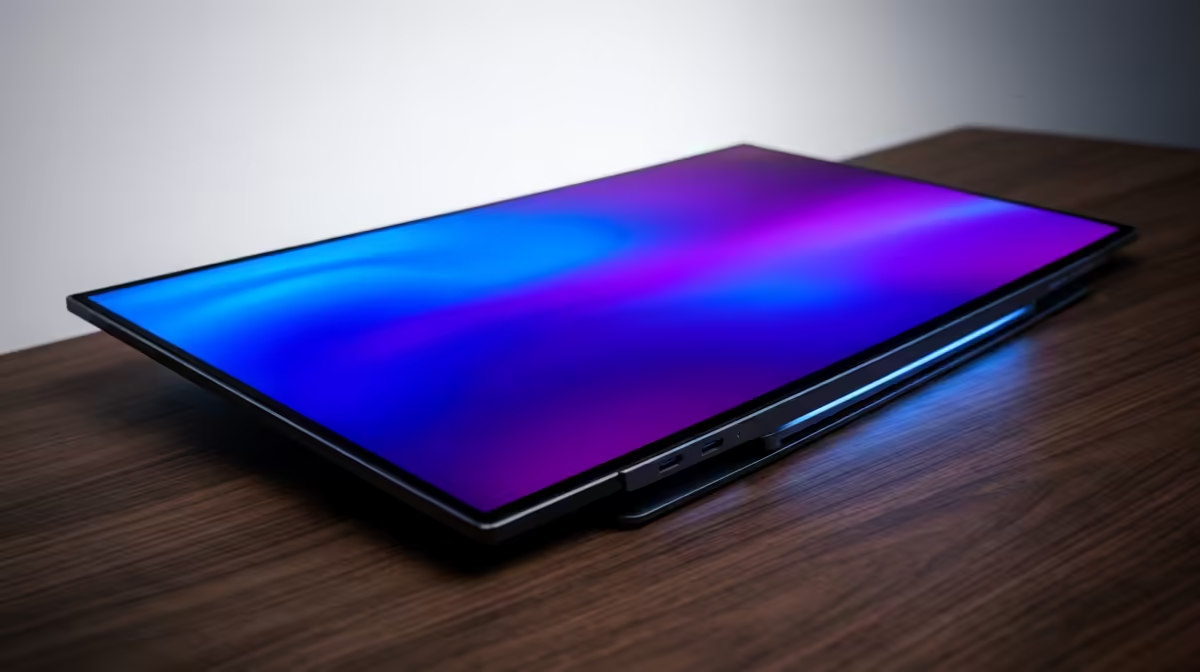
You buy a slim USB-C portable monitor expecting one cable to carry power and video from your laptop, plug it in, and get a black screen. The panel works fine. Your laptop's port simply does not send video over USB-C. Whether you need DisplayPort Alt Mode is the question to settle before you spend a Rand, because a single-cable portable monitor only lights up when the host port supports it.
Quick Answer
A one-cable USB-C portable monitor needs your laptop's USB-C port to support DisplayPort Alt Mode. If it does not, the monitor stays dark and you will need an HDMI source or a separate powered adapter instead. Check the port spec before buying, not after.
What DisplayPort Alt Mode Actually Does
A USB-C connector is a shape, not a guarantee of what runs through it. The same physical port can carry data only, data plus power, or data plus power plus a video signal. DisplayPort Alt Mode is the feature that reroutes some of the USB-C connection's high-speed lanes to carry a real DisplayPort video stream. Without it, the port can charge your phone and move files all day but will never output a picture.
This is why two laptops that look identical at the port can behave completely differently. One sends video down USB-C and drives the portable monitor off a single cable. The other does not, and leaves you staring at a blank panel wondering what broke.
How To Check Your Laptop Before You Buy
You can confirm support without buying anything first. Work through these in order.
Look For The Port Symbol
Some laptops print a small "DP" letters or a DisplayPort logo beside the USB-C port that supports video. A Thunderbolt lightning-bolt symbol is also a reliable sign, because Thunderbolt ports always carry DisplayPort. A plain USB-C port with no marking is the one to be suspicious of.
Read The Spec Sheet
Search your laptop's exact model and look for the phrase "DisplayPort Alt Mode", "DP Alt Mode", "USB-C with video output", or "Thunderbolt". The manufacturer's specification page is the authority here. If it lists none of those, assume the port is data and power only.
Test With A Spare Cable
If you already own a USB-C monitor or dock, plug it in. A picture confirms the port supports video. Nothing on screen, after checking the cable and monitor work elsewhere, points to no Alt Mode on that port.
What To Do If Your Port Lacks Alt Mode
A missing Alt Mode is not the end of portable-monitor life, it just changes the connection method.
- Use the HDMI input. Most portable monitors include a mini-HDMI port. Run video from your laptop's HDMI output and power the monitor separately over USB-C from a charger or power bank.
- Add a powered USB display adapter. Adapters using DisplayLink technology push video over a standard USB data connection by compressing it in software. They cost extra and add a small load on the CPU, but they work on ports without Alt Mode.
- Pick your next laptop with this in mind. If single-cable simplicity matters to you, prioritise a model with Thunderbolt or a clearly marked video-capable USB-C port.
When you are shopping for the screen itself, the portable monitor range at Evetech lists the connection each panel supports, so you can match it to what your laptop can actually drive.
Checking on Windows and macOS
If the spec sheet is not clear, the operating system can tell you what it sees.
On Windows
Connect the monitor via a USB-C cable and open Display Settings. If a second display appears, the port supports video. If nothing shows up but the monitor's power light is on, the port is powering the panel without sending video, which confirms Alt Mode is absent on that port. You can also open Device Manager and look under Display Adapters for a second monitor entry. Windows 11 also shows connected display information under System > Display, where a recognised monitor appears by name.
On macOS
Connect the monitor and go to System Settings > Displays. A recognised external display appears here automatically. Nothing in that list after a USB-C connection confirms the port is not carrying video. On Apple Silicon MacBooks, all USB-C and Thunderbolt ports support video output, so this check mainly applies to Intel models and third-party laptops.
A Quick Physical Test
If you own a USB-C dock with a display output, plug the monitor into the dock's HDMI or DisplayPort socket. If it works there but not over USB-C directly from the laptop, the laptop port lacks Alt Mode. That narrows the issue to the port rather than the cable or monitor.
Who Single-Cable Setups Suit Best
The one-cable dream makes most sense for people on the move with a modern laptop: a developer running a second screen from a coffee shop, a student adding workspace in res, or a salesperson presenting off a thin notebook. If your machine is a few years old or a budget model, check the port first, because that group is where Alt Mode is most often missing. To round out a mobile setup, a stand and a tidy cable from the wider monitor best sellers help the portable screen earn its place in a bag.
Frequently Asked Questions
How do I know if my USB-C port supports video output?
Check for a DisplayPort or Thunderbolt symbol next to the port, then confirm on your laptop's spec sheet that it lists DisplayPort Alt Mode or Thunderbolt. A plain USB-C port with no such mention usually does not carry video.
Will any USB-C cable carry the video signal?
No. The cable must be rated for full USB-C functionality, not a charge-only cable. Many slim cables sold for charging drop the high-speed lanes that video needs. Use the cable supplied with the monitor or a full-featured USB-C cable.
Does every Thunderbolt port support DisplayPort Alt Mode?
Yes. Thunderbolt always includes DisplayPort, so a Thunderbolt-marked USB-C port will drive a single-cable portable monitor. That lightning-bolt symbol is the safest sign to look for.
Can I still use a portable monitor without Alt Mode?
You can. Connect video over the monitor's HDMI input and supply power separately, or use a DisplayLink USB adapter that sends compressed video over a normal USB connection. Both routes avoid the need for Alt Mode.
Does a docking station change anything?
A dock only helps if your laptop's USB-C port already supports DisplayPort Alt Mode or Thunderbolt, since the dock relies on that to receive video. A dock cannot add video output to a port that lacks it.
Pick a portable monitor that matches what your laptop can actually output. Browse the portable monitor range at Evetech and check the connection type before you buy so the screen lights up first try.