

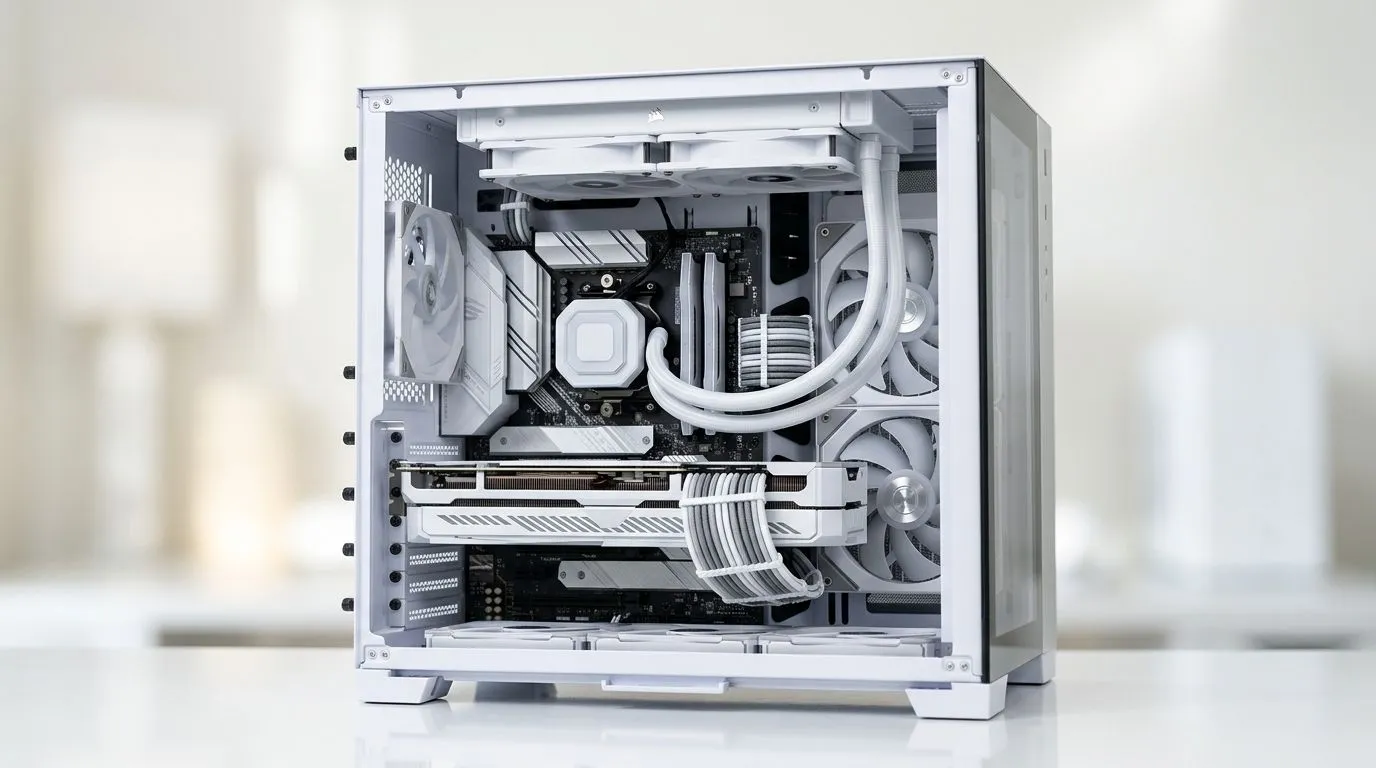
Dual-Chamber PC Cable Management for Better Cooling: The Small Change That Big-Time Helps 🔧
If your PC feels warmer than it should, the fix is often hiding behind the side panel. South African gamers know the frustration… you upgrade your GPU, crank the fan curve, and yet temps still climb. That’s usually not “bad parts” so much as airflow fighting a cable jungle.
Dual-chamber PC cable management for better cooling tackles that exact problem by separating power and data runs, so warm air has fewer obstacles and cooler air can move where it matters.
Why a Dual-Chamber Layout Improves Airflow (and Stability) ❄️✨
A typical dual-chamber case divides the interior so the PSU and many cables sit behind a dedicated compartment. The goal is simple: keep the main airflow channel cleaner.
Cleaner airflow helps in a few practical ways:
- Lower airflow resistance: fans can push air through the same space more effectively.
- Less heat recirculation: warm air doesn’t get trapped behind blocked intakes.
- Better component consistency: GPUs and CPUs tend to boost more confidently when temps stay steady.
Important note: exact temperature results depend on your fan setup, room temperature, and your specific hardware. But the principle is solid: reducing cable obstruction helps airflow behave closer to how case designers intended.
Dual-Chamber PC Cable Management for Better Cooling: Build Steps That Actually Work ⚡
Start with the “boring” wiring work. It’s the best kind of prep.
- Plan before you route
Run GPU power cables first, then CPU power, then front-panel and storage. Avoid long loops in the main chamber. - Use the back chamber like a parking lot
Route cables behind the motherboard tray where the case provides cut-outs and tie-down points. - Bundle with purpose
Tight bundles are good behind the board, but don’t create a thick wall directly in front of airflow paths. - Check fan clearance
Spin each fan by hand (PC off). Make sure nothing brushes the blades or blocks the intake.
Cable Zen Pro Tip 🔧
On a dual-chamber case, route your front-panel and SATA cables first behind the tray, then finish with PSU and GPU power cables. Tighten cable ties only after you confirm the side panel closes without forcing anything. If a cable must “push” the panel, reroute it now rather than later.
Picking a Case That Supports Dual-Chamber Cable Management 🚀
Not all “gaming cases” make dual-chamber cable management equally easy. Some offer better cable cut-outs, room behind the tray, and more tie-down points.
If you want a proven starting point, browse Evetech’s selection of PC cases:
- PC cases selection: https://www.evetech.co.za/components/computer-cases-70
For dual-chamber designs specifically, check out these Evetech options:
- Fractal Design PC cases: https://www.evetech.co.za/PC-Components/fractal-design-pc-cases-346
- Gamdias gaming cases: https://www.evetech.co.za/PC-Components/gamdias-gaming-cases-293
- Gamdias gaming cases under R1500: https://www.evetech.co.za/PC-Components/gamdias-gaming-cases-293?max-price=1500
Choosing a case with space behind the motherboard tray is what turns cable management from “annoying” into “clean and repeatable.”
Dual-Chamber PC Cable Management for Better Cooling: Quick Checklist Before You Close It 🧾
Before you seal the side panel, do a fast sanity check:
- GPU power cables are not sagging into the intake path.
- No SATA or front-panel cables are sitting against front fans.
- You can still see clean intake space from the front mesh.
- Fans spin freely and you don’t hear scraping.
Small effort here often pays back later, especially during long gaming sessions when South African summers can feel… extra personal.
Ready to Find Your Perfect Match? If you’re building a cleaner, cooler system, the right case makes a big difference. Explore our massive range of laptop specials to pair power with value in South Africa, then come back to your desktop build when you’re ready.











