A connector can fit perfectly while the signal, mode or power path remains incomplete. This guide to portable monitor USB Type-C and Mini HDMI connections tests source output, cable capability and configuration without assuming those inputs on the UPERFECT screen.
Quick Answer
Use video-capable USB-C for a compact compatible route or Mini HDMI for a dedicated signal connection, then supply the power arrangement required by the monitor.
USB Type-C and Mini HDMI require a matching screen input, source output, correctly specified cable, supported mode and separate power plan. The R2,499 UPERFECT UGame NxtLED One Plus uses a 1920x1080 120Hz panel, but its exact connector support must be confirmed before either route is selected.
🔌 Decode the physical connector names
USB Type-C describes a reversible plug and socket shape. Devices can assign it data, charging, video or a combination of functions. A compatible fit does not prove that a laptop, phone or console sends an external-display signal.
Read the source documentation for the exact model and port. Some laptops give different abilities to USB-C sockets on the same chassis, while phones using the connector may omit wired display output entirely.
Mini HDMI describes a smaller physical HDMI connector often used on compact equipment. Identify the connector at both ends of the route. The source may provide full-size HDMI, another output type or no suitable wired path.
A cable should be selected for the signal and mode, not only its plugs. Similar-looking USB-C leads can serve charging at different levels, data or display functions, and an HDMI cable still needs the correct ends and supported capability.
After documenting source functions, compare screen input choices across Evetech portable monitors.
⚡ Draw power as a separate circuit
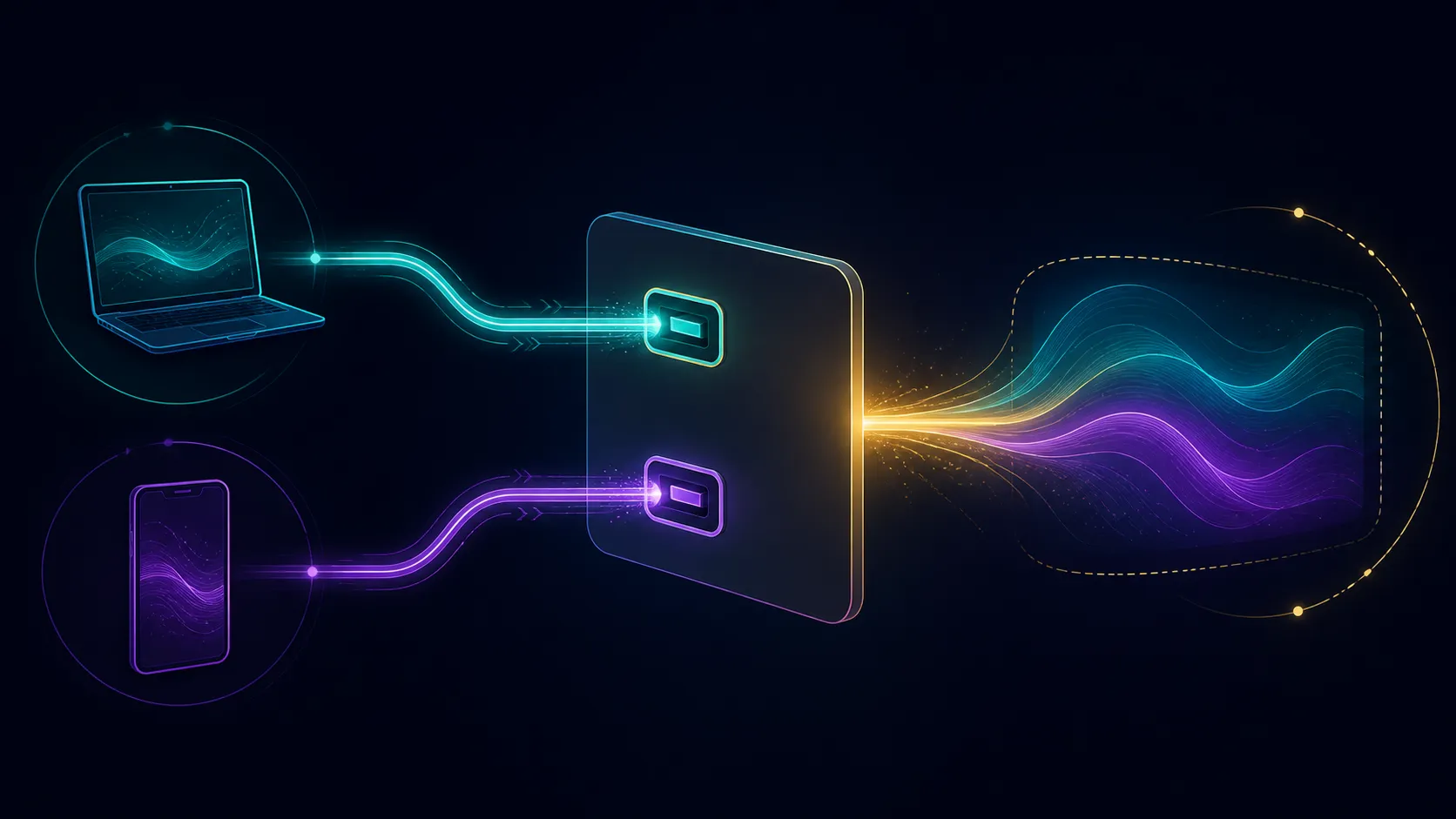
One-cable USB-C operation should never be inferred from connector presence. Determine how the portable monitor receives power, whether the source supplies any power and whether the source needs its own charger during the session.
Mini HDMI carries the display signal in this discussion, not a power promise. A working HDMI picture can still require a separate screen supply.
List every charger, adapter and cable on a connection diagram. Mark direction where relevant and note which device provides each function. This prevents a power-only success from being mistaken for a video result.
During testing, remove non-essential docks and adapter chains. Establish the simplest direct route first, then add one component at a time. If the signal disappears, the last addition becomes a clear diagnostic target.
Secure heavy adapters so they do not hang from the monitor socket. A cable needs enough slack for normal movement without pulling the screen or source.
🖥️ Establish Full HD before high refresh
Once the external display is detected, choose extend, duplicate or another suitable desktop mode. Start with a stable image and set 1920x1080 when the complete route supports the panel's native resolution.
Check scaling and orientation before seeking 120Hz. The source, cable and selected connection must all expose the higher refresh option. If it does not appear, save the working baseline and change one element per trial.
The NxtLED One Plus has a 14ms response figure. That belongs to pixel behaviour after frames reach the panel; it cannot identify a failed connector or explain why a source offers only a lower refresh mode.
If sound is expected, test the audio route independently. A visible picture does not prove speaker hardware, audio delivery or source output selection. Confirm the exact screen's audio capabilities rather than assigning them from the connector name.
Test sleep, wake and reconnection. A mobile arrangement should return to its selected mode after ordinary standby and cable movement, not simply produce one successful startup.
When a route fails, name the symptom precisely. No power, no detection, an unstable picture, a missing 120Hz option and absent sound point to different checkpoints. Broad statements such as it does not work encourage random replacement of several parts. A precise symptom keeps the next action close to the stage that actually failed.
🧰 Turn each source into a reusable setup card
Create a separate card for every laptop, phone or console. Include model, output port, screen input, cable, power method, resolution, refresh, audio route, software version and connection order.
Do not transfer a phone result to another handset merely because both have USB-C. Model-level hardware and software differences can change external-display support.
For HDMI sources, record the two connector sizes and any adapter. Label the proven cable so a charging-only or lower-capability lead is not substituted later.
Use the Evetech monitor accessory selection once the card exposes a precise missing function. Buying an adapter before that point can add uncertainty instead of removing it.
Maintain one known-good reference device or display route where practical. It can help distinguish a source limitation from a suspect cable without making the new monitor the only diagnostic point. Preserve safety and supported configurations, and never treat one reference pass as proof that every other device shares the same capabilities.
Finish with a realistic session: start cold, connect, select Full HD, run the normal application, enter sleep, wake and reconnect. The best connection is the supported route that repeats reliably with the least unnecessary equipment.
Finally, rehearse a cable swap using the labels and setup card. The owner should be able to select the correct lead, identify its two endpoints and restore the mode without relying on connector appearance. This practical handover matters in shared desks and travel kits, where a working route can fail simply because a similar but functionally different cable was substituted.
Store failed-cable symptoms separately from successful routes. If a lead produced intermittent video, missing refresh or power-only behaviour, label it for its verified job rather than returning it to the display kit. Clear separation protects the known configuration and stops the next setup from reopening a solved fault.
Remove ambiguous spare leads from the travel pouch.
Mark the remaining leads with their proven source and signal role.
Those interfaces feed an 18.5-inch Full HD panel capable of 120Hz, so cable and source support must cover the intended mode rather than merely producing any picture. Keep a proven connection set inside the included protective case with the 2.79-pound display. Phones, laptops and consoles differ in output and power behaviour; documenting the successful route for each device prevents repeated diagnosis when the portable kit changes location.
Resolution and refresh negotiation deserve their own check after a picture appears. A fallback 1080p 60Hz connection proves basic video but not the screen's 120Hz capability. Open the source's display settings, select the intended mode and verify it with a known motion sequence. Keep that working configuration beside the cable label for future setups.
Frequently Asked Questions
What does a USB Type-C shape fail to prove?
It does not establish external-display video, charging direction, power delivery or the functions of the attached cable.
Why are both HDMI connector ends important?
The monitor and source may use different socket sizes, so the cable must physically match each end and carry the required signal.
Should picture and power be diagnosed together?
No. Prove the screen's supply independently, then investigate source output, cable signal and selected input for the image.
When is 120Hz relevant to troubleshooting?
Only after a stable display is present. Then check whether every link supports 1920x1080 at the higher refresh.
What makes a useful connection record?
Save the exact devices, ports, cable, power, mode, audio, software and successful startup order for that source.
Ready to make every connector earn a confirmed function?
Draw the complete route, then compare portable monitors and precisely matched connection accessories through Evetech.