Best External Monitor for an RTX 4050 Laptop in SA
Quick Answer
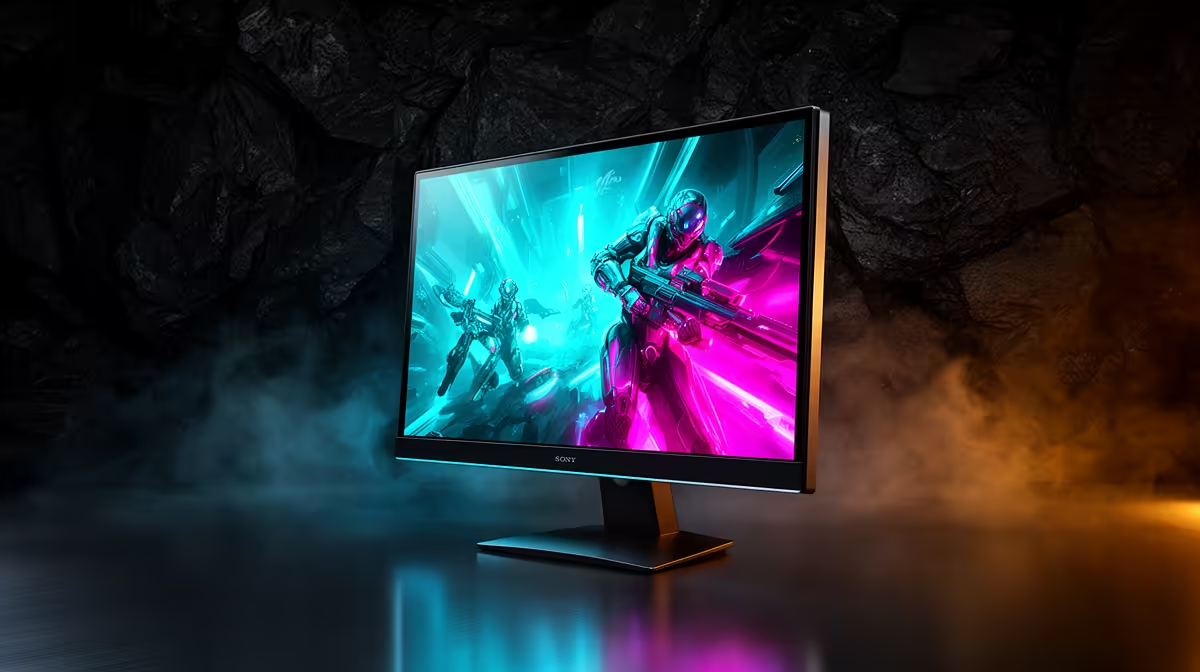
Choose a 24-inch 1080p adaptive-sync monitor around 144Hz to 180Hz for an RTX 4050 gaming laptop. It matches the GPU's comfortable resolution, gives esports games room to run fast and avoids paying for pixels that current demanding titles may struggle to drive.
A 27-inch 1440p screen can still be a smart desk purchase when study, work and a future laptop matter. Expect to use upscaling, tuned settings or a lower frame-rate target in heavier games.
Check the exact laptop's graphics power, display outputs and GPU routing. Two RTX 4050 laptops can deliver different performance and external-monitor features.
Laptop RTX 4050 Performance Varies
A laptop GPU operates inside the cooling and power limits chosen for that machine. The RTX 4050 name does not tell you its complete power target, thermal behaviour or sustained clock speed.
CPU choice matters at high frame rate. Cooling modes can also change performance and noise. Use current reviews for your exact laptop configuration rather than a generic RTX 4050 average.
Test while connected to the original charger and in the maker's intended performance mode. Battery operation can reduce GPU power and is a poor baseline for desk gaming.
Why 1080p Is the Low-Friction Match
At 1920 x 1080, the GPU has fewer pixels to render than at 1440p. That leaves more room for higher settings, ray tracing or a faster frame rate.
The RTX 4050 laptop GPU has 6GB of VRAM. Current texture packs and ray-tracing modes can put pressure on that capacity, so Ultra is not the automatic target.
A 24-inch panel keeps 1080p crisp at a normal desk distance. At 27 inches, the larger pixels become easier to see. Sit further back or choose 1440p when desktop sharpness matters.
Pick Refresh for the Games You Play
A 144Hz screen is enough to make a clear difference over 60Hz. The RTX 4050 can feed that range in esports and lighter games when the laptop CPU keeps up.
At 165Hz or 180Hz, you gain extra ceiling and may find a newer panel with better motion tuning. The small refresh difference should not outweigh stand quality, contrast or a useful adaptive-sync range.
A 240Hz monitor is specialised. Choose it for competitive games after confirming the exact laptop sustains the required native frame rate.
Check Which GPU Drives the Port
Many gaming laptops use integrated graphics for the internal screen during ordinary work. The dedicated GPU renders a game, then its frames may pass through the integrated graphics before display.
An external port can be wired to the RTX GPU and bypass that path. On another laptop, the same-looking HDMI or USB-C port may route through integrated graphics.
Read the laptop manual, port diagram and review. A MUX switch or Advanced Optimus can change internal-screen routing on supported models. External-monitor performance gains are configuration-specific, not guaranteed.
Verify Port Capabilities
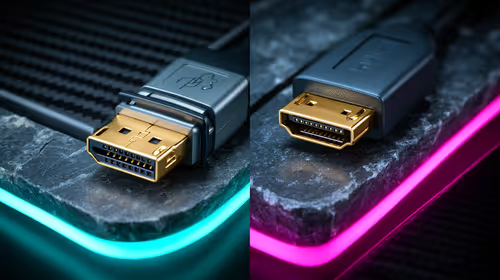
Check whether HDMI, DisplayPort over USB-C or another supported connection carries 1080p at the intended refresh with adaptive sync.
USB-C shape alone does not prove video output. It also does not prove the port connects to the RTX GPU. Look for the exact alternate-mode and routing specification.
Use a suitable cable or active adaptor where required. A dock can limit refresh, colour depth or variable refresh even when the laptop's direct port supports them.
Make Adaptive Sync a Requirement
Laptop GPU performance moves by scene and thermal state. Adaptive sync lets the monitor follow that variation, reducing tearing and fixed-refresh judder.
Check the monitor's supported range and whether it works with the laptop through the chosen input. FreeSync and G-SYNC Compatible behaviour can depend on both port and driver support.
Read measured reviews for flicker and response tuning below maximum refresh. Your RTX 4050 will spend time in the middle of the range, so that performance matters.
IPS or VA on a Budget
IPS is the simple all-round choice for study, work and gaming. Colour remains consistent from wide angles, and fast IPS models can deliver clean motion.
VA gives deeper native contrast, which helps dark games and films. Weak dark response can smear during movement, so check the exact review.
Do not pay for an HDR badge without meaningful contrast control and brightness. Many value screens are better judged by their SDR image, response and ergonomics.
When 1440p Makes Sense
A 27-inch 1440p screen gives you sharper text, more desktop space and a stronger upgrade path. For coding, documents and creative work, that benefit is present even when a game uses lower settings.
Run games at native 1440p with a supported upscaler where possible. Feeding 1080p directly to a 1440p panel can look soft because the pixels do not scale by a whole-number ratio.
Competitive and older games can run well at native 1440p. Demanding current releases may need DLSS, lower textures or a 60fps to 90fps target.
If the laptop will remain your main gaming machine for several years, 1080p gives the more predictable path. If the monitor will outlast it, 1440p can be the better long-term desk choice.
Use Upscaling With Care
DLSS support comes from the game. Quality mode at 1080p begins from a modest internal resolution, so fine detail may soften. Start with native output and add upscaling when the performance gain is worth it.
At 1440p, an upscaler has more output pixels to work with and can produce a cleaner result. Test foliage, thin lines, hair and motion in the game.
Supported titles can insert generated images to make camera motion look denser. The feature works best from a stable base frame rate and does not create matching input response.
Build the Desk Around the Laptop
Place the laptop where its intakes and exhausts stay clear. A closed vertical stand is suitable only when the maker supports that orientation and cooling remains sound.
Use the original or approved charger. External monitors, USB devices and a high-performance mode can increase the complete desk load and heat.
Add a keyboard and mouse only after the screen fits. Measure stand depth so the display does not crowd the laptop or mouse area.
Shortlist Two Monitors
Browse current PC monitor options around 24-inch 1080p high refresh. Use monitor best sellers to compare the popular field.
Keep one strong-value IPS or VA screen and one step-up model. The second must earn its cost through height adjustment, better measured motion, stronger contrast or a port you need.
Confirm the monitor's full refresh and adaptive-sync mode on the exact laptop output before buying.
Set Up the External Screen
Connect directly to the verified laptop port. Select native resolution and the intended refresh in Windows.
Enable adaptive sync in the monitor and NVIDIA controls where supported. Test duplicate, extend and external-only display modes because GPU routing and performance can differ.
Use a balanced overdrive setting and brightness suitable for the room. Check laptop temperatures through a normal long session.
FAQ
Why does 1080p suit the RTX 4050 laptop?
It leaves more GPU and VRAM headroom for high frame rate and current game settings than 1440p.
Can you still choose 1440p?
Yes. It improves desktop clarity and lighter games run well, while demanding titles need tuned settings or upscaling.
What refresh rate fits best?
The 144Hz to 180Hz range is flexible. Go to 240Hz only for a competitive focus and verified laptop performance.
Does an external monitor increase FPS?
It can when the chosen port bypasses integrated-graphics routing. The result depends on the exact laptop design and display mode.
Should you pick 24 or 27 inches?
Choose 24 inches for crisp 1080p at desk distance. Pick 27-inch 1440p for more workspace and a longer upgrade path.
Verify your laptop's GPU power and external-port routing, then compare one 24-inch 1080p screen with one 27-inch 1440p upgrade-path option.