You cannot open a MacBook and slot in a bigger drive. Apple bonds its storage chips directly to the motherboard, chosen once at the order screen and permanent from that point on. That single fact reshapes the whole external SSD vs bigger internal storage question, because for anyone who already owns a MacBook, internal expansion is simply off the table. The only path to more space is an external drive, and the good news is that the modern ones are fast enough that you barely notice the difference.
Quick Answer
For an existing MacBook, an external SSD is the only way to add storage, since the internal drive is soldered and cannot be upgraded after purchase. Even when buying new, a portable SSD usually costs far less per gigabyte than Apple's configure-to-order storage tiers, often a fraction of the Rand-per-GB. Buy modest internal storage, add external space as you need it.
Why Internal MacBook Storage Is a One-Time Decision
Apple bonds storage directly to the motherboard with no slot, caddy, or aftermarket module to swap in later. The capacity you choose at checkout cannot be changed afterwards. Worse, the upgrade pricing is steep: each step up the internal tier costs considerably more than buying the equivalent external capacity outright.
That means the smart move when ordering is to choose the storage you genuinely need for the operating system, apps, and files you keep open daily, then handle everything else externally. Photo libraries, video projects, archives, and game installs do not need to live on the soldered drive. You can compare the configurations and base storage tiers across the MacBook lineup at Evetech to see where the sensible base capacity sits for your budget.
The Rand-Per-Gigabyte Reality
Here is where the gap becomes obvious. Stepping up Apple's internal storage tier carries a heavy premium per gigabyte. A portable external SSD of the same added capacity typically costs a fraction of that. Over a 1TB jump, the difference is substantial, often enough to cover the external drive several times over.
The trade-off you are weighing is convenience versus cost. Internal storage is invisible and always connected. External storage means a small drive on your desk or in your bag and a cable. For most people, that is a minor inconvenience set against a large saving, especially when the external drive can move between machines.
Speed: Is External Actually Slower?
For everyday work, a good external SSD on a modern MacBook port feels indistinguishable from internal. Where it matters is sustained high-throughput tasks like editing large video timelines directly off the drive. There, the internal SSD's higher ceiling can show, but a fast portable SSD on a Thunderbolt or high-speed USB-C connection still handles 4K editing comfortably for most workflows.
What to Look For in an External Drive
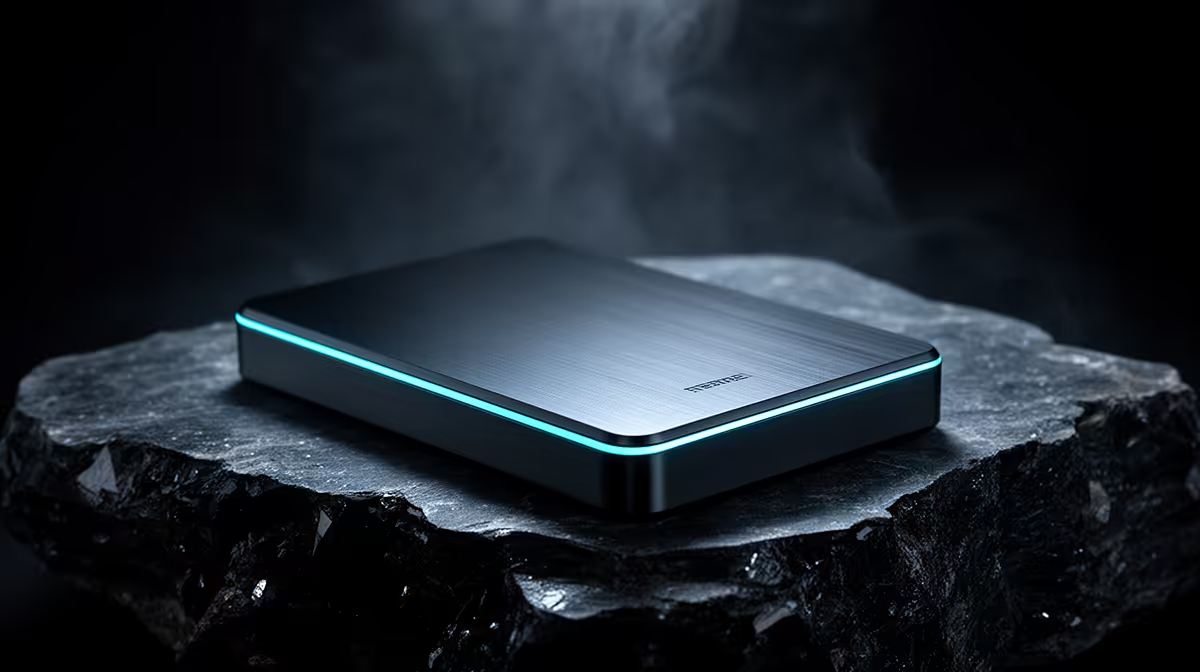
Prioritise a drive that uses the MacBook's faster ports rather than a basic USB connection, so you get the real benefit of NVMe speeds. Favour a compact, rugged enclosure if it lives in a bag, and choose a capacity one tier above what you think you need, because storage habits expand. A drive that connects over USB-C and draws power from the same cable keeps the desk tidy.
When Bigger Internal Storage Still Makes Sense
Internal storage is not always the wrong choice. If you are buying new and you know you will run constant high-bandwidth editing off your scratch disk, or you simply refuse to carry anything extra, paying for a larger internal tier buys you a single sealed machine with nothing dangling off it. It also avoids the small risk of forgetting or losing an external drive.
But for the far more common case, a moderate internal drive plus an external SSD wins on cost and flexibility. You can add space exactly when you need it, in the amount you need, and move that space between devices. To see which portable drives South Africans are buying most, the laptop accessory section at Evetech surfaces the most widely bought and well-reviewed options right now.
How to Organise Storage Across Two Drives
The setup only works well if you decide deliberately what lives where, because a MacBook will quietly fill its internal drive if you let it. Keep the operating system, your applications, and the files you touch daily on the internal SSD, where they benefit from being always present and fastest. Push everything that is large but accessed occasionally, like photo libraries, completed video projects, downloads, and archives, onto the external drive.
macOS makes this manageable. You can relocate your Photos library to an external SSD and point the app at it, move large folders across, and set downloads to land on the external drive by default. The internal drive stays lean, which also keeps the system responsive, since a nearly full system drive slows down. The discipline is small and the payoff is a machine that never nags you about storage.
Keep a Backup Either Way
A word of caution that applies to both routes: an external SSD is a single device, and single devices fail. If irreplaceable work lives on it, that drive should not be your only copy. Maintain a backup, whether to a second external drive or a cloud service, so a lost or dropped drive does not take your files with it. Internal storage carries the same risk, so this is not an argument against external, just a reminder that more capacity means more to protect.
Match the Drive to How You Travel
If the external SSD lives permanently on your desk, prioritise capacity and speed over ruggedness. If it rides in a bag every day, favour a compact, shock-resistant drive that tolerates being knocked around, even at a small cost in capacity. Choosing a bus-powered drive that draws both power and data from one USB-C connection keeps a mobile setup clean with nothing extra to carry.
Frequently Asked Questions
Can I upgrade the SSD inside a MacBook?
No. MacBook storage chips are bonded directly to the motherboard and cannot be replaced or expanded after purchase. Whatever capacity you choose at checkout is permanent, which is why an external SSD is the only practical way to add space later.
Is an external SSD fast enough for everyday MacBook use?
Yes. A good external SSD on a modern MacBook's USB-C or Thunderbolt port feels effectively the same as internal storage for documents, photos, and most apps. Only sustained heavy video editing directly off the drive shows a meaningful gap.
How much cheaper is external storage than Apple's upgrades?
Considerably. Apple charges a steep premium per gigabyte for internal tiers, while a portable SSD of equivalent capacity costs a fraction of that. Over a 1TB difference, the saving is large enough to easily justify the external route.
Should I buy a MacBook with the smallest storage and rely on external?
Buy enough internal storage for the operating system, your apps, and the files you use daily, then add external space for libraries and archives. Going too small internally can cramp the system drive, so balance the base tier sensibly rather than taking the absolute minimum.
Can I edit 4K video off an external SSD?
Yes, provided the drive connects over Thunderbolt or high-speed USB-C and uses NVMe internally. Such drives handle 4K editing comfortably for most workflows. Extremely demanding multi-stream projects may still prefer the internal drive's higher ceiling.
Choosing your next MacBook? Compare the MacBook lineup at Evetech to pick a sensible base storage tier, then pair it with a fast portable SSD to add space affordably whenever you need it.