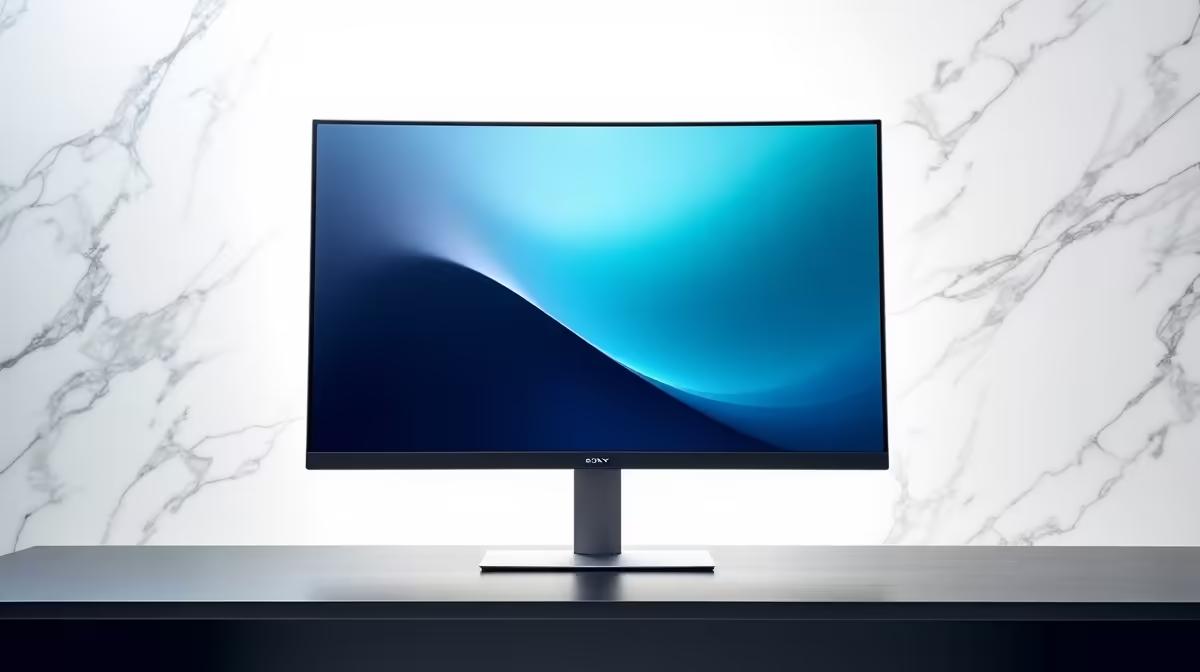
Staring at your screen, but the smooth sky in your holiday photo looks like a stack of coloured bricks? Or maybe that PowerPoint gradient has ugly, visible steps? That, my friend, is colour banding. It’s a common frustration that turns smooth colour transitions into a blocky mess. For South African professionals and creatives who demand accuracy, it’s more than an annoyance… it’s a workflow killer. But don't stress, we can help you fix colour banding on your office monitor.
Understanding Why Colour Banding Happens 🎨
Before we jump into the fix, let's quickly understand the problem. Colour banding is what happens when your monitor doesn't have enough colour information to display a seamless gradient. Instead of a smooth transition from light blue to dark blue, for example, it shows distinct bands of colour.
This is usually down to two main culprits:
- Bit Depth: Most standard office monitors are 8-bit, which means they can display about 16.7 million colours. While that sounds like a lot, a professional-grade 10-bit monitor can display over a billion colours. That massive difference is key to rendering flawless gradients.
- Source Compression: Sometimes, the issue isn't your screen but the image or video file itself. Heavy compression can strip out colour data to save space, causing banding even on the best PC monitors.
How to Fix Colour Banding with Software Tweaks 🔧
You can often improve or completely fix monitor colour banding without spending a cent. These software-side adjustments are your first line of defence and can make a huge difference.
1. Check Your Graphics Card Settings
Your GPU settings are a great place to start. Both NVIDIA and AMD have control panels that let you fine-tune your display output.
- For NVIDIA: Open the NVIDIA Control Panel, go to "Change resolution," and under "Output color depth," select the highest possible value. Also, set the "Output dynamic range" to "Full."
- For AMD: Open AMD Software: Adrenalin Edition, navigate to the "Gaming" tab, then "Display." Look for "Color Depth" and select the highest option available (e.g., 10-bpc).
2. Calibrate Your Monitor
A proper calibration can work wonders. While professional tools exist, the built-in calibration wizards in Windows and macOS are surprisingly effective for a quick tune-up. They'll guide you through adjusting gamma, brightness, contrast, and colour balance to optimise your display. For a more precise setup, you might consider dedicated monitor accessories like a colorimeter.
Is It Your Screen or the File
Before you spend hours tweaking settings, check the source! Open a known high-quality, uncompressed image with a smooth gradient. If it looks perfect, the banding issue is likely with the specific files you're working on, not your monitor's configuration.
When Hardware is the Real Bottleneck ✨
If you've tried all the software fixes and those pesky bands persist, it might be time to consider a hardware upgrade. An older or budget-focused monitor simply might not have the panel technology to keep up with modern demands, whether for design work or enjoying high-fidelity media.
For professionals who can't compromise on colour accuracy, investing in one of the latest 5K and 4K monitors with true 10-bit panels is the ultimate solution. This isn't just an office issue; the same principles apply to all gaming monitors, where smooth visuals are crucial for immersion.
Even form factor can play a role. Many modern curved monitors are designed with superior colour reproduction in mind. And if your work takes you on the road, a high-quality portable monitor can provide a much-needed upgrade over a laptop's built-in display, ensuring your colours are consistent wherever you are.
Ready for Flawless Colour?
Stop letting colour banding compromise your work. Explore our incredible range of high-performance monitors and find the perfect display for your needs at unbeatable prices. Check out the best PC monitor deals at Evetech and see the difference for yourself.