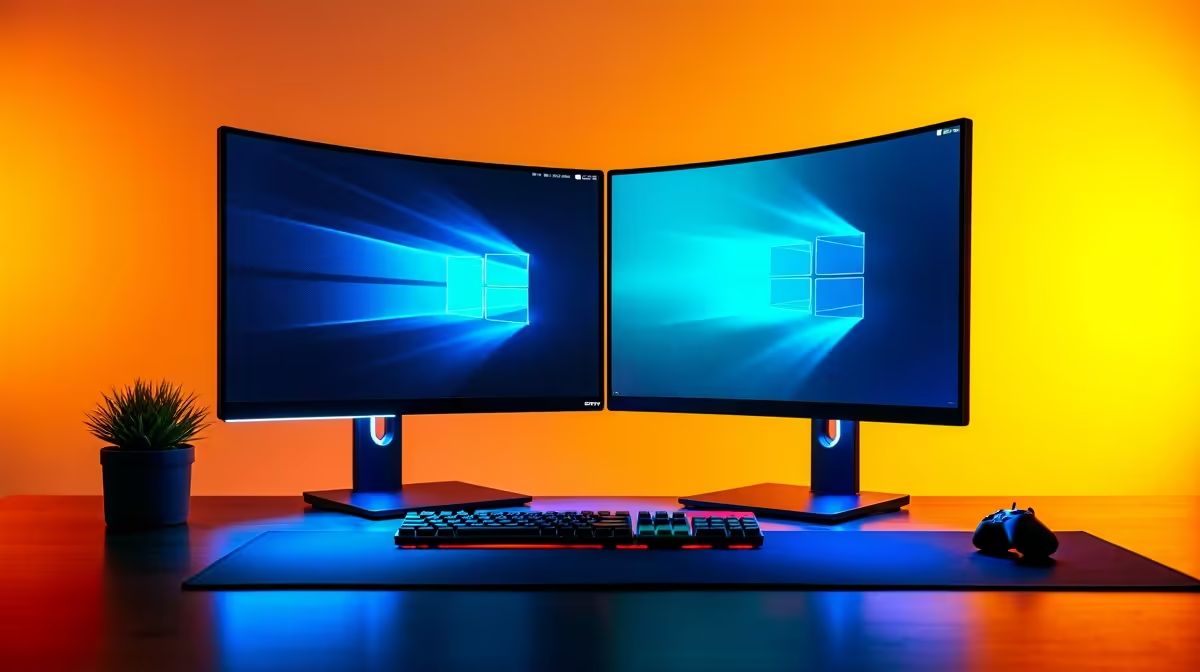
So, you’ve finally paired your trusty 1080p side-screen with a shiny new 4K beast, and… everything looks a bit… off. Blurry text, massive icons on one screen, and tiny windows on the other? You’ve just met the classic Windows headache: high DPI scaling on dual monitors. It’s a common frustration for South African gamers and power users, but don’t stress. We’ve got the fix to get your pixels perfectly aligned. ✨
Why DPI Scaling Goes Haywire on Dual Monitors
Before we dive into the solution, let's quickly understand the problem. DPI, or "Dots Per Inch," is a measure of pixel density. A 27-inch 4K monitor has way more pixels packed into the same space as a 27-inch 1080p screen. Windows uses scaling to make text and icons readable on high-DPI displays, preventing everything from looking microscopic.
The chaos begins when you mix monitors with different DPIs. Windows tries to find a one-size-fits-all solution, which often results in a blurry, inconsistent mess. This is a super common issue when pairing older screens with new, stunning 4K monitors, but thankfully, you can tell Windows how to handle each screen individually.
The Ultimate Fix for High DPI Scaling on Dual Monitors 🔧
This two-step process solves the problem for most setups. Follow these steps carefully to get your dual monitor scaling under control.
Step 1: Set Custom Scaling for Each Display
Your first port of call is the main Windows Display settings. This is where you’ll tell your PC to treat each monitor as a unique canvas.
- Right-click on your desktop and select Display settings.
- You’ll see your monitors represented as numbered boxes. Click on your high-resolution monitor (e.g., your 4K screen).
- Scroll down to the Scale & layout section. Under "Change the size of text, apps, and other items," select the percentage marked (Recommended). This is usually 150% or 200% for 4K displays.
- Now, click on your lower-resolution monitor in the diagram at the top.
- Set its scaling to 100%.
This simple adjustment often solves the majority of issues across most PC monitors and makes Windows render each screen's desktop correctly.
Step 2: Override Scaling for Blurry Apps
Sometimes, even after fixing the desktop scaling, specific applications (especially older ones) still look fuzzy. This is because they aren't built to handle per-monitor DPI settings. Luckily, there's a compatibility fix for that.
- Find the application’s shortcut or
.exe file. - Right-click it and go to Properties.
- Navigate to the Compatibility tab.
- Click the Change high DPI settings button.
- Tick the box at the bottom that says Override high DPI scaling behaviour.
- In the dropdown menu below, select System (Enhanced).
This forces the application to let Windows handle the scaling, which is much smarter about it. This trick is a lifesaver for older software and even some games that don't play nicely across all gaming monitors.
Check Your ClearType Settings
If text still looks a bit fuzzy after scaling fixes, run the ClearType Text Tuner in Windows. Just search for "ClearType" in the Start Menu and follow the on-screen steps to optimise text rendering for your specific screens!
Advanced Tweaks and Final Checks 🚀
If you’re still seeing minor issues, here are a few more things to check. First, ensure your graphics card drivers are up to date. Outdated drivers can cause all sorts of display bugs.
Second, back in the Display settings, physically drag the monitor boxes so their tops or middles align. This ensures your mouse travels smoothly between screens without jumping up or down. Proper alignment is crucial, especially with immersive curved monitors where the viewing angle is key. Even lightweight portable monitors benefit from this digital alignment for a seamless workflow.
Ultimately, while these fixes are effective, the most flawless experience comes from using monitors with similar pixel densities. It completely removes the root cause of scaling conflicts. And don't forget that quality monitor accessories like a good dual-monitor stand can also make a massive difference to your setup's ergonomics and usability.
Ready for a Pixel-Perfect Setup?
Stop fighting with settings and start enjoying a crystal-clear view across your entire desktop. Explore the best PC monitor deals in SA and build the seamless, high-performance setup you deserve.