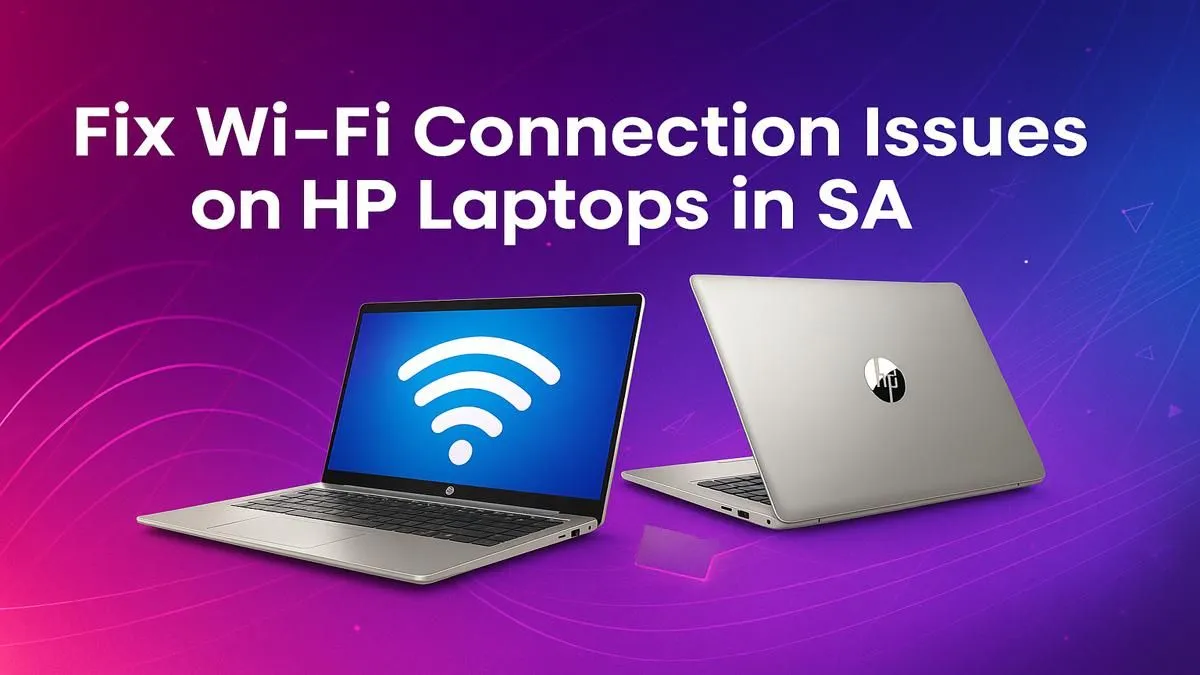
Nothing is more frustrating. You’re about to clutch a round in Valorant, your fibre is stable, but suddenly… your HP laptop’s Wi-Fi disconnects. In South Africa, we have enough connection woes with an unexpected outage; we don’t need our gear failing us too. Before you throw your mouse across the room, take a breath. This guide provides a clear, step-by-step process to fix HP laptop Wi-Fi connection issues, getting you back online and into the game. 💻
Start with the Basics: Quick Checks for Your HP Wi-Fi
Before diving into complex settings, let's cover the simple solutions that fix the problem 80% of the time. It might sound obvious, but the simplest oversight can cause the biggest headache. Even the most powerful machines from our HP OMEN gaming laptop deals aren't immune to a basic network glitch.
- Check the Wi-Fi Key/Button: Some HP laptops have a physical switch or a function key (like F12) with a wireless symbol. Make sure it's enabled. An orange light usually means it's off, while a white or blue light means it's on.
- The Classic Reboot: Restart everything. Shut down your HP laptop completely (don't just close the lid) and unplug your router from the wall for 60 seconds. Plug it back in, wait for the lights to stabilise, and then boot your laptop. This clears temporary glitches in both devices.
- Forget and Reconnect: Go to your Wi-Fi settings, find your network name, and select "Forget." This removes saved passwords and settings. Now, find your network again and reconnect by entering the password from scratch.
Troubleshoot Your HP Laptop's Network Settings
If the basics didn't work, it's time to let Windows do some of the heavy lifting. The built-in tools are more powerful than you might think and can often pinpoint the exact cause of your HP Wi-Fi not connecting. Whether you're running a workhorse ProBook or one of the latest HP Victus gaming laptops, the built-in troubleshooter is your first port of call.
Simply type "Troubleshoot network" into the Windows search bar and run the troubleshooter. Follow the on-screen prompts and let it attempt a fix automatically. It can reset your network adapter and resolve common configuration errors.
Network Reset Pro Tip ⚡
If the troubleshooter fails, you can force a network reset yourself. Open Command Prompt as an administrator and type netsh winsock reset then press Enter. Do the same for netsh int ip reset. Restart your laptop afterwards. This command-line fix resolves corrupted network settings and often solves stubborn connection issues.
Diving into Device Manager
Your Wi-Fi adapter's driver is the software that lets it talk to Windows. If it's outdated or corrupt, your connection will be unstable.
- Right-click the Start button and select Device Manager.
- Expand the Network adapters section.
- Find your Wi-Fi adapter (it will likely have "Wireless" or "Wi-Fi" in the name).
- Right-click on it and choose Update driver. Select "Search automatically for drivers."
- If that doesn't work, try right-clicking and selecting Disable device, wait a few seconds, and then right-click again to Enable device. This simple toggle can reset the hardware.
Advanced Fixes for Stubborn HP Wi-Fi Problems
Still no luck? These advanced steps can solve deeper software and hardware communication problems. A BIOS update, for instance, can fix underlying compatibility issues that a simple driver update won't touch. You can find the latest BIOS for your specific model on the official HP Support website.
Another powerful fix is flushing your DNS cache, which can resolve issues if you can connect to the Wi-Fi but can't access any websites. Open Command Prompt as an administrator and type ipconfig /flushdns, then press Enter. If you’re still facing issues, especially on an older machine, it might be a sign that the hardware is struggling. Exploring the latest range of HP gaming laptops with modern Wi-Fi 6 chips can be a permanent solution. ✨
When Is It Time to Consider an Upgrade? 🚀
Sometimes, the issue isn't a bug... it's just age. Wi-Fi technology has evolved rapidly. An older laptop with a Wi-Fi 4 or 5 adapter can struggle to maintain a stable, high-speed connection on a modern fibre network, especially with multiple devices competing for bandwidth. If you've tried every fix and your connection still drops during crucial moments, your hardware might be the bottleneck. Upgrading to a new HP laptop with Wi-Fi 6 or 6E technology provides a more robust, faster, and more reliable connection designed for today's demands. You can browse the full lineup in our dedicated HP Shop-in-Shop to see the difference for yourself. It doesn't always mean breaking the bank; there are always incredible HP laptops on special that offer a massive upgrade without a massive price tag.
Tired of Connection Drops?
If these fixes don't solve your problem, your laptop's Wi-Fi card might be showing its age. Instead of more frustration, why not upgrade? Explore our massive range of HP laptops and find a machine with the stable, high-speed connection you deserve.