A gaming monitor usually gives you a choice that a television never does: HDMI or DisplayPort. Both can carry 4K at high refresh rates, but they are not interchangeable in every direction, and picking the wrong one for the device at the other end is how a perfectly good screen ends up running below its own spec sheet.
Quick Answer
Televisions and consoles use HDMI, so HDMI 2.1 is the only route to 4K at 120Hz on a lounge screen. DisplayPort lives on desktop graphics cards and monitors, where it often carries higher refresh figures than HDMI at the same resolution. A 48Gbps HDMI lead at R299 covers the console side of that split.
🖥️ Where each connector actually shows up
Televisions, games consoles and most projectors only offer HDMI, full stop. There is no DisplayPort alternative on a PlayStation 5, an Xbox Series console or a modern TV, which settles the choice before it becomes one: if the screen is a television, the cable is HDMI.
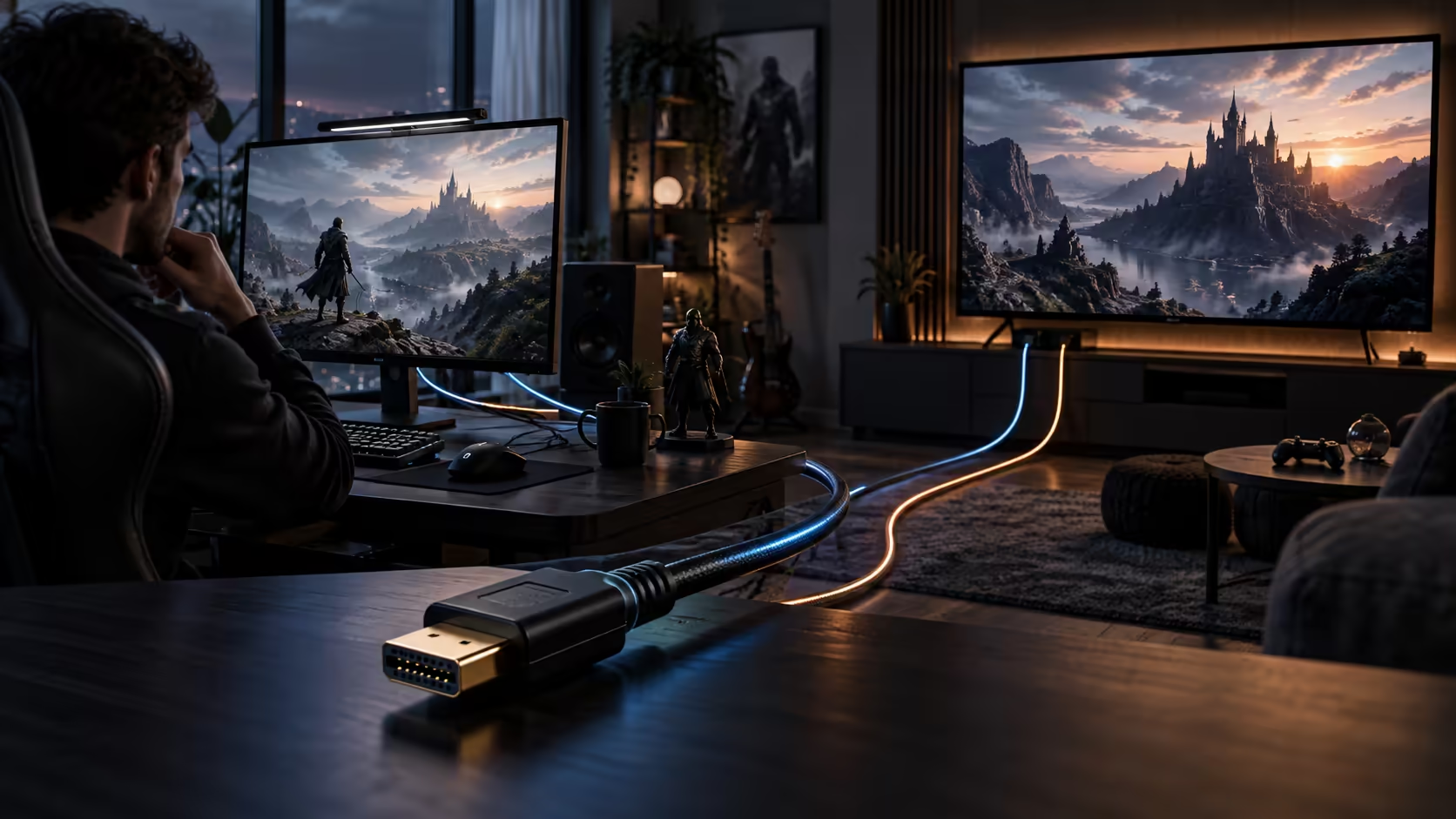
Desktop monitors are the exception, and a mid-range to high-end gaming monitor typically carries both a DisplayPort input and one or more HDMI inputs side by side. Graphics cards mirror that, shipping with both connector types so the same card can feed a monitor over DisplayPort and a television over HDMI at the same time from different outputs.
⚡ The bandwidth gap, connector to connector
DisplayPort has generally led HDMI on raw bandwidth at each generation's release. DisplayPort 1.4 carries around 32.4Gbps of usable data after overhead, enough for 4K at 120Hz without compression, and the newer DisplayPort 2.1 standard pushes considerably higher again, into territory that supports 8K at high refresh rates on panels built to receive it. HDMI 2.1's 48Gbps sits between those two DisplayPort generations, comfortably enough to run a fast 4K panel or step up to an 8K one, which is why the choice rarely comes down to bandwidth alone once you are picking between a modern monitor's two ports.
🎮 What actually decides it for gaming
On a desktop monitor with both inputs, variable refresh rate technology is usually the deciding factor rather than bandwidth. Most monitors that support adaptive sync do so over DisplayPort as the primary route, with HDMI variable refresh rate support (part of HDMI 2.1) as a newer addition that not every panel implements equally well. If your graphics card and monitor both support DisplayPort's adaptive sync cleanly, it is often the safer default on a desktop, while HDMI remains the only option once a console or television joins the setup.
None of this changes what an HDMI cable itself needs to do: carry the full signal without becoming the limiting factor. A 48Gbps-rated lead does that regardless of whether the other end of the chain also happens to offer DisplayPort.
🔀 Running a console and a PC into the same monitor
A monitor with both a DisplayPort and an HDMI 2.1 input lets you keep a PC on one connection and a console permanently plugged into the other, switching between them from the monitor's own input menu rather than crawling behind the desk every time. This is one of the more practical reasons to care about the difference between the two ports at all, since it means the console gets its own dedicated 48Gbps HDMI lead while the PC keeps whichever connection its graphics card and the monitor agree on best.
Some higher-end monitors add a KVM switch alongside this setup, which shares a single keyboard and mouse between both inputs at the press of a button. That feature rides on a separate USB connection rather than the video cable, so it works regardless of whether the video side is running over HDMI or DisplayPort. It is worth checking that a monitor advertising this feature actually includes it before buying, since some panels list the two ports without the switching hardware that ties them together.
🔌 Getting the HDMI side right
Once HDMI is the connector you are stuck with, whether that is a console, a television, or a monitor input you have chosen deliberately, the same rule applies: match the cable's rating to the mode you want, and the cable range is where that rating is stated plainly. The 1.8m Anker lead is R299 and specified for the full 48Gbps HDMI 2.1 figure, covering 4K at 120Hz and 8K at 60Hz on either a television or an OLED monitor with an HDMI input. Our gaming monitor range shows the refresh rate each panel supports, so decide which connector to use only once you know that figure, since not every HDMI input on a monitor matches the bandwidth of its DisplayPort counterpart.
Frequently Asked Questions
Can a television use DisplayPort instead of HDMI?
No. Consumer televisions are not built with DisplayPort inputs, so HDMI is the only way to connect a console, decoder or PC to a television screen.
Is DisplayPort always faster than HDMI 2.1?
Not always. HDMI 2.1's 48Gbps sits above the older DisplayPort 1.4 standard and below the newest DisplayPort 2.1 generation, so the comparison depends on which version of each you are looking at.
Does a monitor's HDMI input support the same refresh rate as its DisplayPort input?
Not necessarily. Some monitors cap their HDMI input's refresh rate below what the DisplayPort input on the same panel can reach, so check the specific input rather than assuming they match.
Should I use HDMI or DisplayPort for adaptive sync on a gaming monitor?
DisplayPort is generally the more consistently implemented route for adaptive sync across different monitor brands, though HDMI 2.1 devices increasingly support variable refresh rate as well.
Do I need a different HDMI cable for a monitor than for a television?
No. A 48Gbps-rated HDMI 2.1 cable carries the same signal into a television as it does into a monitor's HDMI input, so one cable serves both without any difference in what it can deliver.
Can I run a console and a PC into the same monitor at once?
Yes, provided the monitor has both a DisplayPort and an HDMI input. Keep the PC on one connection and the console on the other, and switch between them from the monitor's own input selector.
Ready to pick the right port for your setup?
Use HDMI wherever a console or television is involved, and rate the cable to the mode you actually want.