Quick Answer
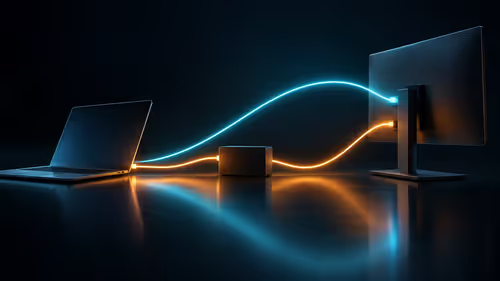
You can connect a Thunderbolt 2 Mac to a 4K monitor using an active Thunderbolt 2 to DisplayPort adapter paired with a high-speed DisplayPort cable. Expect 4K at 30Hz maximum over Thunderbolt 2's 20Gbps bandwidth, since true 4K at 60Hz requires DisplayPort 1.3 or higher bandwidth that Thunderbolt 2 cannot supply.
What You Actually Need for the Connection 🔌
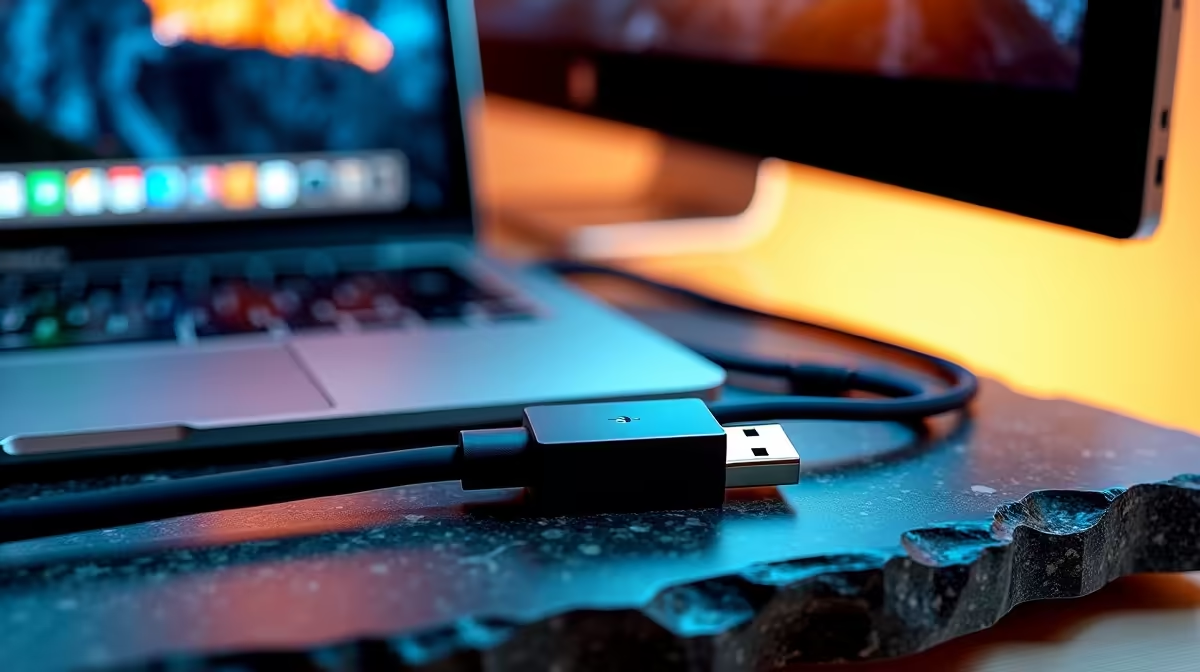
Thunderbolt 2 uses the same physical Mini DisplayPort connector shape, but the signal protocol differs from passive Mini DisplayPort. You need an active Thunderbolt 2 to full-size DisplayPort adapter, not a basic passive Mini DP cable. Apple's own Thunderbolt 2 to HDMI adapter works for many 4K panels, but for monitors with only DisplayPort input, a third-party active adapter is the route. On the monitor side, ensure you are using a DisplayPort cable rated for HBR2 (High Bit Rate 2) at minimum, which supports the 21.6Gbps throughput needed for clean signal delivery at high resolutions.
Understanding the 4K 30Hz Ceiling 🖥️
Thunderbolt 2 carries a combined 20Gbps of bandwidth shared across data and display. Driving 4K at 60Hz requires roughly 17.28Gbps of display bandwidth alone (using DisplayPort 1.2 compression), which pushes against the Thunderbolt 2 limit and typically results in instability. In practice, 4K at 30Hz is the reliable ceiling and is fine for productivity tasks like document editing, video review on a large screen, or multi-window spreadsheet work. For creative professionals in SA using older Mac Pros for colour grading, 30Hz is workable on a secondary monitor while the primary is driven by a dedicated GPU card.
Choosing the Right Adapter and Cable in South Africa 💰
Adapters and cables for this setup are available locally at Evetech, typically ranging from around R300 to R900 depending on build quality. Look for gold-plated connectors to resist the mild humidity found in coastal SA cities like Durban and Cape Town, which can accelerate oxidation on bare copper contacts. A 1.5 metre DisplayPort cable is sufficient for most desktop setups and keeps signal loss negligible at HBR2 speeds. Avoid cables longer than 3 metres for passive connections at 4K, as signal degradation becomes a real risk without active boosting. Check that any adapter you buy explicitly states Thunderbolt 2 compatibility, not just Mini DisplayPort, as passive Mini DP adapters may fail to negotiate 4K resolution correctly.
Check Display Settings After Connecting ⚡
After plugging in, open System Preferences > Displays on your Mac and hold Option while clicking Detect Displays to force resolution negotiation. If 4K at 30Hz does not appear in the list, try toggling the monitor's input source off and back on, as some panels require a cold handshake to register the Thunderbolt 2 signal correctly.
FAQ
Will Thunderbolt 2 support 4K at 60Hz on any monitor?
No. Thunderbolt 2's 20Gbps bandwidth cannot reliably sustain 4K at 60Hz, which needs more display bandwidth than the interface can dedicate to the screen. You will be capped at 4K at 30Hz in most configurations.
Can I use a cheap passive Mini DisplayPort cable instead of an adapter?
A passive cable may work on older monitors at 1080p or 1440p, but for 4K you need an active adapter that correctly translates Thunderbolt 2 signalling. Passive cables frequently fail to negotiate higher resolutions and are not recommended for this use case.
What resolution can I use if 4K at 30Hz feels sluggish for my workflow?
1440p at 60Hz is an excellent middle ground. It requires significantly less bandwidth, is fully supported by Thunderbolt 2, and delivers noticeably smoother cursor and scroll response for daily productivity compared to 4K at 30Hz.
Ready to sort your display connection?
Evetech stocks DisplayPort cables and adapters suited for legacy Mac setups, from HBR2-rated cables to gold-plated active adapters, all available to browse on the Evetech website.