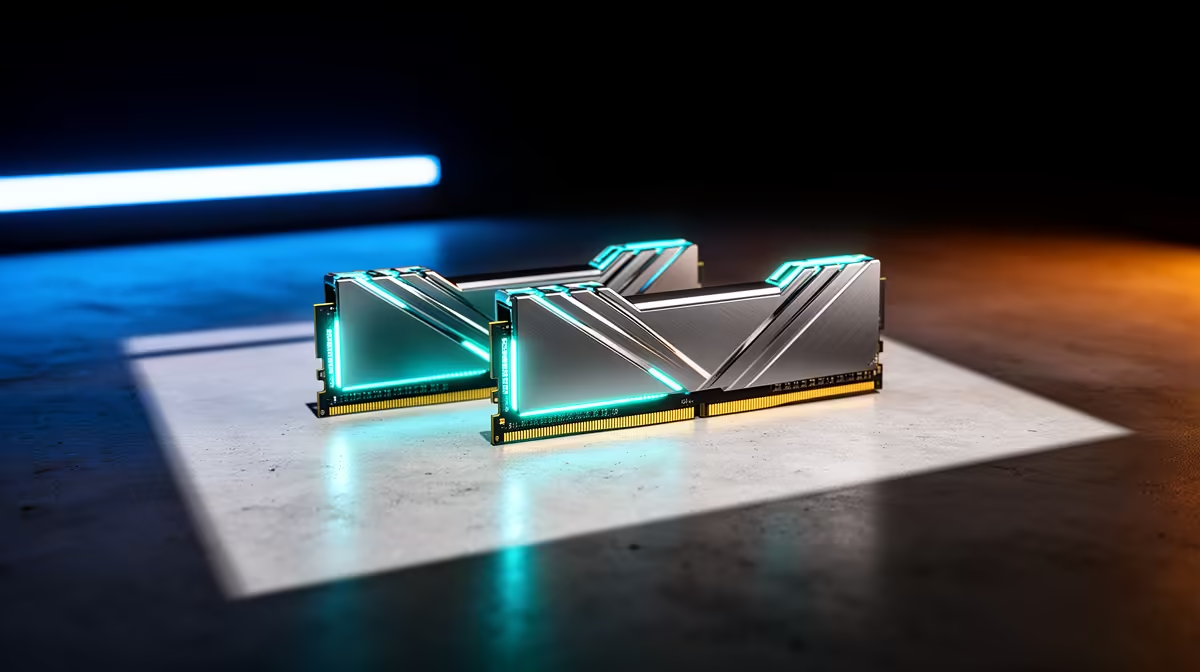
System memory is the quiet bottleneck on an AI art PC. Everyone obsesses over the graphics card, but the moment you start juggling Flux, ControlNet stacks and multiple checkpoints, it is your RAM that decides whether the machine flows or stalls. The honest split is simple: 32GB gets you running, 64GB stops the swapping that turns a creative session into a waiting game.
Quick Answer
For an AI art PC, 32GB of system RAM is the practical floor and 64GB is the recommended target. The image generators load model data into system RAM before handing it to the GPU, and tools like ComfyUI offload inactive layers back to the CPU, so 64GB removes the swap slowdowns you hit when switching between full-precision Flux and a ControlNet pipeline.
Why RAM Matters As Much As VRAM Here
The graphics card holds the model while it generates, but system RAM does the heavy lifting around it. When ComfyUI or a similar tool loads a checkpoint, the data lands in system RAM first and is then transferred to the GPU. A good rule of thumb is to have at least twice your largest model file available in system RAM as offload buffer. With Flux weighing in around 24GB at full precision, that buffer requirement alone explains why 16GB simply does not cut it for serious work.
CPU offloading is the other half of the story. When a model is too large to sit entirely in GPU memory, the software parks the inactive layers in system RAM and pulls them in as needed. If you do not have the RAM to hold them, the system falls back to disk swap, and that is where generations crawl and the whole machine feels sticky.
When 32GB Is Genuinely Enough
If you run a single model at a time, stick to one image pipeline, and your GPU has enough memory to hold the model on its own, 32GB copes. A 12GB to 16GB graphics card paired with 32GB of system RAM is a balanced, affordable starting point for someone learning the ropes or generating single images without elaborate node graphs.
The tightness shows up when you push beyond that: keeping a browser, a reference gallery and the generator open together, or running a workflow that chains several models. At that point 32GB is full, and the system starts leaning on swap.
The Telltale Signs You Have Outgrown 32GB
You will notice it as pauses when switching checkpoints, a long hang the first time a large model loads, and the machine becoming unresponsive mid-generation. Those are RAM-pressure symptoms, not GPU ones, and no amount of VRAM fixes them.
Why 64GB Is The Recommended Target
64GB is the comfortable tier for anyone working seriously. It holds the offload buffers for a 24GB Flux model with room to spare, lets you keep multiple models warm without re-loading, and absorbs the overhead of ControlNet, upscalers and a busy node graph all at once. If you ever branch into AI video workflows, which are far hungrier than still images, 64GB stops being a nice-to-have and becomes the baseline. Pair that with a capable card from the GPU best sellers and the two work together instead of fighting for headroom.
A practical way to decide is to match RAM to your graphics card. A 12GB to 16GB card is well served by 32GB; a 24GB card really wants 64GB behind it so the system RAM can keep up with the larger models that card unlocks.
Speed and Configuration Matter Too
Capacity is the headline, but how the RAM is installed matters nearly as much. A single 64GB stick runs in single-channel mode, halving the memory bandwidth the processor can access. Single-channel bandwidth starves the CPU offload path: when inactive model layers move between the GPU and system memory, those transfers are limited by how quickly the memory bus can carry them. A pair of 32GB sticks in dual-channel mode doubles the available bandwidth and keeps those transfers from backing up, which shows up as shorter pauses when models swap in and out.
DDR5 is the platform choice to make on any current build. DDR5 kits at 6000MHz deliver noticeably faster memory bandwidth than DDR4, and that matters specifically for AI workflows where the CPU spends extended time moving large model data. DDR5 is standard on all current Intel and AMD platforms that pair well with high-end RTX cards, so there is little reason to specify anything else on a new build. Budget a dual-channel DDR5 kit rather than the cheapest single module and the RAM stops being the bottleneck it otherwise could be.
When You Might Need More Than 64GB
128GB is niche territory but it does exist. If you run multiple independent AI services simultaneously, such as an image generator and a local large language model at the same time, the aggregate memory demand can push past 64GB when both are loaded and active. Most creators are nowhere near this boundary, but it is worth knowing that the tier above 64GB exists and is feasible on current AMD Ryzen Threadripper or top-end mainstream platforms if the workflow genuinely demands it.
SA Buying Notes
Buying RAM is one of the cheaper ways to lift a creative machine, and it is far better to start at the right tier than to retrofit later. If you are speccing a complete build, the prebuilt AI PC range is configured with these workloads in mind, so the memory and GPU are matched rather than mismatched. Go DDR5 where the platform supports it, and aim for a dual-channel kit rather than a single stick so the memory bandwidth is there for those CPU-offload transfers.
Frequently Asked Questions
Is 32GB enough for Stable Diffusion and Flux?
For single-model, single-pipeline work on a card with enough VRAM, yes. It becomes tight once you switch between large checkpoints or run ControlNet stacks, where 64GB removes the swap slowdowns.
Why does AI art use system RAM and not just VRAM?
Models load into system RAM before transferring to the GPU, and inactive layers are offloaded back to the CPU when they do not fit in VRAM. Without enough RAM, the system swaps to disk and slows down.
How much RAM does Flux need?
Plan for at least twice the model size as offload buffer. Flux is roughly 24GB at full precision, so 64GB gives comfortable headroom while 32GB is the minimum that keeps it usable.
Should I match RAM to my GPU?
It helps. A 12GB to 16GB card pairs well with 32GB, while a 24GB card is better backed by 64GB so system RAM can feed the larger models that card can hold.
Will more RAM make my images generate faster?
Not the raw generation speed, that is the GPU's job. More RAM removes the pauses, swapping and reload delays around generation, so the overall session feels much faster.
Speccing a machine for local AI image work? Get the memory tier right from the start. Browse the AI PC range at Evetech for builds where the RAM and GPU are matched to the workload.