Quick Answer
Choose 4K 240Hz for visually rich single-player games, creative work, and general use where image quality matters. Choose FHD 480Hz for competitive multiplayer games where maximum smoothness and lowest possible input lag matter more than resolution. On dual-mode monitors, use both modes on the same panel by switching in the OSD depending on what you are playing.
Understanding Dual-Mode Monitor Technology 🖥️
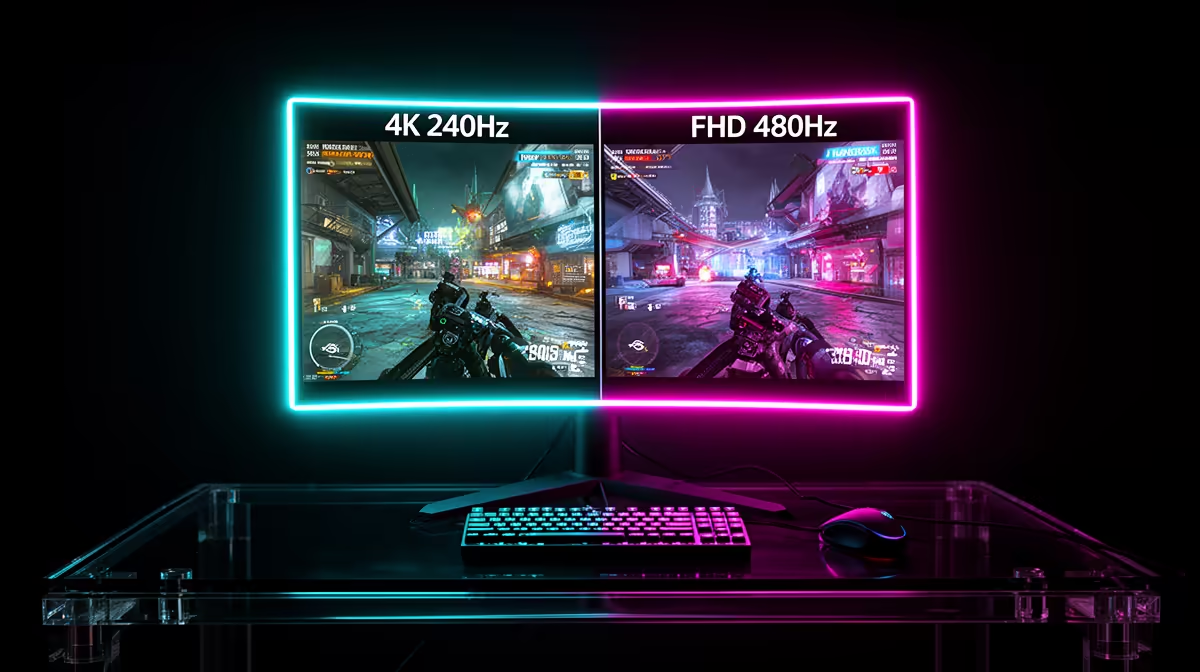
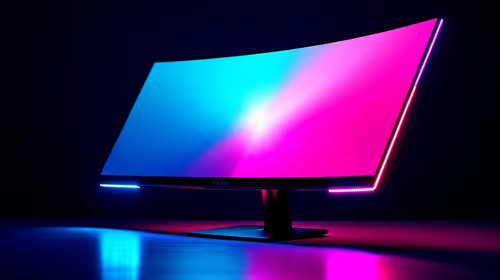
Some current-generation OLED gaming monitors offer a hardware dual-mode capability: the panel physically shifts between 4K 240Hz (3840x2160) and FHD 480Hz (1920x1080) by activating or deactivating pixel clusters. At 480Hz, the monitor draws a new frame every 2.1 ms, cutting motion blur and crosshair tracking response to levels that 240Hz cannot match. At 4K 240Hz, each pixel is distinct and the image fidelity in open-world or narrative games is dramatically better. These dual-mode monitors, currently available from around R20,000 at Evetech, offer both capabilities in a single display that adapts to your gaming session type.
When to Use 4K 240Hz Mode 🎮
Use 4K 240Hz for games with rich visual detail: open-world RPGs, racing simulations, story-driven games, and creative applications. At 3840x2160, texture detail, shadow resolution, and post-processing effects are rendered at full density, which at 27 to 32 inches gives approximately 138 to 163 ppi, producing a sharp, clean image. Your GPU needs to be an RTX 5080, RTX 4090, or RX 9070 XT class to push 240 fps at 4K in demanding titles. With DLSS 4 Quality mode on a RTX 50-series GPU, you can render internally at 1440p and output at 4K 240Hz with minimal quality loss, making the mode GPU-accessible on slightly less powerful hardware.
When to Switch to FHD 480Hz Mode ⚡
For competitive titles like CS2, Valorant, Apex Legends, or Overwatch 2, switch the OSD to FHD 480Hz mode. At 1920x1080, your GPU easily reaches 400 fps-plus in most competitive games at low settings, saturating the 480Hz panel. The result is the smoothest, most responsive gaming experience available in any current consumer monitor. The resolution step-down from 4K to 1080p is visible when looking closely, but in the heat of competitive play with all settings reduced for performance, the motion clarity gain at 480Hz is far more impactful than the resolution difference.
Mode Switching Workflow ⚡
two separate in-game settings profiles in your competitive titles: one for 4K 240Hz with high visual settings and one for FHD 480Hz with performance settings. Switching between them in the OSD and simultaneously loading the matching game profile takes under 30 seconds and ensures you are always optimised for the mode the monitor is currently running in.
FAQ
Does switching between 4K and FHD mode require a PC restart?
No. Dual-mode monitors switch via the OSD, and Windows detects the resolution change and adapts immediately. You will see a brief black screen for 2 to 3 seconds during the mode switch, after which the display resumes at the new resolution and refresh rate.
Can a mid-range GPU like the RTX 4070 Ti make use of 480Hz FHD mode?
Yes, very effectively. In competitive titles at 1080p low settings, the RTX 4070 Ti reaches 400 fps-plus in most games, which saturates a 480Hz panel fully. For 4K 240Hz gaming, an RTX 4070 Ti performs well with DLSS Quality enabled.
Is there a visible quality difference between native 4K and FHD on the same OLED panel?
Yes, 4K is noticeably sharper at close viewing distances. The difference is most apparent in fine text, detailed textures, and UI elements. For fast competitive gameplay with all settings reduced, the motion advantage at 480Hz outweighs the resolution difference for most players.
Choosing a dual-mode 4K 240Hz or FHD 480Hz gaming monitor?
Evetech stocks high-refresh OLED and IPS gaming monitors built for both competitive and immersive gaming, browse the full range today.