Quick Answer
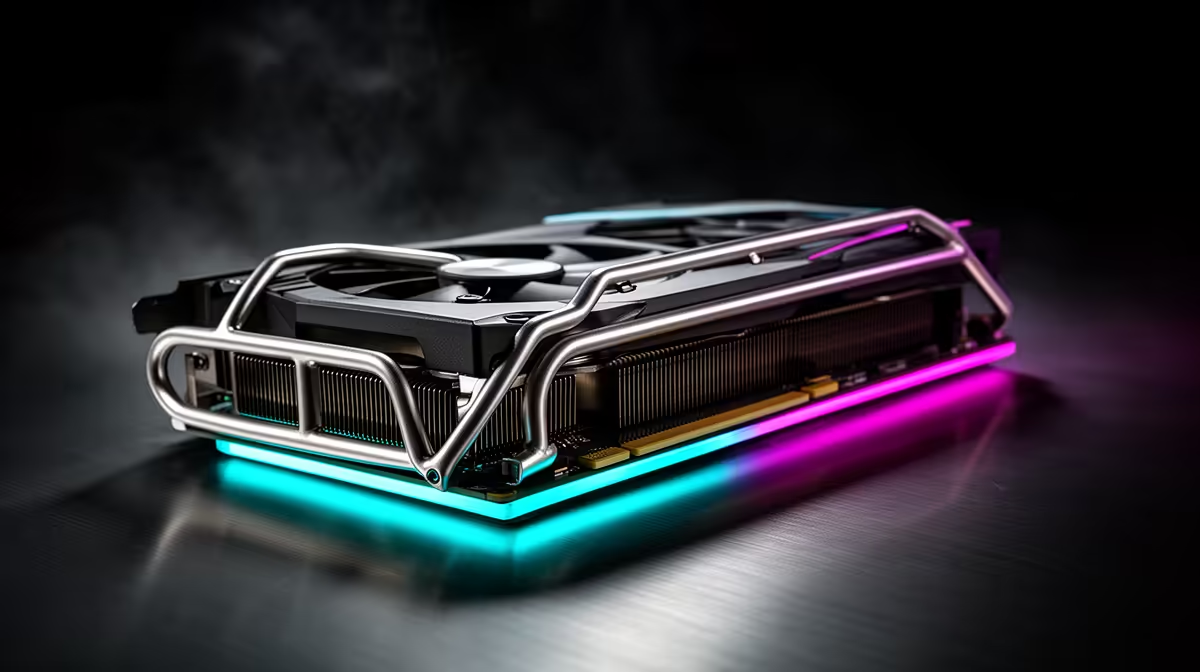
Install a long graphics card safely by seating the PCIe edge connector fully before tightening the bracket screws, then positioning the built-in GPU brace to contact the shroud without applying upward force. The brace prevents sag from developing over time but must not lift the card off the slot during installation.
Step-by-Step Installation With a GPU Brace 🔧
Begin with the brace in its lowest or retracted position before sliding the GPU into the PCIe slot. Hold the card level and align the edge connector with the x16 slot, then press firmly and evenly until the slot retention latch clicks into place. Once the card is fully seated, tighten the PCIe bracket screws at the rear of the case: two screws for a dual-slot card, three for a triple-slot card. Only after the bracket screws are secured should you adjust the GPU brace. Raise the brace until it just contacts the underside of the GPU shroud. A properly set brace allows no visible gap between brace and shroud, but also does not flex the PCIe bracket upward when you press lightly on the top of the card.
Handling Triple-Fan Flagship Cards Safely 💡
Cards like the RTX 5090 and RX 9070 XT with triple-fan shrouds measure over 300mm in length and weigh between 1.5kg and 2.2kg. Their length means the front of the card may rest within 20mm to 40mm of the case's front fans or front radiator. Before final installation, check that the GPU does not contact any fan blade by spinning front intake fans manually with the system off. The card's front edge should clear all obstructions by at least 5mm. If clearance is marginal, verify that the case specification for GPU length with your drive cage configuration was selected correctly. Some full-tower cases achieve 450mm clearance only with the front drive cage removed.
Common Mistakes to Avoid During GPU Brace Setup 📐
The most common error is adjusting the brace with the GPU PCIe connector not fully clicked in, which makes the card appear level when it is actually slightly lifted at the front. A partially seated connector causes intermittent graphical artefacts and blue screens that are difficult to diagnose. Always confirm the latch click before touching the brace. The second common error is using the brace as a primary support during installation, sliding the card into the slot while resting its weight on the brace. This can prevent the edge connector from fully seating. A third error is over-tightening an adjustable brace until the PCIe bracket visibly bends upward, which reduces edge connector contact pressure.
Test for Sag Monthly With a Spirit Level ⚡
Place a small spirit level on the top of the GPU shroud once a month. Any visible rear-to-front slope after tightening the brace indicates sag developing. Re-adjust the brace contact point upward by a quarter-turn if slope is detectable. Catching minor sag early prevents it from becoming a PCIe slot stress issue over a year of use.
FAQ
Can I install a GPU brace after the system is already built?
Yes, most built-in case braces are accessible with the side panel removed and the system powered off. Slide the brace to the correct height and tighten any locking thumbscrew. You do not need to remove the GPU to adjust the brace.
Do GPU braces work with vertically mounted graphics cards?
No. A vertical GPU mount is perpendicular to the sag force, so sag does not occur and no brace is needed. The vertical riser bracket itself supports the card's weight. GPU braces are only needed for horizontal PCIe slot installations.
Is it safe to transport a PC with a long GPU installed and a brace in place?
For short moves, yes. For long transport or shipping, remove the GPU and pack it separately. Even with a brace, road vibration over extended journeys can stress the PCIe slot more than the brace can counteract, particularly with very heavy triple-fan cards.
Installing a flagship GPU in your build?
Evetech stocks graphics cards and premium cases with integrated GPU support braces, giving your hardware the protection it needs from day one.