Quick Answer
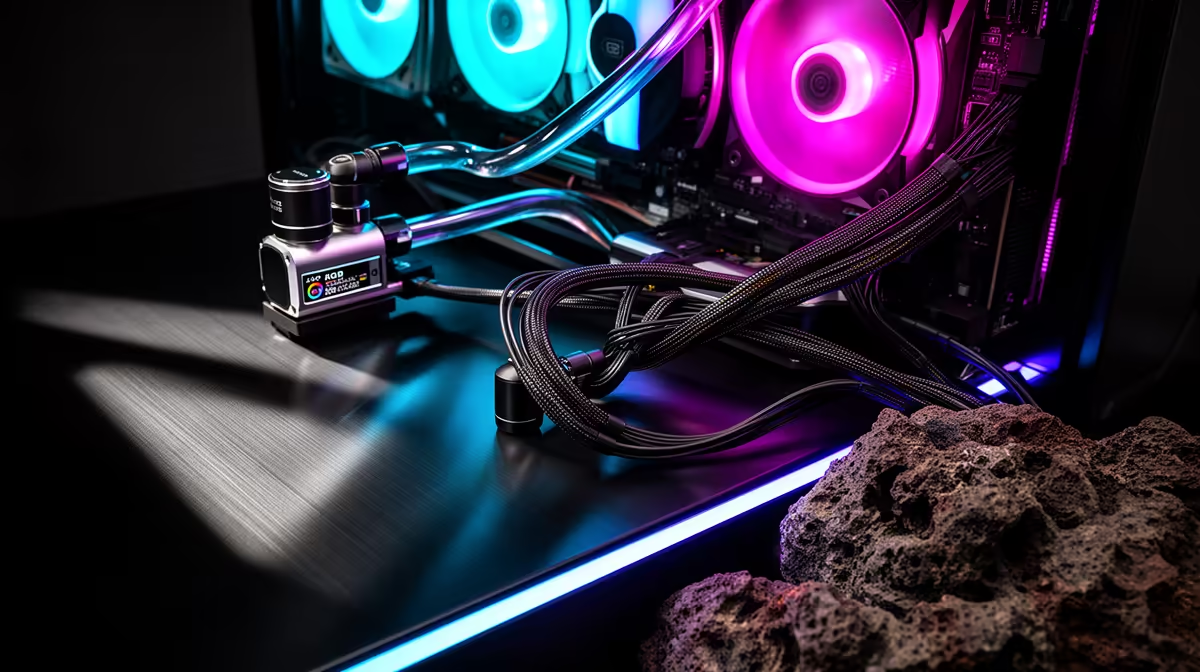
To reduce cable clutter from ARGB fans and AIO pump connections, use a fan hub to consolidate fan speed cables to one motherboard header, daisy-chain ARGB cables where your fans support it, route all cables behind the motherboard tray before connecting components, and use short cable extensions to reach anchoring points rather than running long cables across the case interior.
Plan Your Cable Routes Before Installing Any Components 🔧
Cable management is far easier when cables are pre-routed before components are seated. Before installing the motherboard, run ARGB and fan PWM cables through their eventual tray cutouts and secure them loosely. This avoids the far harder task of pushing cables through occupied space later. For a 360mm AIO build with three radiator fans and three case fans, plan for the AIO pump header, USB cable for any LCD, fan PWM connections, ARGB connections, and SATA power for any hub. Mapping these before the build begins saves significant rework.
Consolidating Fan Connections with a Hub 💨
A PWM fan hub is the single most effective cable management tool for multi-fan builds. A quality hub connects four to eight fans via short cables, then uses one PWM cable and one SATA power cable to the motherboard and PSU. This reduces six fans from six header connections to one. Position the hub behind the motherboard tray near the PSU shroud. For ARGB, a controller (R200 to R400 at Evetech) consolidates fan ARGB inputs to one motherboard header. Daisy-chain fans reduce this further, with each chain of three fans needing just one ARGB connection.
Practical Routing Tips for AIO Pump Cables 🎮
The AIO pump head generates two cables that are often overlooked: the pump power cable (to a CPU_OPT or AIO_PUMP header on the motherboard) and the USB cable for any LCD display. Both terminate at the pump head, which is mounted at the CPU socket, and need to travel down and behind the motherboard tray to reach their connection points. Use the tray cutout closest to the CPU socket area for both cables rather than routing them across the face of the motherboard. Excess cable length should be folded and secured with velcro cable ties behind the tray rather than stuffed into the space in front of the tray where they become visible through a tempered glass panel. Short 30cm USB extension cables and right-angle pump header adapters (available for R50 to R150) improve cable routing angles without adding visual bulk.
Use Velcro Ties Behind the Tray, Not Zip Ties ⚡
Velcro cable ties allow you to reopen and adjust cable bundles when you add or change components without cutting ties and re-routing everything. In a gaming PC that may see GPU upgrades or additional drives, this flexibility saves significant time. Buy a pack of 20 velcro ties (around R50 to R80) and use them exclusively behind the motherboard tray.
FAQ
How do I stop ARGB cables from reappearing on the front of the motherboard?
Route ARGB cables immediately through the nearest tray cutout after leaving the fan connector. Do not let them travel horizontally across the motherboard surface. If the cable is too short to reach a rear cutout directly, use a 10cm to 20cm ARGB extension rather than letting the cable loop visibly.
Can I connect all six fans (three radiator, three case) to one fan hub?
Yes, with a hub that supports six or more ports. Most quality hubs support four to eight PWM fans. All six fans drawing power and signal from one hub with a single motherboard connection is standard practice in well-managed builds.
What should I do with excess fan cable length inside the case?
Fold excess cable length into a flat accordion bundle and secure it with a velcro tie anchored to a convenient point behind the motherboard tray. Avoid coiling cables tightly (coiled cables near fans can vibrate and create noise) and avoid letting bundles dangle near GPU fans or case intake paths.
Building a clean gaming PC with AIO cooling?
Browse ARGB fans, fan hubs, and AIO coolers at Evetech for everything your cable management plan needs.