

Complete Gaming Setup Guide for the SA Esports Athlete in SA 2026
Complete Gaming Setup Guide for the Esports. Clear setup instructions with SA-specific considerations, troubleshooting tips & recommended components.
Read moreMaster the art of laptop battery replacement with our step-by-step guide. Boost device longevity | 💡🔋 Upgrade old gadgets with expert-approved methods.
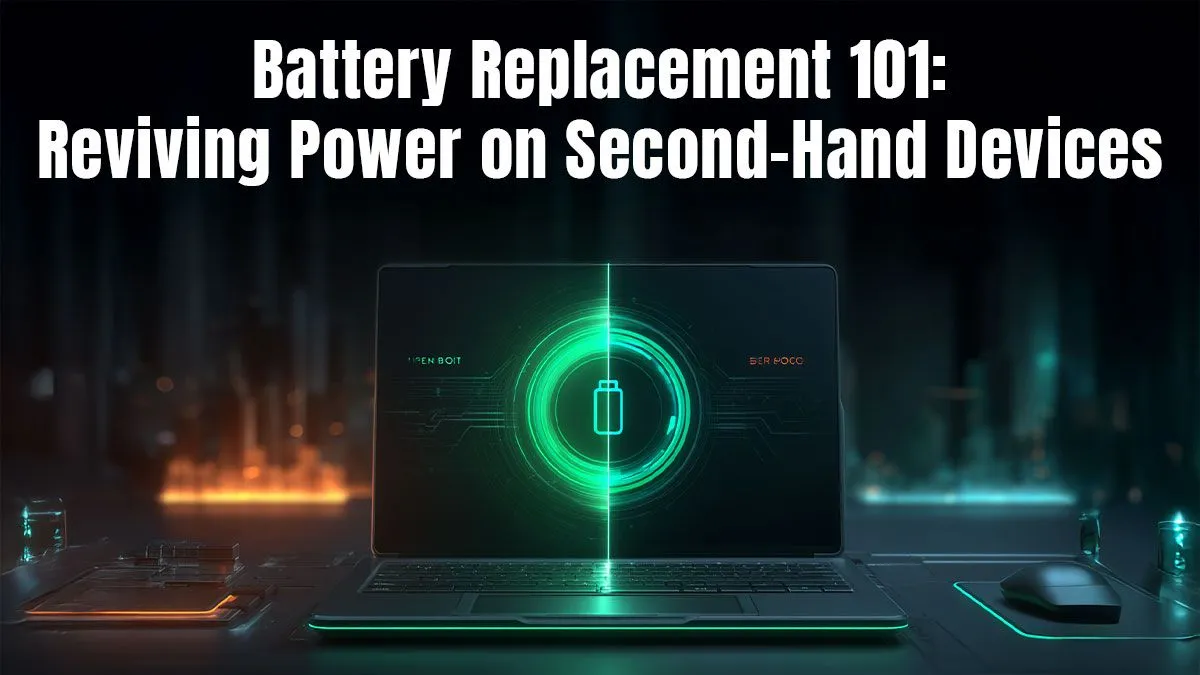
Is your laptop basically a desktop now, chained to its charger? That dreaded 'Low Battery' warning popping up minutes after you unplug is a classic sign. Before you start pricing new machines, what if you could restore that 'unplugged' freedom for a fraction of the cost? Learning how to replace a laptop battery is a surprisingly simple DIY skill that saves you money and breathes new life into your trusted device. Let's get your laptop back on the move. ⚡
Before you break out the tools, you need to be sure the battery is the culprit. A tired battery gives off a few clear signals. The most obvious is a drastically reduced runtime—if you're getting less than half of what you used to, it's a strong indicator.
Other signs include:
If you're nodding along to one or more of these, a laptop battery replacement is likely your next move.
You don't need a full workshop, but having the right tools makes the job much easier and safer. Here’s your essential checklist:
Before you remove a single screw, take a quick photo with your phone. Then, as you remove screws for a specific component, place them on a piece of paper next to it and draw a little map. This saves you from the classic 'which screw goes where?' headache during reassembly.
Ready to get hands-on? Take a deep breath... this is easier than it looks. We'll focus on replacing an internal battery, as modern laptops have mostly moved away from the old-school swappable kind. 🔧
Power down your laptop completely—don't just put it to sleep. Unplug the AC adapter and any connected peripherals. Work on a clean, flat, non-conductive surface like a wooden table. If you have an anti-static strap, put it on now.
Flip your laptop over. Carefully remove all the screws holding the bottom case in place. Use your plastic prying tool to gently unclip the bottom panel from the main chassis. Start at a corner and work your way around slowly. The design of these internal systems can vary, especially on today's best gaming laptop deals which pack in a lot of tech.
Once inside, the battery is usually a large, black or silver rectangle. It will be held in by a few screws and connected to the motherboard by a cable. First, unscrew the battery. Next, very carefully disconnect the battery connector from the motherboard. Don't pull on the wires; gently wiggle the connector itself.
Position the new battery where the old one was. Re-secure it with its screws, but don't overtighten them. Now, carefully align the battery connector with the socket on the motherboard and press it firmly into place. It should click in. With the new battery installed, you can snap the bottom case back on and replace all the screws.
You're almost done! The final pro step is to calibrate the new battery. This helps the operating system accurately read its charge levels.
This simple fix can make an older machine feel much more useful, though it won't quite match the all-day endurance of the latest AMD laptops or the sheer grunt of new powerful Intel laptops. Still, knowing how to replace a laptop battery is a skill that puts you back in control of your tech.
Or... Is It Time for a Fresh Start? 🚀 If this process seems a bit daunting, or your laptop is showing its age in other ways, maybe it's time for an upgrade. Browse our incredible laptop specials at Evetech for unbeatable performance and brand-new, out-of-the-box battery life.
Screwdrivers, plastic prying tools, and safety gloves are essential. Always disconnect power first.
Signs include short battery life, device heating, and error messages. Test with built-in diagnostics.
Yes! A fresh battery extends usage time and stabilizes power supply for smoother operation.
Follow safety protocols: discharge static, use proper tools, and avoid damaged batteries.
Purchase from trusted sellers like Evetech for compatible, high-quality options with warranties.
Most replacements take 10–30 minutes depending on device complexity and your experience level.
Yes! Replacing old batteries in used gadgets ensures optimal performance and device longevity.
Complete Gaming Setup Guide for the Esports. Clear setup instructions with SA-specific considerations, troubleshooting tips & recommended components.
Read more
AIO Liquid 360mm Installation Guide for Your PC. Clear setup instructions with SA-specific considerations, troubleshooting tips & recommended components.
Read more
MacBook Display Colour Looks Wrong? Calibration. Everything you need to know with SA pricing, step-by-step instructions & expert recommendations.
Read more
Printer Terminology Guide. Everything you need to know with SA pricing, step-by-step instructions & expert recommendations.
Read more
Git on Mac: Complete Setup Guide for Beginners. Clear setup instructions with SA-specific considerations, troubleshooting tips & recommended components.
Read more
Ryzen 9 9900X Thermal Paste Dry: Reapplication. Everything you need to know with SA pricing, step-by-step instructions & expert recommendations.
Read more
AMD RX 9050 XT: Rumoured Specs, Price & Release. SA-focused analysis with local pricing data, real-world insights & actionable buying advice.

Can RTX 4080 Super Run AI Workloads for SA Developers Detailed answer with SA data, expert analysis & practical recommendations for local buyers.

Can RTX 4090 Run AI Workloads for SA Developers Detailed answer with SA data, expert analysis & practical recommendations for local buyers.

Top Settings for Intel Arc B580 at Ultrawide 1440p picks evaluated on performance, value & SA availability with current Rand pricing from Evetech.

RTX 4060 CS2 Low Settings at 1080p: FPS Results. Real-world benchmark data, FPS numbers & performance analysis. What SA gamers can actually expect.

Visual Artifacts: Possible GPU Issue Issue #1. Diagnosis steps, proven fixes & when to seek professional help. SA-specific support info included.

Can the RTX 4090 Handle 1440p 144Hz Gaming. Performance testing verdict with real data & practical recommendations for SA buyers.

Top ASUS GPU Under R15000 picks evaluated on performance, value & SA availability with current Rand pricing from Evetech.

GTA 6 Max Settings on RTX 5070. Tested & verified settings for best FPS and visual quality on SA hardware budgets.

Cyberpunk 2077 Max Settings on RTX 5080. Tested & verified settings for best FPS and visual quality on SA hardware budgets.

Starfield Max Settings on RTX 5070 Ti. Tested & verified settings for best FPS and visual quality on SA hardware budgets.

Top RTX 5090 Under R5000 picks evaluated on performance, value & SA availability with current Rand pricing from Evetech.