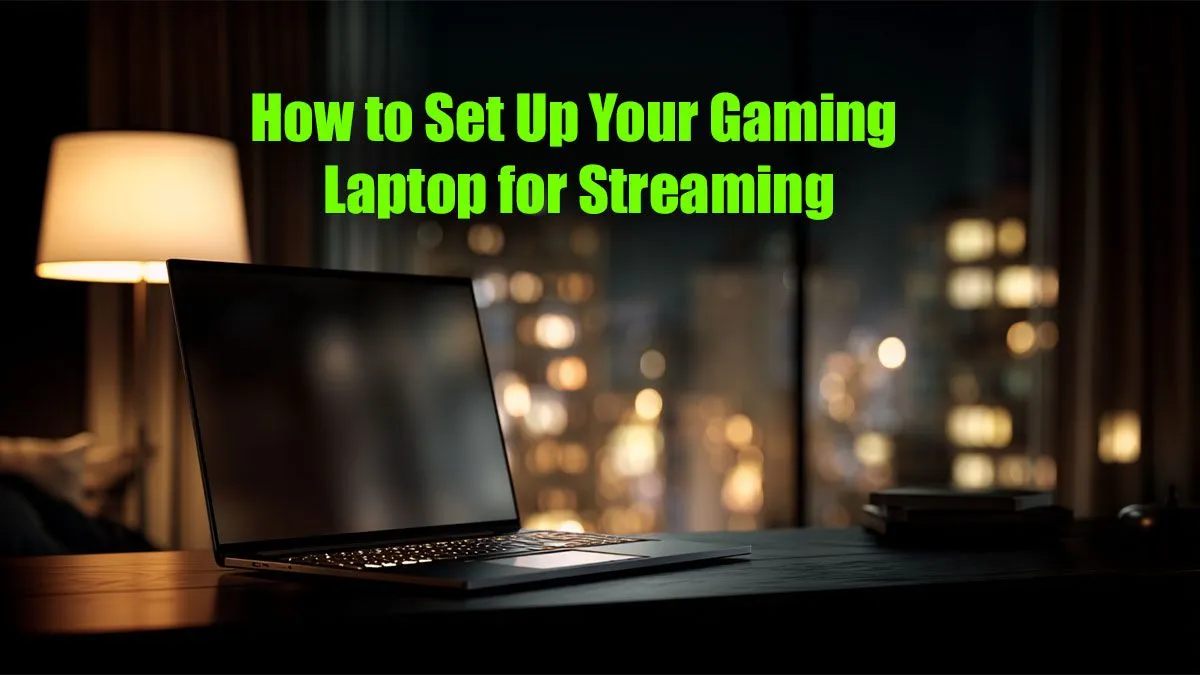
So, you’ve got a powerful gaming laptop and dreams of hitting 'Go Live' on Twitch or YouTube? Lekker. But turning your beastly machine into a smooth streaming setup can feel like a mission, especially in South Africa where every frame and kilobit counts. A laggy stream or stuttering gameplay can kill your vibe fast.
Don't stress... this guide will show you exactly how to set up your gaming laptop for streaming, step-by-step. Let's get you broadcast-ready. 🚀
Choosing the Right Gear for Your Laptop Streaming Setup
Before we dive into software settings, let's talk hardware. A successful stream starts with the right foundation. Your gaming laptop is the star, but a few peripherals can make a massive difference.
- The Laptop Itself: The most critical components for streaming are your CPU and GPU. A modern processor with at least 6 cores (like an Intel Core i5 or AMD Ryzen 5 from recent generations) is a great starting point. For the GPU, anything from an NVIDIA RTX 3050 upwards is ideal, mainly for its brilliant NVENC encoder, which we'll discuss later. If you're looking for a machine built for this, browsing the best gaming laptop deals is the perfect place to start.
- A Good Microphone: Your laptop's built-in mic won't cut it. Your voice is key to connecting with your audience. A quality USB microphone like a Blue Yeti or Rode NT-USB+ is a fantastic investment for clear audio.
- Webcam or Camera: Viewers love seeing your reactions. A simple 1080p webcam like the Logitech C920 is more than enough to get started.
- Stable Internet: This one's non-negotiable, especially in SA. A stable fibre connection is best. Always, always use an Ethernet cable instead of Wi-Fi. A wired connection provides a consistent data flow, which is crucial for preventing dropped frames.
Step 1: Optimise Your Gaming Laptop's Performance 🔧
A gaming laptop has to juggle running a demanding game and encoding a video stream in real-time. To prevent it from buckling under pressure, you need to optimise its performance. This is a crucial part of any guide on how to set up your gaming laptop for streaming.
Update Your Drivers
First things first: make sure your graphics drivers are up to date. Both NVIDIA (via GeForce Experience) and AMD (via Adrenalin Software) release game-ready drivers that often include performance improvements and bug fixes that can directly impact your gaming and streaming experience.
Tweak Windows Settings
A few small changes in Windows can free up valuable resources:
- Enable Game Mode: Go to Settings > Gaming > Game Mode and turn it on. This prioritises your game, preventing Windows Update and other background processes from stealing CPU cycles.
- Use the Ultimate Performance Power Plan: Open PowerShell as an administrator and paste this command:
powercfg -duplicatescheme e9a42b02-d5df-448d-aa00-03f14749eb61. Then, go to Control Panel > Power Options and select "Ultimate Performance". This ensures your CPU and GPU are getting all the power they need. - Close Unnecessary Apps: This seems obvious, but it's vital. Shut down Chrome tabs, Discord (unless you're using it for comms), Spotify, and any other app you don't absolutely need while live.
Encoder Essentials ⚡
For a single-laptop streaming setup, always use the NVIDIA NVENC (or AMD's AMF VCN) encoder in your streaming software. It uses a dedicated chip on your graphics card to handle the video encoding, which has a much smaller impact on your in-game frame rate compared to the x264 (CPU) encoder. Using x264 on a single laptop will almost always cause performance issues.
Step 2: Configure OBS for a Flawless Stream
Open Broadcaster Software (OBS) Studio is the free, powerful, and industry-standard tool for streaming. It might look intimidating, but we'll focus on the essential settings to get your stream looking crisp.
The Output Tab
This is where the magic happens. In OBS, go to File > Settings > Output. Set the "Output Mode" to "Advanced".
- Encoder: As mentioned in our tip, select
NVIDIA NVENC H.264 (or the AMD equivalent). - Rate Control: Set this to
CBR (Constant Bitrate). - Bitrate: This depends heavily on your upload speed. For Twitch, a good starting point for 1080p 60fps streaming is 6000 Kbps. For 720p 60fps, try 4500 Kbps. Run an internet speed test and make sure your upload speed can comfortably handle this.
- Preset: Start with
Quality. If you experience issues, you can drop it to Performance.
Even with these optimisations, the overall power of your machine matters. Many of the current laptop specials for sale in South Africa pack enough punch for a quality 1080p stream right out of the box.
The Video Tab
Here you'll set your resolution and frame rate.
- Base (Canvas) Resolution: This should match your laptop's screen resolution (e.g., 1920x1080).
- Output (Scaled) Resolution: This is the resolution your viewers will see.
1920x1080 (1080p) is the goal, but if your laptop or internet struggles, dropping to 1280x720 (720p) is a fantastic, high-quality alternative that requires far less power. - Common FPS Values:
60. If you play slower-paced games or need to save resources, 30 is perfectly fine.
Step 3: Advanced Tips for a Pro-Level Stream ✨
You’ve mastered the basics of how to stream from a gaming laptop. Now for a few extra tricks.
In-Game Settings
Don't forget to optimise your game itself! Cap your in-game frame rate to something stable (like 60 or 120 FPS) instead of letting it run unlocked. This leaves performance headroom for the stream encoding process. Lowering a few graphics settings from Ultra to High can also make a huge difference with almost no visual trade-off.
The Single PC vs. Dual PC Debate
You might hear pro streamers talk about a "dual-PC setup," where one PC runs the game and a second one handles the stream. While it's the gold standard, it's also expensive and complex. Today's hardware is so powerful that a single, well-configured laptop can deliver a phenomenal stream. For creators who need to run extremely demanding games and stream in pristine quality, some even consider powerful workstation laptops, which offer incredible CPU performance for heavy multitasking.
Ready to Go Live?
From your first follower to a full-blown community, it all starts with the right gear. Setting up your gaming laptop for streaming is the first step, but having a machine that can handle the heat is crucial. Explore our massive range of laptop specials and find the perfect rig to launch your streaming career.