Quick Answer
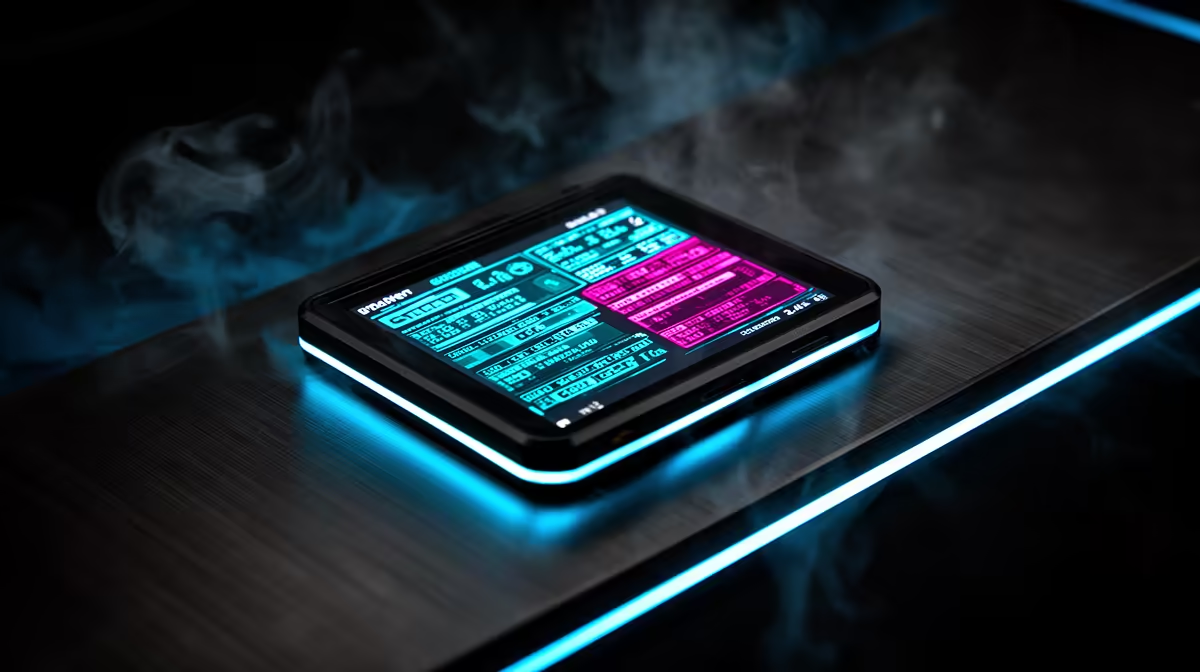
To use a 2.4-inch LCD AIO pump head display for real-time CPU and GPU monitoring, connect the cooler's USB header to an internal USB 2.0 header on your motherboard, install the brand's companion software (such as Corsair iCUE, NZXT CAM, or Lian Li L-Connect), and configure the display widget to show the sensors you want, typically CPU temperature, GPU temperature, CPU load percentage, and coolant temperature.
Setting Up the LCD Display Connection 🖥️
Most AIO LCD pump heads require two connections: the SATA power connector for the display backlight and the USB 2.0 internal header for data communication with the companion software. Locate an available USB 2.0 header on your motherboard (usually labelled USB2_1 or JUSB1) and connect the AIO's USB cable before installing the cooler into the case, as access becomes difficult afterwards. Once the unit is mounted and the PC boots, install the companion software from the brand's website. The software recognises the display automatically and presents a widget configuration menu where you select sensor sources. For a gaming and content creation build using a Ryzen 7 9800X3D and an RTX 5080, configuring the display to show CPU junction temp, GPU core temp, and coolant temp gives you the three most actionable data points at a glance.
Customising Widgets and Display Layouts 🎨
Companion software for LCD AIO coolers typically offers multiple display styles: numeric readouts, animated gauges, custom images, and GIF uploads. For monitoring purposes, a clean numeric layout showing four to six sensors is the most functional choice. Configure the display to show sensor values with colour thresholds: green for safe temps, yellow for elevated (above 75 degrees Celsius for a CPU), and red for critical (above 88 degrees). Some software allows the display to cycle through multiple screens on a timer, which lets you track CPU and GPU temps on a five-second rotation without cluttering a single screen. Set display brightness to 50 to 70 percent during gaming and lower it at night to avoid the pump head glowing distractingly in a dark room.
Practical Monitoring Value for SA Builders 🔧
For SA builders without a secondary monitor for HWiNFO64 or MSI Afterburner overlays, the LCD pump head fills a real monitoring gap. During SA summer when ambient temps are elevated, checking CPU temperature without alt-tabbing is a practical advantage. The 2.4-inch screen is readable at 50 to 70 centimetres. Coolant temps consistently above 42 degrees during gaming are a signal to improve case ventilation or add an intake fan, available at Evetech from R300 to R600.
Add Coolant Temp to Your LCD Widget First ⚡
Most users configure CPU or GPU core temp first, but coolant temperature is the most diagnostic metric on the LCD display. Rising coolant temp tells you whether the issue is airflow, ambient heat, or cooler performance, something core temp alone cannot tell you.
FAQ
Does the LCD display affect system performance or add any load?
The USB connection and companion software add negligible CPU load, typically 0.1 to 0.5 percent, which is imperceptible during gaming or productivity work. The display itself draws power from SATA and does not affect frame rates or CPU performance.
Can I display GPU temperature from a GPU brand different to my AIO brand?
Yes. Most AIO companion software reads GPU sensors via standard Windows hardware APIs, so a Corsair AIO can display temperatures from an Nvidia RTX 5080 or AMD RX 9070 XT regardless of GPU brand.
What happens if the companion software crashes? Does cooling still work?
Yes. The LCD goes blank or shows a static screen, but the pump and fans continue at their last configured speeds or revert to firmware defaults. Cooling never depends on the companion software running.
Want real-time thermals visible without overlays?
Explore LCD AIO coolers at Evetech and take full control of your system monitoring.