Quick Answer
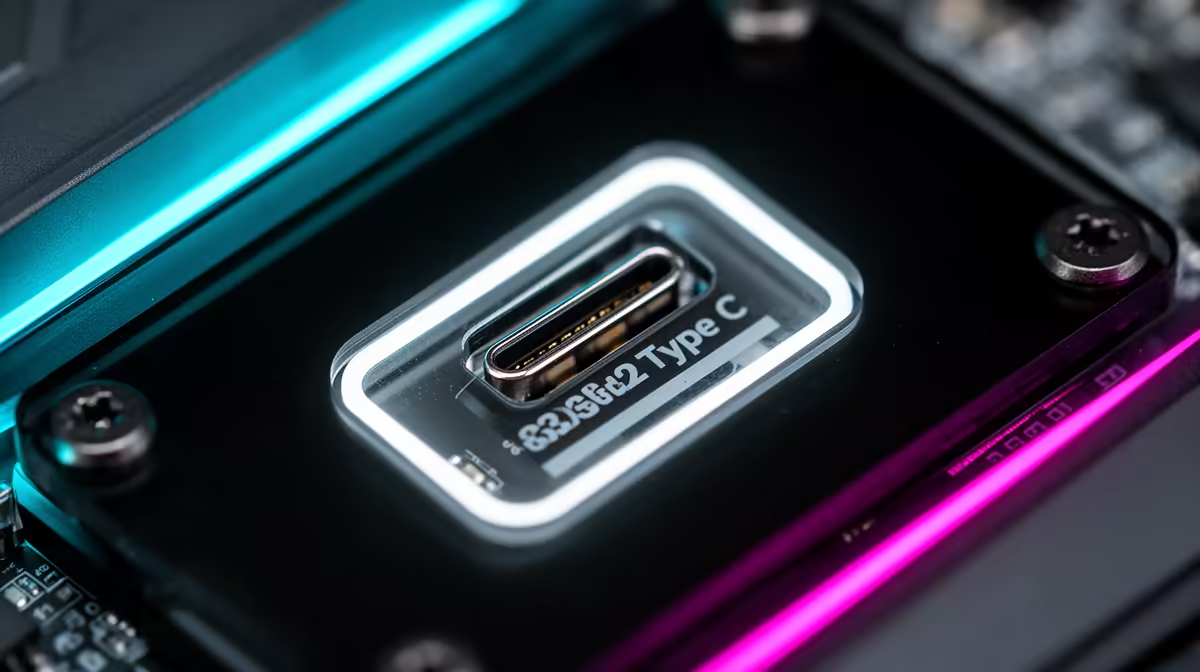
Front USB 3.2 Gen 2 Type-C delivers up to 10Gbps throughput, roughly ten times the speed of USB 2.0 ports found on older cases. To use it, connect the internal USB 3.2 Gen 2 header cable (the single small connector on the case's front panel bundle) to the matching header on your motherboard, typically labelled USB3.2 Gen2 Type-C or similar near the bottom edge of the board.
Connecting the Internal Header Correctly 🔧
The front USB 3.2 Gen 2 Type-C cable from the case connects to a specific header on your motherboard, not the rear I/O USB headers. This internal header is keyed and plugs in only one way, but it requires a motherboard that has the header in the first place.
Real-World Speed Gains for Storage Access 💾
At 10Gbps, USB 3.2 Gen 2 Type-C fills a fast external NVMe enclosure at 900 to 1,000 MB/s, compared to 400 to 450 MB/s on a USB 3.2 Gen 1 (5Gbps) port. For SA content creators transferring high-resolution footage between a portable drive and the PC, this halves transfer time for large files. A 50GB folder of raw 4K video moves in around 50 seconds on Gen 2 compared to roughly 110 seconds on Gen 1. The front port placement is also more convenient than reaching for rear I/O ports when hot-swapping drives or connecting a phone for a quick charge while gaming.
Common Issues and How to Fix Them 🖥️
The most frequent problem is the front Type-C port not being detected after the build is complete. Start by confirming the internal header cable from the case is fully seated on the motherboard header, as this connector requires firm pressure to engage fully. Next, confirm in Device Manager (Windows) or equivalent that the USB controller is recognised and no driver errors are flagged. If the port is detected but running at USB 2.0 speeds, the issue is usually the cable connected to the external device rather than the port itself: USB 2.0 cables plugged into a Gen 2 port cap the connection at USB 2.0 speeds. Use a certified USB 3.2 Gen 2 cable for any high-speed transfer.
Verify Header Before Buying Your Case ⚡
Before purchasing a case with a front USB 3.2 Gen 2 Type-C port, check that your motherboard has the matching internal header. Cross-reference the case's front panel connector type against your motherboard manual's connector map. A mismatch means the feature is physically present on the case but permanently non-functional without purchasing a PCIe expansion card, which adds R300 to R600 to the build cost.
FAQ
Can I use the front USB 3.2 Gen 2 Type-C port for charging a phone quickly?
Yes, USB 3.2 Gen 2 Type-C supports power delivery alongside data transfer, typically up to 15W from a standard USB controller header. This is adequate for charging a phone at a moderate rate while transferring files. For faster phone charging (45W or above), you need a dedicated USB Power Delivery PCIe card or a separate charger.
Does using the front USB port reduce rear port bandwidth?
On most modern chipsets (AMD X670E, AMD B650, Intel Z790, Intel B760), the USB controller has enough lanes to operate front and rear ports simultaneously at full speed without bandwidth sharing. Budget boards with fewer USB lanes may share bandwidth between ports, but this only becomes noticeable when saturating multiple ports simultaneously with large file transfers.
What devices benefit most from being plugged into the front Gen 2 Type-C port?
Portable NVMe SSDs, high-resolution webcams, USB-C gaming controllers, and flagship smartphones with USB 3.2 or USB4 support all benefit from the Gen 2 Type-C port. Standard USB-A peripherals like keyboards and mice gain no benefit from being connected to it via an adapter, as those devices operate far below the 10Gbps ceiling.
Want fast front-panel access on your next build?
Browse mid-tower and full-tower ATX cases with front USB 3.2 Gen 2 Type-C ports at Evetech, all stocked with the full component range to complete your build.