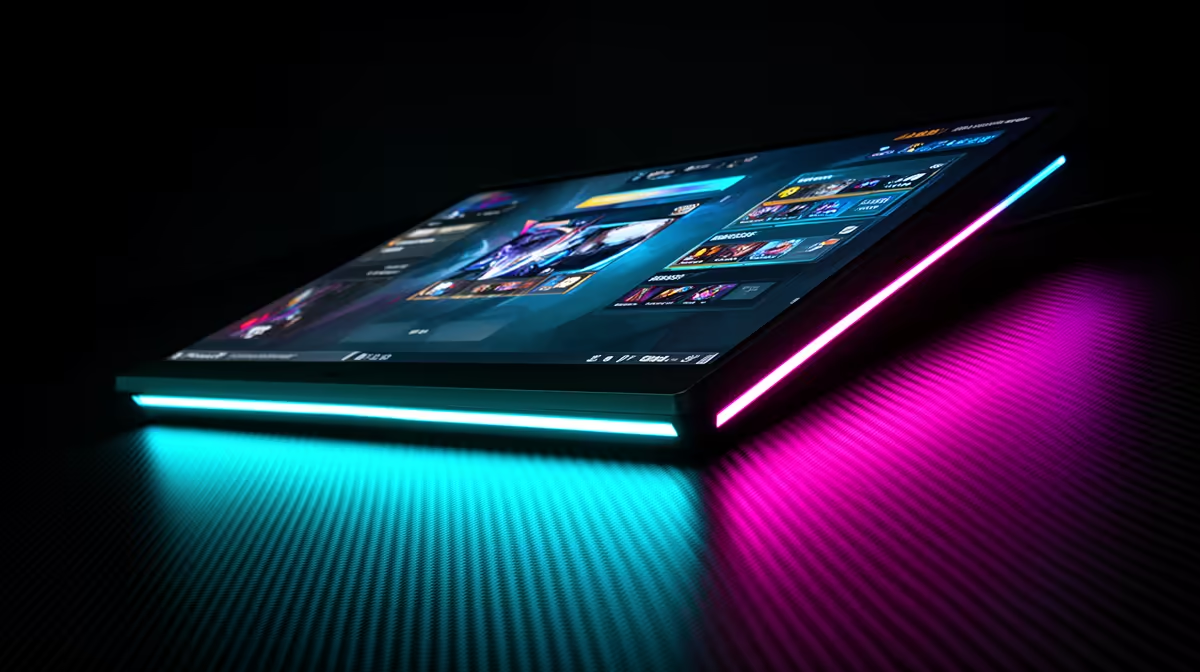
Quick Answer
To use QHD 330Hz mode on a dual-mode gaming monitor: enter the monitor's OSD, select the QHD or Performance mode option, confirm the switch in Windows Display Settings to 2560x1440 at 330Hz, and ensure your GPU is connected via DisplayPort 1.4 or DisplayPort 2.1. The monitor handles the internal resolution and refresh rate switch automatically once OSD mode is selected.
Understanding Dual-Mode and How It Works 🖥️
Dual-mode monitors run a single OLED or IPS panel at two different resolution and refresh rate combinations by switching pixel groupings at the hardware level. A monitor that runs 4K at 240Hz in standard mode switches to QHD at 330Hz or 480Hz by grouping pixels together, reducing effective resolution but unlocking a higher refresh rate ceiling. This is a hardware-level mode change, not traditional GPU downscaling. The image at QHD 330Hz is slightly less sharp than native 4K at 240Hz due to pixel grouping, but motion clarity improvement from the higher refresh rate is immediately perceptible in fast-paced esports. The switch takes two to five seconds and the monitor briefly goes dark during the transition.
Step-by-Step Mode Switch 🔧
Press the OSD joystick on your monitor and navigate to the Display or Gaming section. Look for Dual Mode, Performance Mode or a specific refresh rate preset (labelling varies by brand). Select the QHD 330Hz option and confirm. The screen goes dark for three to five seconds. Once back on, open Windows Settings, navigate to System, Display, Advanced Display and confirm resolution reads 2560x1440 and refresh rate reads 330Hz. If 330Hz does not appear, open the GPU control panel and set the refresh rate manually. NVIDIA users should confirm G-Sync or G-Sync Compatible remains active after the mode switch, as some monitors require VRR to be re-enabled per mode.
Competitive Advantage From 330Hz in Esports Titles 🎮
The step from 240Hz to 330Hz is meaningful in Valorant, CS2 and Apex Legends where mouse tracking directly affects aim accuracy. At 330Hz, each frame is displayed within 3ms of being rendered versus 4.2ms at 240Hz. In CS2 with frame rates above 300fps, the monitor refresh rate becomes the bottleneck for input latency, meaning 330Hz registers as a tangible feel difference versus 240Hz. GPU requirements at QHD 330Hz are far more accessible than at 4K 240Hz: an RTX 5070 sustains 300fps-plus in Valorant at QHD comfortably, within the R12,000 to R16,000 GPU range at Evetech.
Cap In-Game Frame Rate 10% Below Monitor Maximum ⚡
Set your in-game frame limiter to 297fps on a 330Hz monitor rather than running uncapped. Uncapped frame rates cause occasional spikes that create micro-stutter even on high-refresh monitors. A frame limiter set 10% below the monitor's maximum keeps frames within the VRR range and the competitive experience consistent without additional thermal load.
FAQ
Does QHD look noticeably worse than 4K on the same dual-mode monitor?
In esports titles where textures are kept moderate, QHD on a dual-mode panel looks very close to 4K. In visually complex single-player games, 4K mode looks clearly sharper, which is why the mode switch is designed to be quick and reversible.
Can I run 330Hz QHD mode through HDMI 2.1 instead of DisplayPort?
HDMI 2.1 supports 1440p at up to 144Hz natively. For reliable 330Hz at QHD, DisplayPort 1.4 with DSC or DisplayPort 2.1 is the recommended path.
Will 330Hz mode cause screen tearing if my GPU cannot hit 330fps?
Not with VRR active. G-Sync Compatible or FreeSync Premium Pro synchronises the monitor to whatever frame rate the GPU delivers, down to the VRR minimum of typically 48Hz. Frame rates between 48 and 330fps are delivered tear-free with VRR active.
Want a monitor that switches between 4K cinematic and QHD esports mode?
Evetech stocks dual-mode gaming monitors with ultra-high refresh rate capabilities. Visit the monitors section at Evetech to compare models with dual-mode specifications for esports and cinematic gaming.