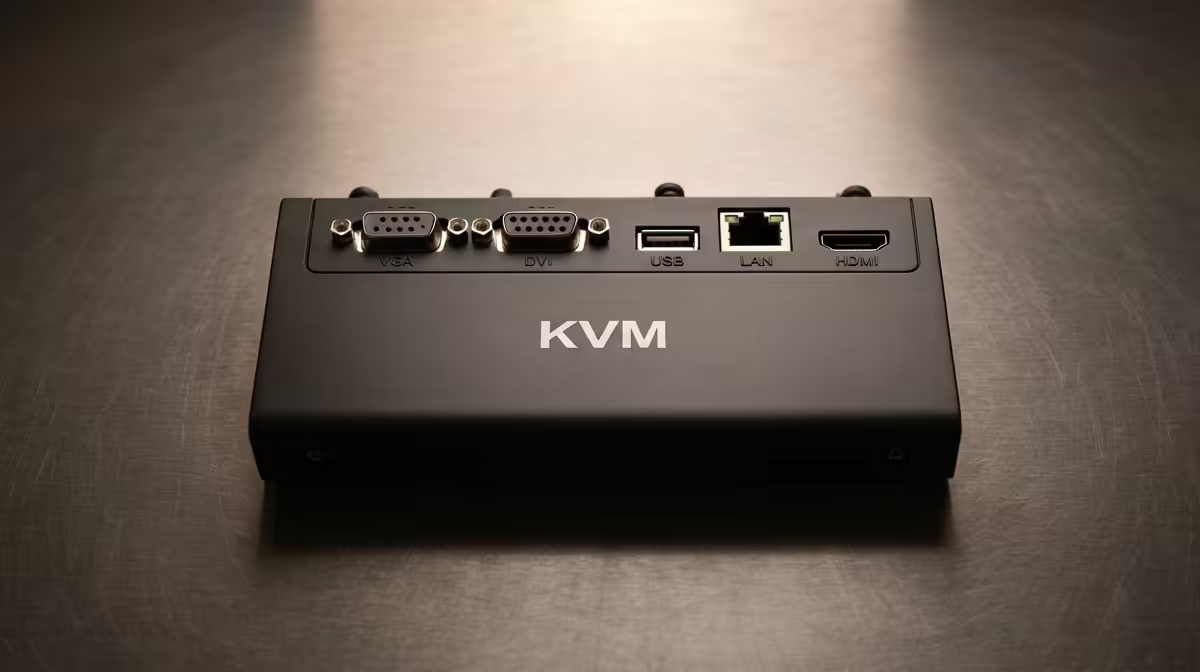
Two PCs on one desk, a work machine and a gaming rig, quickly turn into a tangle of cables and a fight for space. The cleanest fix is a KVM switch, a small box that lets one keyboard, one mouse and one monitor control both computers with a button press or a hotkey. The alternative, keeping two full sets of peripherals, doubles your hardware and forces you to physically swap your hands across the desk every time you change machines. For a tidy dual-PC setup the choice is rarely close.
Quick Answer
A KVM switch wins for a clean dual-PC desk. It shares one keyboard, mouse and monitor between two computers, cutting your peripheral count in half and leaving a single cable run per device. Two separate sets clutter the desk, cost more in duplicate hardware, and make switching a manual chore. Spend on the KVM unless you truly need both screens live at once.
What A KVM Switch Actually Does
KVM stands for keyboard, video, mouse. The switch sits between your peripherals and your two PCs. Your keyboard, mouse and monitor plug into the KVM, and the KVM connects to both computers. Press a button on the unit, tap a keyboard hotkey, or on some models simply move your mouse to the screen edge, and control instantly hands over to the other machine. One desk, one set of hands, two computers.
Modern KVMs handle high-refresh and high-resolution video, USB peripherals and even audio on better models, so you are not sacrificing performance for tidiness. The result is a desk with a single keyboard, a single mouse and one monitor cable, regardless of how many PCs sit underneath it.
The Case For Two Peripheral Sets
Running two keyboards and two mice is not wrong, it is just messier. The upside is zero switching delay and no compatibility quirks: each PC owns its own gear and behaves exactly as expected. Some users genuinely prefer this, especially if the two machines sit far enough apart to count as two distinct workstations.
But on a single shared desk the downsides pile up. You buy and power two keyboards and two mice, you give up desk real estate to a second set, and every switch means reaching for different hardware. If one PC is your daily driver and the other is occasional, the second set mostly sits there gathering dust and stealing space.
Where The KVM Clearly Wins
For a compact desk the KVM advantage is space and consistency. You keep the keyboard and mouse you actually like, use them on both machines, and never duplicate gear you have already paid for. Cable management improves dramatically because there is one run to each peripheral instead of two competing sets snaking across the surface.
Single-Monitor Desks
If you run one monitor, a KVM is close to essential. Without it you would physically replug the display cable every time you switch PCs, which is exactly the kind of friction a tidy desk is meant to remove. The KVM makes that swap a keystroke.
Dual-Monitor Desks
On a two-screen setup you can pick a dual-monitor KVM that switches both displays together, or you can dedicate one screen per PC and only share keyboard and mouse with a software or hardware switch. Either keeps your input devices singular while letting both machines stay visible.
Where Two Sets Might Still Make Sense
If you frequently need both PCs responding at the exact same moment, for example monitoring one while actively working the other, separate inputs avoid the half-second handover a KVM introduces. Streamers running a dedicated capture machine sometimes fall into this camp. For everyone else, that handover is trivial.
Choosing The Right KVM
Match the KVM to your display first. Confirm it supports your monitor's resolution and refresh rate, because a switch that caps refresh will undercut a high-Hz gaming panel. Check the USB ports support your keyboard and mouse polling rate, and decide whether you want button switching or hotkey switching. Desk space matters too, since a clean switch setup works best on a properly sized surface, so a well-planned desk from the gaming and ergonomic desk range at Evetech finishes the setup properly. If you want a quick read on what other buyers pair with a tidy two-PC desk, the desk accessories that top the popularity charts are a useful shortlist.
The Multi-Device Keyboard and Mouse Alternative
It is worth acknowledging a middle path that some users take: a keyboard and mouse with built-in multi-device Bluetooth profiles. Several wireless keyboards and mice can pair with two or three devices simultaneously and switch between them by pressing a button on the device itself, leaving the monitor to be swapped via its own input selector. This avoids the cable runs of a hardware KVM and costs less, but it has real limits. You still manually switch the monitor separately, Bluetooth input can introduce marginally more latency than a wired KVM, and you give up the one-action switch that makes a KVM so clean. For a dual-PC desk where speed and simplicity matter, a hardware KVM remains the more complete solution, but multi-profile wireless peripherals are a reasonable budget step if the KVM cost is a barrier.
Audio Sharing
One area the KVM comparison often skips is audio. If you use a wired headset or desktop speakers, a KVM with audio pass-through ports lets those devices switch with the rest of your peripherals so you do not manually replug a headset every time you change machines. Not every KVM includes audio switching, so if your audio setup is wired, check for the audio ports before buying. Users on wireless headsets or those who use the monitor's built-in speakers sidestep this entirely, but it is worth confirming before purchase.
The Verdict
For a clean, single-desk dual-PC setup, the KVM switch is the better answer almost every time. It halves your peripheral count, simplifies cabling, and lets you keep the keyboard and mouse you prefer across both machines. Reserve two full sets only for the narrow case where both computers must take input simultaneously.
Frequently Asked Questions
Does a KVM switch reduce gaming performance?
A quality KVM rated for your monitor's resolution and refresh rate passes video and input without meaningful impact. Problems only appear if you buy a switch that caps refresh below your panel, so check the specification before purchasing.
Can a KVM switch handle two monitors?
Yes. Dual-monitor KVM switches exist that hand both displays to the active PC together. If you prefer, you can instead dedicate one screen per machine and share only keyboard and mouse.
Is there any lag when switching between PCs?
There is a brief handover, usually a second or less, while the switch re-establishes the connection to the other machine. For normal work and gaming this is unnoticeable, though it is the one reason some users keep separate inputs.
Will my mechanical keyboard and gaming mouse work through a KVM?
Generally yes, provided the KVM has USB ports that support your devices and their polling rate. Check that the switch handles high-polling-rate mice if you use one, since cheaper units can throttle them.
Do I still need two sets of peripherals with a KVM?
No, that is the whole point. A KVM lets one keyboard, mouse and monitor serve both PCs, so you avoid buying and finding desk space for duplicate hardware.