Master Your Laptop's Mute Indicator: A Guide for South African Business Pros 💻
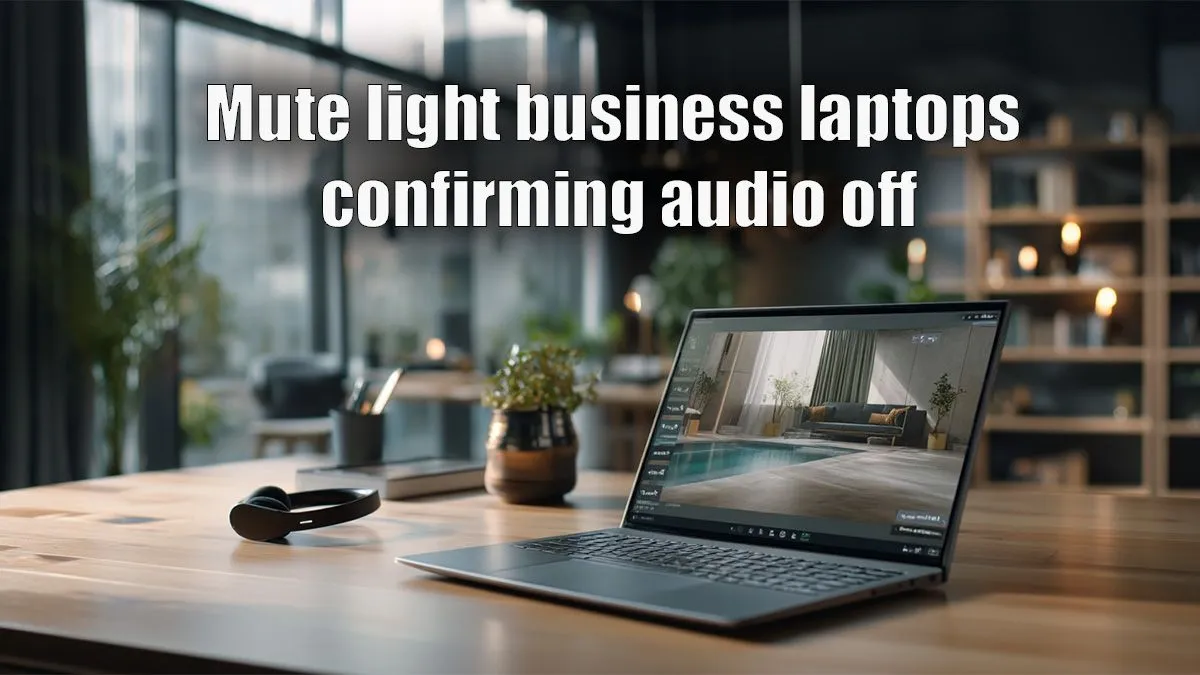
Ever been on a crucial video call – maybe closing a deal or presenting to the team – only to realise you've been talking to yourself while muted? Or worse, accidentally unmuted when you shouldn't have been? In South Africa's fast-paced business world, especially with remote work becoming the norm, mastering your laptop's audio controls is non-negotiable. This laptop mute indicator guide for business pros will help you navigate those tricky audio moments with confidence and professionalism. No more awkward "Can you hear me now?" moments!
Why a Reliable Mute Indicator is Your Secret Weapon
For any business professional, clear communication is key. Whether you're in a Zoom meeting with clients or a Google Meet with colleagues, knowing your audio status at a glance can save you from embarrassing blunders. A dependable mute indicator isn't just a convenience; it's a productivity tool. It helps you maintain decorum, participate effectively, and avoid background noise disruptions – a common challenge in many home offices across Mzansi. Ensuring your laptop is always ready for peak performance, especially its audio functionality, is vital. You can find robust options among our current laptop specials for sale in South Africa.
Locating Your Laptop's Mute Indicators 🎤
Laptops come in various shapes and sizes, and so do their mute indicators. Knowing where to look is half the battle.
- Physical Mute Button/Key: Many business-grade laptops feature a dedicated mute key on the keyboard, often integrated into the function (Fn) row (F1-F12). This key usually has a microphone icon, sometimes with an LED that lights up when muted. It’s the quickest way to toggle your audio.
- Software Indicator (OS Level): Both Windows and macOS provide software indicators. On Windows, check the taskbar's sound icon – it often displays a muted symbol when your microphone is off. macOS has similar indicators in the menu bar.
- Application-Specific Indicators: Video conferencing apps like Zoom, Microsoft Teams, or Google Meet have their own in-app mute buttons and visual indicators. Always double-check these within the application itself, as they can sometimes override or conflict with system-level settings.
- Webcam/Headset Indicators: If you use an external webcam or a premium headset, they often have their own mute buttons and LED indicators. These can be incredibly useful, offering an immediate visual cue right where you need it.
Troubleshooting Your Mute Indicator: When Things Go Quiet (or Not Quiet Enough)
What if your mute indicator isn't working, or you're unsure if you're actually muted? Don't stress, it happens! Here's a quick troubleshooting guide:
- Check Drivers: Outdated audio drivers are a common culprit. Visit your laptop manufacturer's website (or Evetech's support section for your specific model) and ensure all audio drivers are up to date. This is crucial for seamless operation.
- Restart Applications: Sometimes, a quick restart of your video conferencing application can resolve minor glitches with audio controls.
- System Audio Settings: Dive into your operating system's sound settings. Ensure the correct microphone is selected as the default input device and check its volume levels.
- Test Your Microphone: Most operating systems and conferencing apps have a "test microphone" feature. Use it to confirm if your mic is picking up sound, regardless of the mute indicator.
Pro Tip: Driver Check
Before a big meeting, quickly check your audio drivers. An outdated driver can cause your mute indicator to misbehave or even lead to unexpected audio issues. A quick update can save you a world of stress.
For those needing a powerful machine that handles demanding applications and multiple peripherals without a hitch, exploring high-performance options like best gaming laptop deals can offer the robust hardware needed for any business task.
Optimising Your Audio Setup for Peak Professionalism ✨
Being a business pro means being prepared. Here are some ways to optimise your audio setup:
- Dedicated Headset: Invest in a good quality headset with a physical mute button. This provides a tangible, immediate control separate from your laptop, often with its own clear indicator light.
- Practice: Before an important call, do a quick sound check. Get familiar with where your mute indicators are and how they behave.
- Minimise Background Noise: A mute button is your first line of defence against unexpected distractions – a barking dog, a chatty family member, or even the sound of loadshedding generators kicking in. Use it liberally when not speaking.
Whether you prefer the raw power and efficiency of AMD laptops on special or the tried-and-tested reliability of Intel laptops on special, Evetech has a range of machines perfectly suited for the discerning business professional.
Knowing your laptop's mute indicator inside out is a small but significant detail that elevates your professional presence. It’s about more than just silencing your mic; it’s about control, confidence, and ensuring your message is heard exactly when it should be.
Upgrade Your Professional Toolkit Today
Don't let audio mishaps derail your productivity. Explore Evetech's extensive range of laptops designed for business professionals, ensuring you always stay connected and in control. Shop now at Evetech for performance that leaves lag in the dust.