


Using GitHub Copilot: Complete Beginner's Guide for SA Developers
Using GitHub Copilot: Complete Beginner's Guide for SA Developers. Everything you need to know with SA-specific pricing and recommendations.
Read more- Audit Wi-Fi and devices - Isolate interference and hardware - Apply quick checks and fixes Meeting Room Connectivity Issues: Troubleshoot Wi-Fi, Bluetooth, HDMI, and wired networks to restore collaboration fast. ⚡🛠️
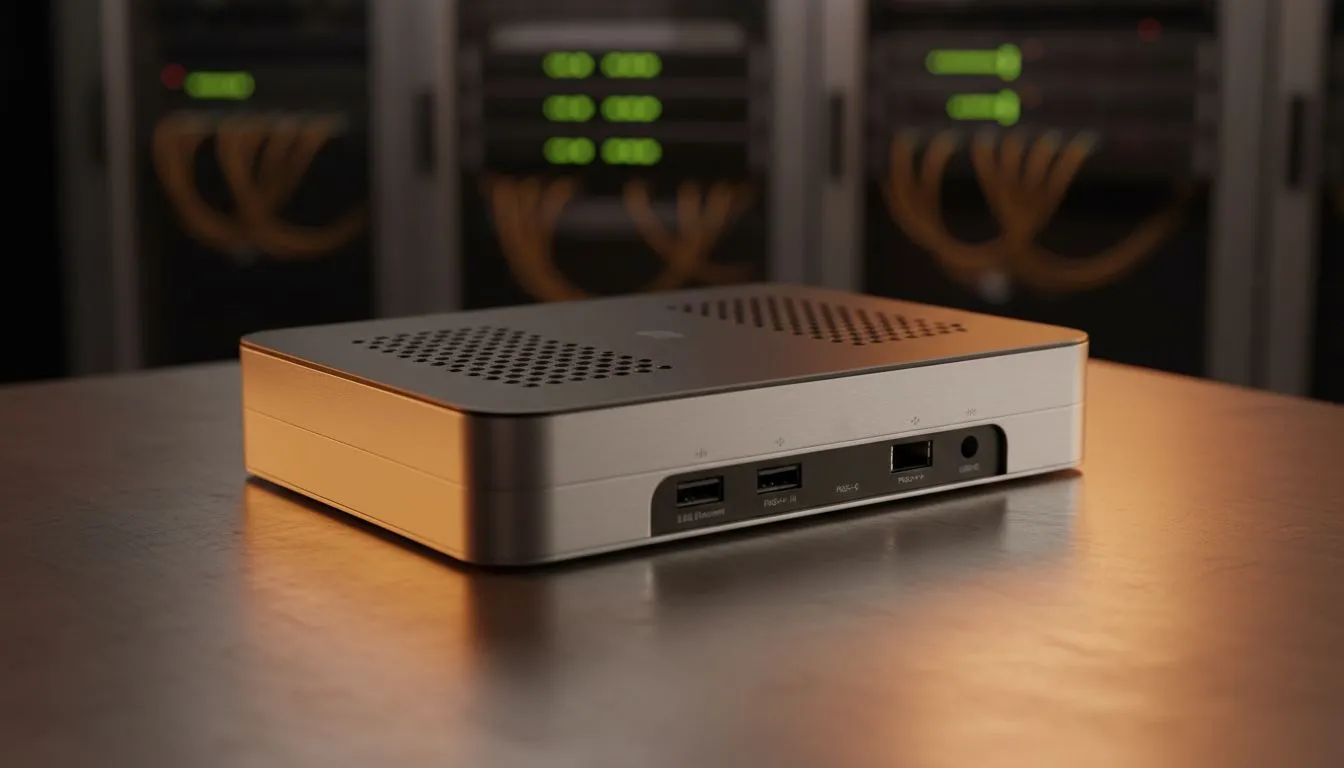
Nothing kills momentum like a meeting that won’t show on the screen. If you’ve ever rolled into a boardroom or LAN with a laptop and watched your presentation or game stall because of meeting room connectivity issues, this guide is for you. Short, practical checks you can run in minutes — so you get back to the match, the pitch, or the workshop without awkward pauses.
Start with the basics. Power on the display and the laptop. Confirm the meeting room projector or monitor input matches the cable type you’re using. If the screen shows “No Signal” try swapping cables and ports — HDMI ↔ DisplayPort — and test another source device if available.
If the room uses modern displays, check adaptive sync settings if you notice flicker or tearing. Evetech lists monitors with Adaptive Sync options you can choose when upgrading a meeting room setup: Adaptive Sync options are especially helpful for mixed-use rooms where presentations and light gaming both occur (see Adaptive Sync options).
Broken or cheap cables are common culprits. Inspect HDMI or DisplayPort cables for bent pins or visible wear. If the connection fails intermittently, try a different cable and a different port. For older laptops, dongles and adapters can be the weak link — use a known-good adapter.
If you need an ultra-reliable, consistent image for presentations, consider swapping to a fresh monitor from Evetech’s PC monitors range — they list options that suit conference spaces and hot-desk bays (see PC monitors).
Sometimes the laptop recognises the display but the image is wrong size, black bars, or cropped. That’s a scaling or resolution mismatch. Ensure the laptop output resolution matches the display’s native resolution. If your meeting room screen supports FreeSync for smoother motion, confirm your laptop GPU and drivers support it. Evetech’s FreeSync monitors collection can help when shopping for displays that handle motion better across sources (see FreeSync monitors).
If a room needs a professional, colour-accurate screen for design reviews, look at IPS panel monitors for wide viewing angles and true colours (see IPS panel monitors).
hybrid meetings, set up a small labelled tech kit: one HDMI cable, one DisplayPort cable, a USB-C adapter and a short HDMI-to-DisplayPort adapter. Keep them in the room. Label them, test quarterly, and store them with the remote control. This removes 80% of the 'my laptop won't connect' moments.
If the image appears but colour or refresh rate is off, check the display’s on-screen menu for input settings and refresh rate. Some conference monitors support G‑Sync for variable refresh rates; if you see stutter on smooth video, confirm the display is set to the correct mode. Evetech lists G‑Sync compatible displays if you want to future-proof a shared room for both presentations and light gaming (see G‑Sync compatible displays).
For fixed installations, choose between flat monitors and curved screens depending on room shape and viewing distance. A flat monitor is predictable and cost effective, while a curved screen can improve immersion in wider setups (compare flat monitors and curved screens for room fit).
If problems persist often, it might be time to upgrade the room display or its cabling. Match the monitor panel type and features to your needs: IPS panel monitors offer consistent colour and viewing angles, while other panel types may prioritise response time.
Browse Evetech’s flat monitors and curved options to pick the right format for your conference space. For mixed-use rooms, prioritise ports and compatibility over flashy specs — reliable connections beat marginally higher refresh rates in a business environment.
Ready to Find Your Perfect Match? The Mac vs Windows debate is complex, but for maximum power, choice, and value in South Africa, Windows is hard to beat. Explore our massive range of laptop specials and find the perfect machine to conquer your world.
Common causes include Wi-Fi interference, weak signal, outdated firmware, faulty HDMI, and misconfigured guest networks.
Check AP placement, reboot the access point, test with a laptop, and run meeting room Wi-Fi troubleshooting steps to isolate the problem.
Bluetooth often fails due to device pairing problems, radio interference, or outdated drivers; update drivers and reduce nearby wireless noise.
Test cables and adapters, try another HDMI port or source, and confirm display input settings to resolve conference room HDMI connection problems.
Use 5 GHz bands, change congested channels, relocate APs away from metal and microwaves, and follow reduce Wi-Fi interference in offices tips.
Check switches when multiple wired endpoints fail; inspect PoE, port status, and run server and switch troubleshooting meeting rooms checks.
Use segmented guest VLANs, limit bandwidth, and ensure guest network configuration for offices matches QoS and isolation policies.
Using GitHub Copilot: Complete Beginner's Guide for SA Developers. Everything you need to know with SA-specific pricing and recommendations.
Read more
Back-to-School Headset Buying Guide for SA 2026. Everything you need to know with SA-specific pricing and recommendations.
Read more
Mesh Front Panel Setup and Configuration: Complete Tutorial. Comprehensive coverage with SA insights, Rand pricing, and practical recommendations.
Read more
Black Screen: Troubleshooting Guide #1. Everything you need to know with SA-specific pricing and recommendations.
Read more
The Complete 2026 Guide to Storage in South Africa. Everything you need to know with SA-specific pricing and recommendations.
Read more
1000W PSU Not Working After Load Shedding: Recovery Guide. Everything you need to know with SA-specific pricing and recommendations.
Read more
AMD RX 9050 XT: Rumoured Specs, Price & Release. SA-focused analysis with local pricing data, real-world insights & actionable buying advice.

Can RTX 4080 Super Run AI Workloads for SA Developers Detailed answer with SA data, expert analysis & practical recommendations for local buyers.

Can RTX 4090 Run AI Workloads for SA Developers Detailed answer with SA data, expert analysis & practical recommendations for local buyers.

Top Settings for Intel Arc B580 at Ultrawide 1440p picks evaluated on performance, value & SA availability with current Rand pricing from Evetech.

RTX 4060 CS2 Low Settings at 1080p: FPS Results. Real-world benchmark data, FPS numbers & performance analysis. What SA gamers can actually expect.

Visual Artifacts: Possible GPU Issue Issue #1. Diagnosis steps, proven fixes & when to seek professional help. SA-specific support info included.

Can the RTX 4090 Handle 1440p 144Hz Gaming. Performance testing verdict with real data & practical recommendations for SA buyers.

Top ASUS GPU Under R15000 picks evaluated on performance, value & SA availability with current Rand pricing from Evetech.

GTA 6 Max Settings on RTX 5070. Tested & verified settings for best FPS and visual quality on SA hardware budgets.

Cyberpunk 2077 Max Settings on RTX 5080. Tested & verified settings for best FPS and visual quality on SA hardware budgets.

Starfield Max Settings on RTX 5070 Ti. Tested & verified settings for best FPS and visual quality on SA hardware budgets.

Top RTX 5090 Under R5000 picks evaluated on performance, value & SA availability with current Rand pricing from Evetech.