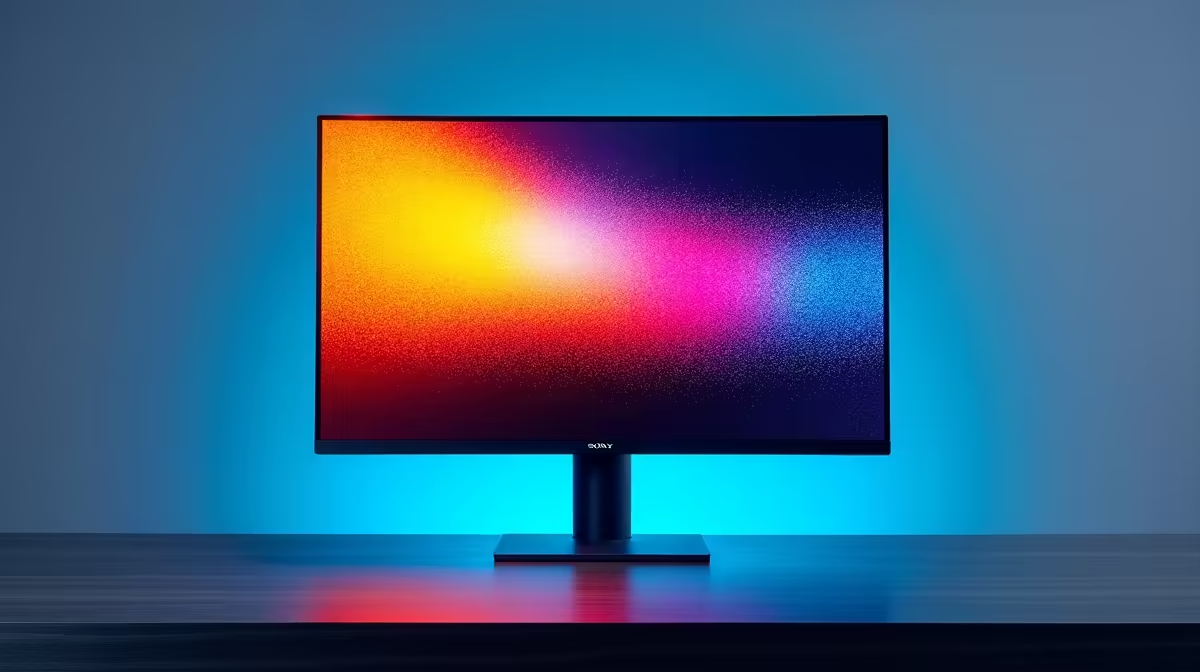
You’ve built a beast of a PC. The GPU is humming, the CPU is cool, and you’re ready to dominate. But are your games looking… flat? Washed out? Are the colours in your photos just not popping? The culprit is often an uncalibrated monitor. Proper monitor calibration in South Africa is the secret step many gamers skip, leaving performance and visual fidelity on the table. Let’s fix that and unlock the true colours of your digital world. ✨
The Competitive Edge of Correct Colour
Why bother with monitor calibration? Simple: it gives you an edge. In competitive games like Warzone or Apex Legends, seeing an enemy hiding in a dark corner a split-second faster can be the difference between victory and the Gulag. Factory settings are often too bright or have crushed blacks, hiding crucial details.
For content creators, accurate colour is non-negotiable. A proper monitor calibration ensures the photos you edit or the videos you grade look exactly as you intended on other people's screens. It’s about getting what you paid for—the full, vibrant spectrum your hardware is capable of producing.
Choosing Your Weapon: A Guide to TN, IPS, and VA Panels
Before you calibrate, it helps to know what you're working with. Your monitor’s panel technology dictates its core strengths.
TN (Twisted Nematic): The Speed Demon 🚀
TN panels are all about speed. They boast the fastest response times and highest refresh rates, making them a favourite for esports professionals. If your goal is the smoothest possible motion and minimal blur in fast-paced shooters, a TN panel is a fantastic choice. The trade-off? Their colour reproduction and viewing angles are the weakest of the three. Still, for many competitive gamers, speed is king, and you'll find plenty of high-performance options among our all-gaming monitors.
IPS (In-Plane Switching): The Colour King
IPS panels are the gold standard for colour accuracy and consistency. They offer vibrant, rich colours and wide viewing angles, meaning the picture looks great even if you’re not sitting directly in front of it. This makes them perfect for graphic designers, photographers, and gamers who love visually stunning RPGs like Cyberpunk 2077 or Baldur's Gate 3. While historically slower than TNs, modern IPS panels have closed the gap significantly, offering a superb all-round experience, especially in our range of stunning 5K and 4K monitors.
VA (Vertical Alignment): The Contrast Champion
VA panels are the masters of contrast. They produce deep, inky blacks that other panel types struggle to match, creating a rich and immersive picture. This makes them ideal for watching movies or playing atmospheric horror games. Many of the best curved monitors use VA technology to pull you deeper into the action. Their main drawback can sometimes be slower pixel response times, which may cause minor ghosting in the fastest scenes.
Your Quick-Start Guide to Monitor Calibration
Ready to get your colours in line? This simple monitor calibration South Africa guide will get you started.
Step 1: Start with Your Operating System
Both Windows and macOS have built-in calibration tools.
- On Windows: Search for "Calibrate display color" in the Start Menu and follow the wizard.
- On macOS: Go to System Settings > Displays > Colour Profiles > Calibrate.
These tools will walk you through setting basic brightness, contrast, gamma, and colour balance. It’s a great first step and better than nothing!
Pro Tip: Save Your Profile! 🔧
After using a calibration tool, your OS will create a custom ICC colour profile. Make sure it's set as the default. Sometimes, full-screen games or driver updates can reset it. If your colours suddenly look off, the first thing to check is whether your custom profile is still active in your display settings.
Step 2: Use Online Test Patterns
Websites like EIZO's monitor test provide a suite of test patterns that help you fine-tune your settings visually. They are excellent for checking for dead pixels, evaluating black levels, and ensuring your gamma is set correctly without needing any special software.
Step 3: For Flawless Accuracy… Use Hardware
For professionals or perfectionists, a hardware calibrator (a device called a colorimeter) is the ultimate solution. This small device hangs over your screen, reads the colours directly, and works with software to create a perfectly accurate colour profile. It removes all the guesswork. You can find these and other essential monitor accessories to complete your setup.
Finding the Perfect Screen for Your Setup
Ultimately, the best monitor is one that fits your primary use case. Whether you need a lightning-fast TN for competitive glory or a colour-accurate IPS for your creative hustle, the right screen is out there. Even a secondary portable monitor can boost your productivity on the go.
A properly calibrated display is the window to your digital world, so taking the time to optimise it is always worth the effort. Explore our full range of PC monitors to find the perfect panel for your needs. And remember to keep an eye on the best PC monitor deals, where you can score an incredible upgrade for a great price.
Ready to See the True Picture? 👀
An uncalibrated monitor is like a sports car stuck in first gear. Don't let factory settings hold you back. Calibrate your current screen or upgrade to one that truly brings your games and content to life. Explore our incredible PC monitor deals and find the perfect display to conquer your world.