Why Does My Monitor’s Eco Mode Change Colours? 🔧
Imagine booting up your favourite game only to find the colours look off—washed out, dull, or with weird tints. Your monitor is set to Eco Mode to save energy, but this often shifts colour accuracy and brightness. If this colour shift messes with your gaming immersion or creative work, it’s time to troubleshoot.
Root Causes of Eco Mode Colour Shift
- Eco Mode reduces brightness and adjusts colour profiles to save power.
- Outdated or incompatible graphics drivers can worsen colour accuracy.
- Incorrect monitor calibration combined with Eco Mode settings.
- Firmware or hardware conflicts inside your monitor.
- Poor cable quality or loose connections affecting signal integrity.
Fix Eco Mode Colour Shift [[Easy]]
Adjust or Disable Eco Mode Settings [[Easy]]
Most monitors let you tweak or turn off Eco Mode in the OSD menu. Simply access your monitor’s settings and experiment with turning Eco Mode off, or try different Eco presets to find one with less aggressive colour changes. Your image should pop with truer colours.
If you want to check the latest options and models with flexible energy modes, browse the best PC monitor deals at Evetech.
Update Graphics Drivers [[Mod]]
Sometimes your GPU drivers impact how Eco Mode renders colours. Update your AMD, NVIDIA, or Intel drivers from their official sites to ensure smooth compatibility. This often fixes strange shifts or colour banding when energy-saving modes are active.
Calibrate Your Monitor [[Mod]]
A quick colour calibration can balance display hues affected by Eco Mode. Use built-in calibration tools in Windows or macOS, or invest in a hardware calibrator that works with your monitor accessories. Check out Evetech’s range of monitor accessories to find tools that bring pixel-perfect precision. 🚀
Firmware Update or Monitor Reset [[Advanced]]
Some monitors require firmware updates to resolve known issues with Eco Mode tweaks. Visit your monitor manufacturer’s website for updates or reset your display to factory settings. This can clear software conflicts causing colour shifts.
Check and Replace Cables [[Easy]]
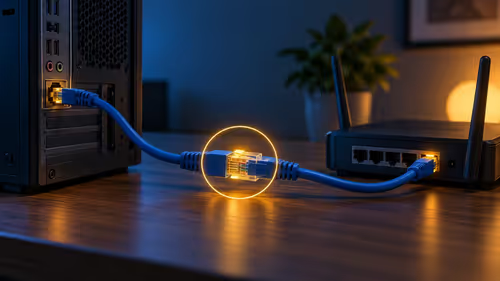
Signal loss due to poor cables might make colours look weird when Eco Mode is on. Try a fresh, high-quality HDMI or DisplayPort cable to maintain clean signal transfer. Evetech offers a great selection of cables with solid build quality and warranty.
Red Flags to Watch For
Red Flags When Troubleshooting Eco Mode Colour Shifts
Stop if you see smoke, burning smells, or overheating. Colour shifts are usually just software or settings—but physical damage signals hardware failure. If your monitor flickers heavily or goes blank, unplug immediately and consult a pro.
Explore Better Display Options for Your Setup
If your current monitor struggles with Eco Mode colour shifts, consider upgrading to a specialist display optimised for both energy saving and colour accuracy. From ultra-wide curved to 4K gaming monitors, Evetech stocks a wide spectrum of displays:
- Explore curved monitors for immersive gameplay and consistent colours.
- Find lightweight portable monitors with great power management, perfect for on-the-go productivity.
- Discover high-res options with stellar colour fidelity, including 5K and 4K monitors made for professionals and gamers alike.
If you’re digging deeper into specs to pick your next display, Evetech’s gaming monitor range also balances power draw and visual fidelity perfectly. Don’t forget the core PC monitors section to explore all types for every budget.
Upgrade Your Display Experience Today
Stop colour shifts before they ruin your game or creative flow. Shop now at Evetech for monitors and accessories that keep colours vibrant while saving watts.