Drop a fast NVMe drive into your NAS and the speed must improve, surely? Not necessarily. NVMe SSD cache for a NAS pays off for a specific kind of work and does almost nothing for another, and plenty of home users spend on it expecting a transformation that their actual usage will never deliver. Whether it is worth adding comes down to one honest question: what does your NAS actually do all day?
Quick Answer
NVMe SSD cache accelerates repetitive random reads and writes, so it helps databases, virtual machines and frequently re-accessed working files, but it does little for large sequential transfers and one-off file copies typical of a home NAS. If you mostly stream media and store files you read once, skip it. If you run apps, VMs or constantly hit the same hot data, it can be worth it.
How SSD Caching Works
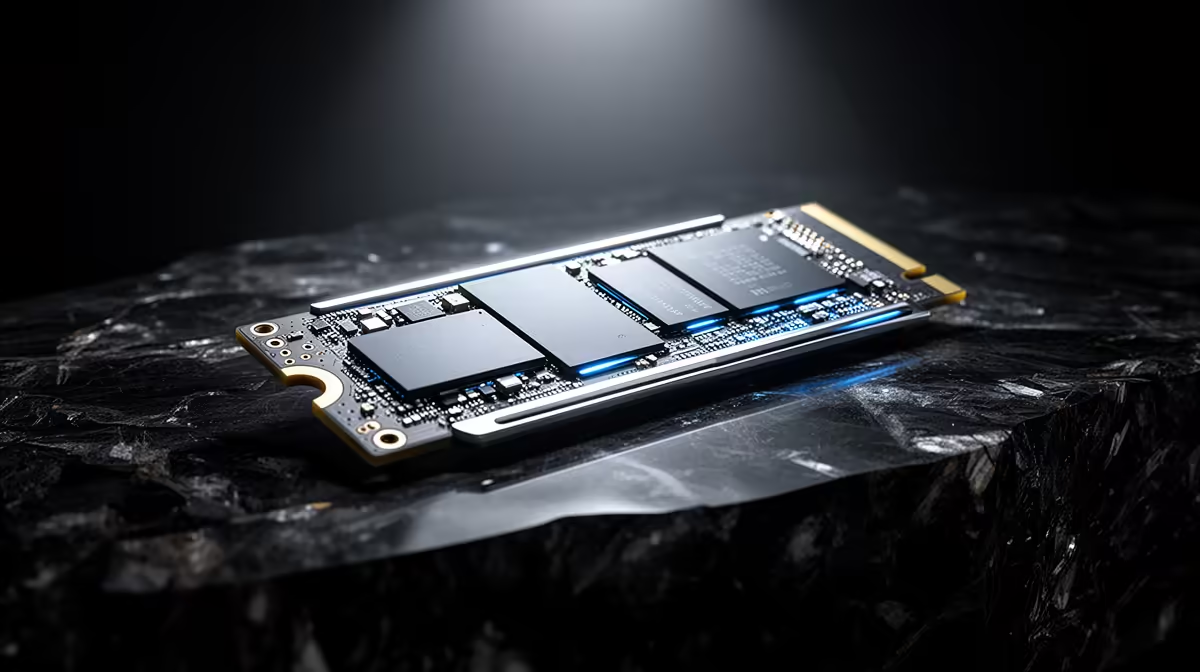
A cache sits between your fast network and your slow spinning disks, holding copies of the data the NAS reaches for most often. When a request can be served from the NVMe cache instead of the hard drives, it returns far faster because flash has vastly lower latency and far higher IOPS than mechanical platters.
The key word is repetitive. A cache only helps when the same data is read or written again and again, because that is the pattern it is built to shortcut. Data touched once and never revisited gains nothing, since by the time it might benefit, the request has already gone to the disks.
The Workloads That Genuinely Benefit
Random I/O and small files
Caching shines on workloads built from many small, scattered reads and writes. Databases, the metadata behind large photo libraries, and busy multi-user file shares all hammer the disks with random requests, and an NVMe cache can lift that throughput dramatically while cutting latency. QNAP's own figures put the IOPS gain at up to ten times and latency reduction at around three times for database and virtualisation workloads.
Virtual machines and containers
If your NAS hosts virtual machines or containers, their constant small reads and writes are close to an ideal cache workload. The same operating-system files and application data get touched repeatedly, so they live in cache and respond at flash speed rather than waiting on platters.
Hot working sets
Any scenario where a defined set of files is opened, edited and saved over and over benefits. A current project folder, an active editing library, or frequently queried data all qualify, because the cache learns the hot set and keeps it ready. Synology's guidance recommends sizing the cache to match your hot working set: if you access roughly 200GB of data each day, a 200 to 300GB cache comfortably holds it, and a modest NVMe drive covers many home and small-office cases.
When It Is Not Worth It
Media streaming and large sequential files
A home NAS that mainly serves movies, shows and music sees little to no benefit. Streaming a video is a large sequential read with no re-reading pattern, and the spinning disks already handle sequential throughput well, so the cache rarely gets a chance to help. The same is true of large backups and big one-off file transfers.
Write-once, read-rarely archives
If your NAS is essentially cold storage, photos and documents saved and seldom reopened, caching adds cost and complexity for no real gain. There is no repeated access for the cache to exploit, so the money is better spent on capacity or memory.
Systems already built on SSDs
When the storage pool itself is solid-state, an additional cache is redundant. The pool already delivers flash-class speed, so there is nothing slow underneath for the cache to mask.
Read Cache, Write Cache and the Risk Trade-off
There are two flavours to weigh. A read-only cache speeds up reads and is low risk, because a cache failure loses nothing that is not still safely on the disks. A read-write cache also accelerates writes but raises the stakes, since data can sit in cache before being committed.
Platforms recommend mirroring two drives for write caching to avoid data loss if one fails. Synology further recommends using NVMe drives with power-loss protection (PLP) for write-capable caches, since that capacitor-based feature ensures in-flight writes complete properly if power is suddenly cut. This adds to the cost of a write cache setup, which is one more reason read-only cache is the more practical starting point for most home users.
Memory matters too. SSD caching consumes RAM to track what is cached, with Synology estimating roughly 400 KB of system RAM per gigabyte of cache. A NAS short on memory can actually feel worse with caching enabled. Before adding cache, make sure the unit has healthy RAM headroom, and size the cache to your hot data rather than buying the biggest drive available. If you are speccing out the components, the diskless NAS and storage units at Evetech cover the enclosures that accept NVMe cache, and the best-selling SSDs at Evetech give a sense of suitable drives and current pricing.
Making the Call
Decide by workload, not by instinct. If your NAS is a media library and file dump, your money goes further on more capacity or extra RAM. If it runs apps, virtual machines, databases or busy shared editing, an NVMe read cache is a sound upgrade, and a mirrored write cache is worth considering for write-heavy work where you accept the added drives. The honest answer for most home setups is that the cache is optional, while for prosumer and small-office mixes it can be transformative.
Frequently Asked Questions
Will an NVMe cache speed up Plex or media streaming?
Generally no. Streaming is large sequential reading with no repeated access, so the cache rarely engages. Your spinning disks already handle sequential playback well, making cache spend a poor fit for a media-first NAS.
Do I need one or two NVMe drives for caching?
One drive suffices for a read-only cache, since the original data stays safe on disk. A write-capable cache should use two mirrored drives so a single drive failure does not risk uncommitted data.
How much cache capacity do I actually need?
Size the cache to your hot working set, not your total storage. A modest drive that comfortably holds your frequently accessed data outperforms an oversized one, and a 500 GB drive covers many home and small-office cases.
Can adding cache ever make a NAS slower?
Yes, if the unit is short on RAM. Caching uses memory to track cached blocks, so on a low-memory NAS it can hurt rather than help. Ensure healthy RAM headroom before enabling it.
Is NVMe cache better than just adding more RAM?
They solve different problems. RAM caches the very hottest data automatically and benefits almost every NAS, so adding memory is often the smarter first step before investing in NVMe cache.