Plug-and-Play vs Driver-Based Webcams: choosing the right webcam setup in South Africa
Buying a webcam in South Africa is never just about “good video”. It’s about whether it works the first time you plug it in, whether your laptop handles it under load, and whether your games livestream looks clean. ⚡
That’s why the question “Plug-and-Play vs Driver-Based Webcams: Which Setup is Right for You?” matters. If you’re gaming, streaming, joining meetings, or upgrading your setup on a budget, the right webcam can save you hours of troubleshooting.
If you’ve ever had audio cut out mid-stream… or spent an evening chasing drivers… you already know. Let’s make your choice easier. 🔧
Plug-and-Play Webcams: what “works immediately” really means
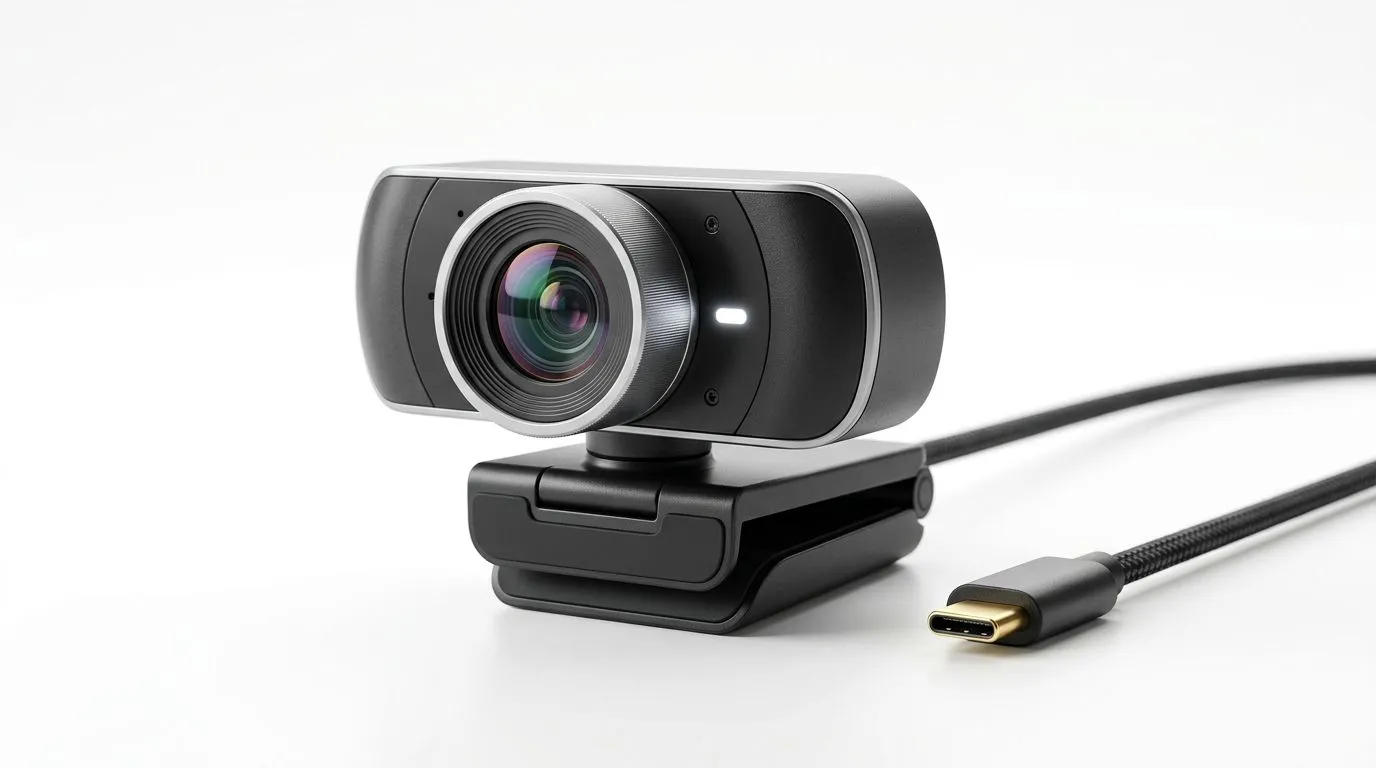
A Plug-and-Play webcam is designed to be usable right away, usually with minimal or no extra driver installation. In practice, that means:
- The webcam is detected by your operating system when you plug it in.
- Your video app (Zoom, Teams, OBS, Discord, browser apps) can select it without digging through settings.
- You spend more time gaming and less time diagnosing.
This “plug and use” feel is especially helpful if you switch between devices. For example: your gaming PC at home, then your laptop when you travel to a LAN or family event.
The upside for gamers and streamers 🚀
If you game and stream, speed matters. Plug-and-Play setups are typically better for:
- Quick OBS scene setup
- Last-minute recording
- Switching between apps quickly
The trade-offs (because nothing is perfect) ✨
Plug-and-Play doesn’t always mean “best quality.” Some webcams lean on generic software support, which can limit how much you can tweak:
- frame rate options
- exposure controls
- advanced colour profiles
So you get convenience first, then “good enough” performance.
Driver-Based Webcams: more control, sometimes more setup
Driver-Based webcams often bundle a dedicated driver or software package. The benefit is flexibility: the manufacturer can add features and tuning that generic drivers can’t always replicate.
For example, that can include:
- specific image processing modes
- manual adjustments (depending on model)
- better consistency for certain resolutions and frame rates
When driver-based makes sense
Choose a driver-based option if you want to optimise your look, especially for content creation. If you’re doing regular streaming, online teaching, or client calls, the extra setup can be worth it. 🔧
Also, if you’re on a stable system (same OS version, same machine), you’ll usually have a smoother long-term experience.
The downside: compatibility and time
Driver-based webcams can require:
- installation from a provided disc or download
- matching software versions to your OS
- occasional updates
That’s fine… until you update your operating system or move to a different computer. Then you might be back in settings hunting mode.
Which setup is right for you? A quick decision guide
Here’s a practical way to decide the “Plug-and-Play vs Driver-Based Webcams: Which Setup is Right for You?” question without overthinking it.
Pick Plug-and-Play if you want…
- Minimal troubleshooting
- Faster setup for meetings and casual streaming
- Easy portability between PC and laptop
Pick Driver-Based if you want…
- Deeper control over image settings
- Better results for consistent streaming workflows
- A more “tuned” webcam experience over time
Pick based on your use-case (South African reality check)
Most gamers in SA split time across a desk setup and a laptop or family PC. Plug-and-Play tends to win because you avoid repeated driver installs when you move around.
But if you’re building a dedicated streaming station and you’ll keep the webcam on one machine, driver-based can be the more satisfying long-term choice.
What about price?
Price matters, but so does support. A cheaper webcam that needs extra driver wrangling can cost you more time and stress than the difference in cost.
If you’re budgeting, check options across price brackets on Evetech’s webcam listings:
What to check before you buy (so it actually works) 🔍
Even if a webcam claims “plug and play”, you still want to verify a few things before checkout. Here’s what I recommend, especially for Windows gaming rigs.
Connection and platform compatibility
- Confirm USB type (most are USB-A or USB-C, but the cable matters).
- If you use a browser for calls, check that it works in popular apps on your OS.
- If you stream in OBS, ensure your webcam is selectable in OBS as a video input.
Resolution and FPS expectations
A webcam can advertise “1080p”, but your lighting and your CPU/GPU load still matter. Also, higher frame rates can be harder on some systems.
If you stream while gaming, you want steady frames, not just a higher number.
Audio needs
If your webcam has a mic, test it. In many setups, a dedicated mic sounds cleaner than relying on the webcam mic.
Lighting beats spec sheets more than people admit
A cheap webcam in good light can look better than an expensive one in a dark room. If your room lighting is inconsistent, try:
- facing a window
- using a simple desk lamp
- avoiding overhead flicker
Productivity Pro Tip ⚡
On Windows, test your webcam in two apps before your first big call or stream. Use the built-in Windows Camera app for a quick check, then confirm it also shows up correctly in OBS or your conferencing platform. If the webcam works in one but not the other, you’ll know you have a software setting or permissions issue, not a hardware failure.
Getting the best result with your chosen setup
Now that you’ve chosen plug-and-play or driver-based, here’s how to get consistently good video in real life.
For Plug-and-Play webcams
- Keep USB ports consistent (avoid random hubs if possible).
- Create a default scene in OBS that already selects the webcam.
- Save settings in your conferencing app so you do not repeat the selection.
If your stream looks washed out, try adjusting in your app first. Many webcam apps have basic controls even without drivers.
For Driver-Based webcams
- Install the driver once on the intended machine.
- Update it only when needed, especially before important events.
- Use the manufacturer software to set your preferred exposure and colour mode, then lock it for consistent results.
If you change lighting conditions, you might prefer a “balanced auto” mode rather than a fully manual one.
Common mistakes (and how to avoid them) ✅
- Assuming “1080p” means “sharp”: clarity comes from light and compression, not just resolution.
- Ignoring permissions: Windows privacy settings can block camera access.
- Buying without checking budget fit: a webcam should match your workflow, not just your wishlist.
- Forgetting audio: if people complain about voice, fix the mic before upgrading again.
If you want a straightforward way to browse options in South Africa, Evetech’s webcam range is a solid starting point:
Ready to Find Your Perfect Match?
The Mac vs Windows debate is complex, but for maximum power, choice, and value in South Africa, Windows is hard to beat. Explore our massive range of laptop specials and find the perfect machine to conquer your world.