You’re in the final circle. The enemy peeks. You line up the perfect shot… and a jagged, horizontal line rips across your screen, completely throwing off your aim. Ja, we’ve all been there. This is screen tearing, and while VSync is the common fix, its input lag can feel even worse.
Luckily, you don’t have to choose between a torn image and sluggish controls. Here are seven effective ways to reduce screen tearing without VSync and get back to smooth, responsive gaming.
What Actually Causes Screen Tearing?
Before we dive into the fixes, let's quickly understand the problem. Screen tearing happens when your graphics card (GPU) sends out frames at a different rate than your monitor can display them.
Think of it this way: your monitor has a fixed refresh rate (e.g., 144Hz, meaning it refreshes the picture 144 times per second). If your GPU is pumping out 170 frames per second (FPS), your monitor can't keep up. It might end up displaying a piece of one frame and a piece of the next at the same time, creating that ugly tear. The key is to get them in sync. ⚡
7 VSync-Free Ways to Stop Screen Tearing
Ready to banish those visual glitches for good? Here are some of the best alternatives to VSync that will help you fix screen tearing and reclaim your competitive edge.
1. Cap Your Frame Rate
The simplest fix is often the best. By using a frame rate limiter, you can tell your GPU to stop producing frames faster than your monitor can handle.
How to do it:
- In-game Settings: Most modern games have a built-in FPS cap. Look for it in the video or graphics settings.
- GPU Software: Both NVIDIA Control Panel ("Max Frame Rate") and AMD Radeon Software ("Radeon Chill" or "Frame Rate Target Control") have this feature.
Set the cap to your monitor's exact refresh rate, or even 2-3 FPS below it (e.g., 141 FPS for a 144Hz monitor). This creates a stable output that helps prevent the GPU and monitor from falling out of sync. This simple tweak works on a wide range of PC monitors to suit any budget.
2. Enable Adaptive Sync (The Ultimate Fix ✨)
This is the real solution. Technologies like AMD FreeSync and NVIDIA G-SYNC allow your monitor to dynamically change its refresh rate to perfectly match your GPU's frame rate, second by second. If your game drops to 97 FPS, your monitor adjusts to 97Hz. When it jumps to 130 FPS, the monitor follows.
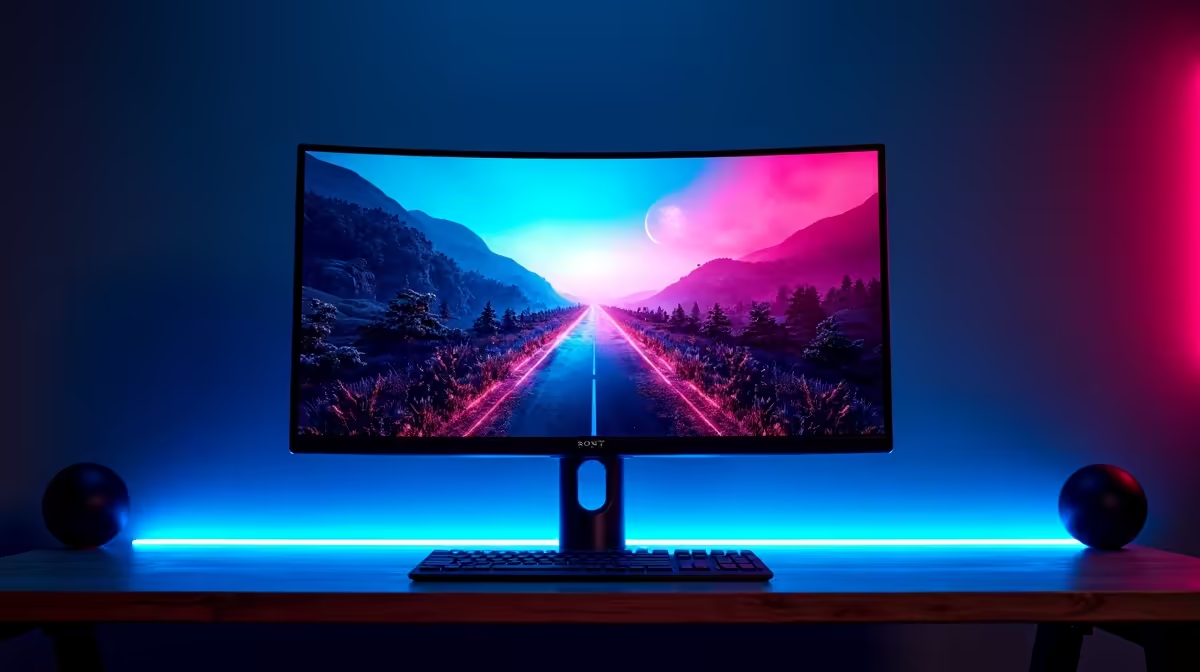
The result? Perfectly smooth gameplay with zero tearing and no added input lag. Most modern gaming displays include this feature, so if your monitor supports it, make sure it’s enabled in your GPU's control panel. If not, it might be time for an upgrade; check out the best PC monitor deals in South Africa to find one.
3. Try "Fast Sync" or "Enhanced Sync"
Think of these as VSync's smarter cousins. Available for NVIDIA (Fast Sync) and AMD (Enhanced Sync) cards, these settings work differently. Instead of forcing your GPU to wait for the monitor, they let it render as fast as it can and then only show the most recently completed frames, discarding the rest.
This method significantly reduces screen tearing without the high input lag of traditional VSync. It works best when your FPS is much higher than your monitor's refresh rate and needs a high-refresh-rate panel, like those found on premium 4K and 5K monitors, to really shine.
4. Tweak Your In-Game Graphics Settings
Sometimes, the issue isn't just high FPS... it's unstable FPS. If your frame rate is jumping all over the place, it's more likely to cause tearing. By lowering a few demanding graphics settings (like shadows, anti-aliasing, or texture quality), you can achieve a more consistent frame rate.
The goal is a smooth, stable frame rate that elevates your experience, especially on immersive curved gaming monitors.
Pro Tip: Driver Updates Matter
Always keep your graphics drivers up to date! NVIDIA, AMD, and Intel frequently release updates that include performance optimisations and bug fixes that can directly help reduce screen tearing and improve game stability. It’s a free performance boost.
5. Run Games in Fullscreen Exclusive Mode
Are you playing in "Windowed" or "Borderless Windowed" mode? While convenient, these modes let your Windows operating system manage the final image, which can sometimes introduce stutter and tearing.
Switching to "Fullscreen" or "Fullscreen Exclusive" mode gives the game direct control over the display output. This can often resolve syncing issues and provide a smoother experience. It's a simple trick that works on your main rig and even on portable monitors for gaming on the go.
6. Check Your Display Cables 🔧
It's a long shot, but not impossible. A low-quality, old, or damaged DisplayPort or HDMI cable might not have the bandwidth to reliably handle high refresh rates, leading to signal problems that can look like screen tearing.
Ensure you're using a cable that's certified for your monitor's resolution and refresh rate (e.g., DisplayPort 1.4 for 1440p @ 165Hz). Don't let a dodgy cable be your downfall. Invest in quality monitor accessories to guarantee a clean signal.
7. Combine Methods for Best Results
You don't have to pick just one! A powerful combination for non-Adaptive Sync monitors is to enable Fast/Enhanced Sync in your GPU driver and then cap your frame rate in-game just below your monitor's refresh rate. This gives you a multi-layered defence against tearing without the input lag penalty.
Ultimately, while these tips offer great ways to reduce screen tearing without VSync, the most future-proof solution is a monitor with Adaptive Sync technology. It's built specifically to solve this problem at the hardware level, giving you the best possible experience.
Ready for a Tear-Free Gaming Future?
Stop fighting with settings and start enjoying silky-smooth gameplay the way it was meant to be. Explore our massive range of gaming monitors and leave screen tearing in the dust.