

Back-to-School Parent Guide: GPUs in SA
Back-to-School Parent Guide: GPUs. Everything you need to know with SA pricing, step-by-step instructions & expert recommendations.
Read moreLearn how replacing thermal paste can reduce CPU throttling and boost performance. Keep your PC running cooler and faster with this simple fix ⛏️💻
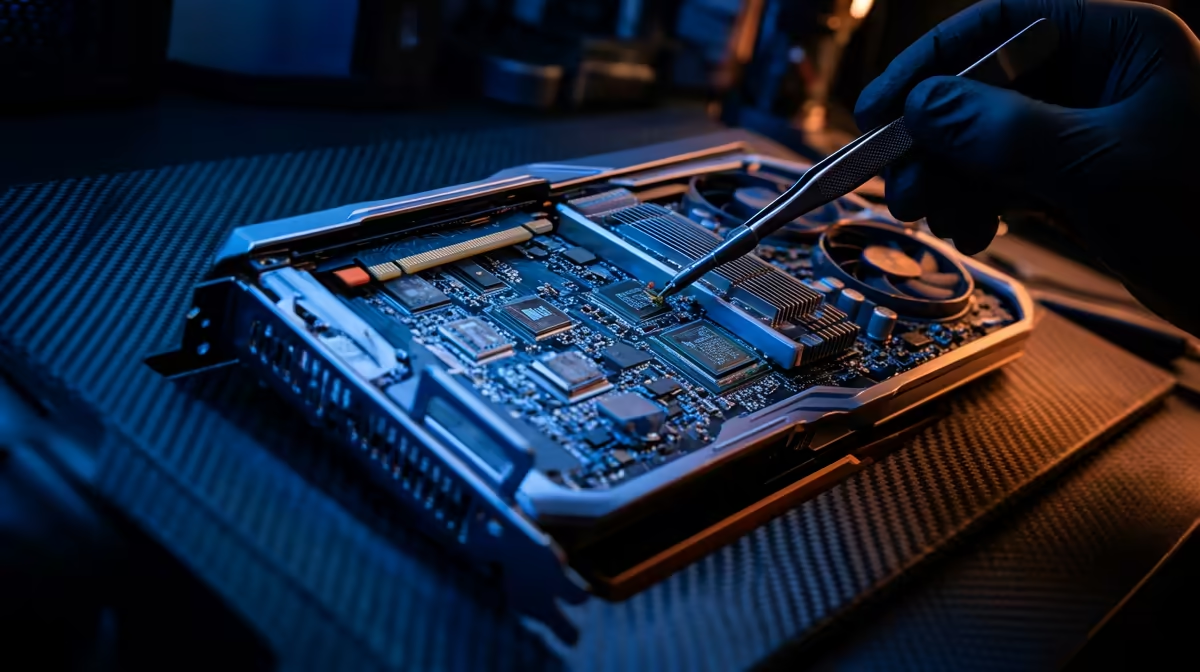
Is your PC sounding like a jet engine during a load-shedding power-up? Are your frame rates dropping faster than the Rand on a bad news day? Before you blame your GPU, the culprit might be a tiny, overlooked layer of gunk: your thermal paste. Learning how to replace thermal paste is a simple, cheap fix that can seriously boost your PC's performance and quieten those screaming fans. Let's get into it. 🔧
Think of thermal paste as the crucial handshake between your CPU and its cooler. It’s a thermally conductive compound that fills in the microscopic imperfections on both surfaces, ensuring efficient heat transfer. Over time, this paste dries out, cracks, and loses its effectiveness.
The result? Your CPU gets hotter, faster. This triggers "thermal throttling," where your processor deliberately slows itself down to avoid damage. That's the real cause of your stuttering gameplay and sluggish performance. A fresh application can drop your temperatures by 5-15°C, restoring your PC's lost power.
Before you open up your rig, let's get your gear in order. You don't need a fancy workshop, just a few key items:
Ready to give your CPU a new lease on life? Follow these steps carefully. This process is the key to unlocking better performance.
Shut down your PC completely and unplug it from the wall. Press the power button a few more times to discharge any lingering electricity. Lay your case on its side on a stable, non-conductive surface like a wooden table.
Unplug the cooler's fan from the motherboard header. Then, carefully loosen the screws holding the cooler onto the motherboard. It's best to do this in a diagonal or "star" pattern—a quarter turn on each screw at a time—to ensure even pressure release. The cooler might be a bit stuck; give it a gentle twist to break the seal of the old paste.
This is the most satisfying part. Apply a small amount of isopropyl alcohol to your lint-free cloth and gently wipe away all the old, crusty thermal paste from both the top of your CPU and the base of your cooler. Keep wiping until both surfaces are shiny and spotless.
Resist the urge to spread the paste like you're buttering toast. A single, pea-sized (or rice-grain-sized) dot in the centre of your CPU is all you need. The pressure from the cooler will spread it evenly for perfect contact. Too much paste actually hinders heat transfer!
Dispense that small, pea-sized dot of new thermal paste directly onto the centre of your CPU's silver lid (the Integrated Heat Spreader). That's it. No need to spread it manually.
Carefully place the CPU cooler back onto the CPU, aligning the screw holes. Tighten the screws using the same diagonal pattern you used to remove them, ensuring you don't overtighten. Plug the fan back in. Close up your case, plug everything back in, and boot up! Check your temperatures in your BIOS or with a tool like HWMonitor to see the improvement. 🚀
Sometimes, even a fresh thermal paste replacement can't fix persistent overheating or performance bottlenecks. If your temperatures are still high or you're just not getting the FPS you want, it might be a sign that your processor is showing its age. A CPU upgrade is the next logical step to truly revitalise your rig.
Whether you're looking for the multi-core power of the latest AMD CPUs for streaming and content creation, or the raw gaming efficiency found in the newest lineup of Intel processors, a modern chip can offer a massive leap in performance that new thermal paste alone can't provide.
Ready for a Cooler, Faster Rig?
If a fresh coat of paste isn't enough, it might be time for a bigger upgrade. Explore our massive range of CPU processors at Evetech and give your PC the power it truly deserves.
Poor thermal paste can cause overheating and CPU throttling, hurting performance.
Most pastes last 3–5 years before needing replacement for stable CPU temps.
Yes, fresh paste lowers temps, reducing throttling and boosting CPU speeds.
Isopropyl alcohol, lint-free cloth, new thermal paste, and a gentle scraper.
Yes, excess paste traps heat, raises temps, and risks thermal throttling.
Factory paste works short-term, but a high-quality replacement improves cooling.
High CPU temps, frequent throttling, and dust buildup may signal aging paste.
Back-to-School Parent Guide: GPUs. Everything you need to know with SA pricing, step-by-step instructions & expert recommendations.
Read more
Pre-Buy Checklist: 10 Things to Verify Before. Comprehensive checklist covering every spec and feature you should verify before buying in SA.
Read more
Fortnite Max Settings on RTX 4080. Tested & verified settings for best FPS and visual quality on SA hardware budgets.
Read more
RTX 4070 Ti Super Throttling Under Load. Everything you need to know with SA pricing, step-by-step instructions & expert recommendations.
Read more
Easter GPU Buying Guide. Hand-picked gift ideas at every budget tier. SA pricing & Evetech availability included.
Read more
Valorant Max Settings on RTX 4080. Tested & verified settings for best FPS and visual quality on SA hardware budgets.
Read more
Snapdragon X2 NPU Explained: How 80 TOPS Changes. Plain-English explanation of what it means, why it matters & how it affects your buying decisions in SA.

HBM? High Bandwidth Memory Used in GPUs and AI. Plain-English explanation of what it means, why it matters & how it affects your buying decisions in SA.

How much should you spend on sim racing accessories in South Africa for a realistic setup? We break down budgets by quality tiers, so you buy smart gear and avoid overspending 🎮💸

G-Sync and FreeSync? Variable Refresh Rate. Plain-English explanation of what it means, why it matters & how it affects your buying decisions in SA.

AMD Laptop: Value. SA-focused analysis with local pricing data, real-world insights & actionable buying advice.

How MacBook Neo Handles 30+ Chrome Tabs with Only. SA-focused analysis with local pricing data, real-world insights & actionable buying advice.

Why Apple Put 8GB RAM in MacBook Neo: The A18 Pro. SA-focused analysis with local pricing data, real-world insights & actionable buying advice.

Upgrade your work laptop with a New Motherboard. Step-by-step instructions with SA-specific tips, common pitfalls to avoid & expert recommendations.

Maintain wired headset — Checklist: • inspect cables • clean earpads • store properly 🔧🎧 Practical steps to preserve sound quality and avoid premature replacements.

Fix crackling headset fast: step-by-step checks for cables, connectors, drivers, and settings to remove static or distorted audio on wired headsets 🎧⚙️

Stereo vs mono headsets: learn which delivers clearer calls, better spatial music, or simpler mono voice performance — pick the right headset for meetings, music, or gaming 🎧💬

- Compare gaming headset vs studio headphones; - Assess comfort, mic and sound; - Recommend best daily picks. Gaming headset vs studio headphones: learn which suits work, music and casual gaming. 🎧⚖️