



PCIe 5.0 vs PCIe 4.0 for Video editing in 4k in SA
PCIe 5.0 vs PCIe 4.0 for video editing in 4k is mainly about fit, features, compatibility, cost, and upgrade path, not one automatic winner. SA buyers should match the choice to the setup.
Read moreMatch windows 11 on a ddr5 gaming pc to your build by checking case size, radiator slots, and fan headers. The guide pairs each spec with a SA gamer scenario. Built for SA gaming PC buyers. Build smarter.
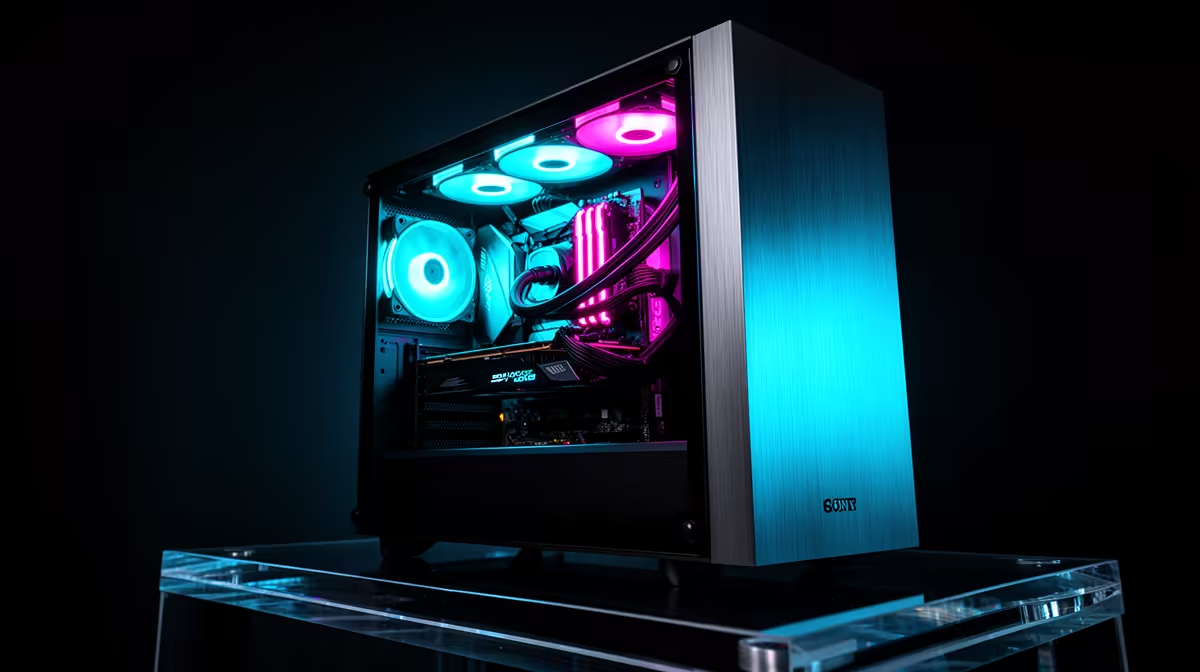
Setting up Windows 11 on a DDR5 gaming PC correctly takes about 90 minutes and covers four steps: enable EXPO in the BIOS before installation, install Windows from a fresh USB ISO, install chipset and GPU drivers in the correct order, then run Windows Update twice. Skip any of these and you leave performance and stability on the table.
Boot into the BIOS before inserting the Windows installation USB. Enable AMD EXPO or Intel XMP to run DDR5 at its rated frequency: most gaming kits run at 5600MHz, 6000MHz, or 6400MHz, and without EXPO the RAM defaults to 4800MHz, losing 10 to 20% memory bandwidth. Confirm the NVMe SSD is visible in the BIOS storage list with NVMe mode enabled rather than a compatibility mode that limits throughput. Enable Resizable BAR (Above 4G Decoding) at this stage too, as it must be set before the GPU driver installs for the setting to register correctly. Save and exit to boot the Windows 11 USB.
After Windows 11 installs, follow this sequence. First, install the motherboard chipset driver from the manufacturer's site (ASUS, MSI, Gigabyte, or ASRock) to establish the correct hardware communication layer. Second, install the GPU driver: for Nvidia, use the latest Game Ready Driver from Nvidia's site; for AMD, use the Adrenalin installer. Do not rely on Windows Update for GPU drivers as it often delivers older versions. Third, install audio drivers if the motherboard codec is not covered by the chipset package. Reboot after chipset and GPU driver installations before testing performance or running games.
For a 1TB primary NVMe, create a single system partition of the full volume and install all games there. Avoid splitting the NVMe into C and D partitions as this can reduce effective sequential write performance on some drive firmware. Keep at least 15% of the drive free (about 150GB on a 1TB drive) to maintain peak write performance: SSDs slow down when NAND is heavily filled. If you add a secondary HDD for media storage, format it as NTFS with default allocation size and use it only for files that do not require fast random access.
Windows Update sometimes stages updates in batches, so a single pass leaves pending patches. After your first driver installation, run Windows Update, reboot, then run it again. The second pass often catches USB controller updates, NVMe firmware, and security patches staged but not yet offered. This 20-minute step prevents stability issues in the first weeks of use.
Yes. Windows 11 supports all current DDR5 platforms including AMD AM5 and Intel LGA1851. No special OS configuration is needed for DDR5 compatibility; only the EXPO or XMP BIOS setting is required to run RAM at its rated speed.
Windows 11 Home is sufficient for gaming. Pro adds domain join, BitLocker encryption, and Hyper-V features that most gaming users do not need. Save the cost difference unless you specifically require Pro features for development or enterprise use.
Open Task Manager, go to Performance, and click Memory. The speed shown should match your kit's rated frequency. If it shows 4800MHz, EXPO is not active. CPU-Z under the Memory tab also shows DRAM frequency and confirmed XMP or EXPO status.
Starting fresh with a DDR5 gaming build? Evetech sells pre-built DDR5 gaming PCs ready to boot out of the box, plus components for self-builders across all price points with local warranty support.
PCIe 5.0 vs PCIe 4.0 for video editing in 4k is mainly about fit, features, compatibility, cost, and upgrade path, not one automatic winner. SA buyers should match the choice to the setup.
Read more
Wi-Fi 7 vs Wi-Fi 6e for competitive esports comes down to router support, latency goals, device compatibility, and coverage. SA buyers should match the choice to the real network setup.
Read more
ATX 3.1 vs ATX 3.0 for mMO and live-service games buyers - what changes is mostly about compatibility, budget, upgrade path, and setup fit. SA buyers should check device support and real needs before expecting a clear win from either option.
Read more
LGA 1851 vs LGA 1700 can affect Twitch and YouTube streaming when gaming and encoding share CPU resources. For SA creators, the real-world difference depends on encoder choice, memory support, motherboard cost, thermals, and upgrade plans.
Read more
X870E vs X670E for aaa single-player gaming is mainly about fit, features, compatibility, cost, and upgrade path, not one automatic winner. SA buyers should match the choice to the setup.
Read more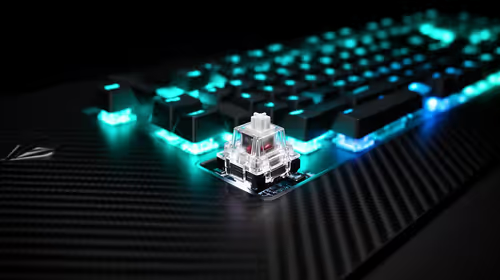
Hall Effect switches vs Mechanical switches for mMO and live-service games is mostly about compatibility, budget, upgrade path, and setup fit. SA buyers should check device support and real needs before expecting a clear win from either option.
Read more
A fake 113GB GTA VI ISO reportedly used empty padding around a small malware payload. SA gamers should delete unofficial builds, keep Windows security active and wait for official channels.

Wi-Fi 6E vs Wi-Fi 6 matters for 4K video editing when files move across a network. The real-world difference between Wi-Fi 6E and Wi-Fi 6 for video editing in 4K depends on NAS access, cloud uploads, router range, and SA creator workflows.

The difference between PCIe 5.0 and PCIe 4.0 for SA gamers is mostly bandwidth headroom. Compare GPU slot needs, NVMe speed, motherboard support, and upgrade timing before paying extra for a newer platform.

Gaming PC stuck pixel checks in South Africa should confirm the monitor fault first. Use colour tests, screenshot comparison, cable swaps, display menu checks, and clear photos before deciding on support.

Shokz OpenFit Air 2 earbuds weigh 7.2g each and use a redesigned dual-driver open-ear layout. SA buyers should choose them for comfort and awareness, not maximum isolation.

AMD's current driver now lists a Radeon RX 9050 4GB, while product coverage details a narrowed memory system. SA buyers should weigh the low VRAM ceiling against current local Radeon options.

Samsung Display has demonstrated a 16-inch 2.5K OLED laptop panel running at 300Hz. SA buyers should wait for a named notebook, full panel specifications and a local price before planning an upgrade.

Microsoft says some Windows 11 game crashes after recent updates are linked to RGB-related drivers. Affected SA gamers should confirm the update and driver before using the published registry workaround.

Minisforum's M2 Pro pairs Core Ultra X7, Arc B390 graphics and 32GB onboard memory in 1.8 litres. SA buyers should weigh its fixed memory and $1,439 launch offer against local mini PCs.

Smart monitors can add apps and convenience, but they also add privacy settings and unwanted-software risk. SA buyers should audit the operating system before paying for extras.

Lenovo says Legion Go failures linked to BIOS N3CN42WW are not user error. Affected SA owners should stop retrying the update, preserve proof and open a support case.
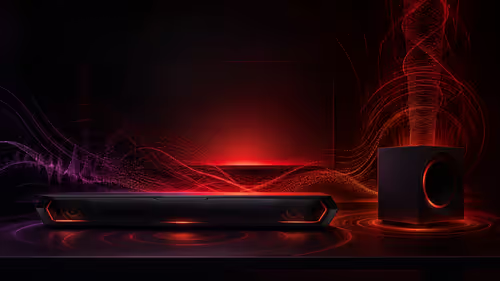
The ROG Gjallar gaming soundbar is now listed in the US at $599.99. SA buyers should compare its 2.1.2 audio, wireless bass and built-in chat controls with simpler local options.