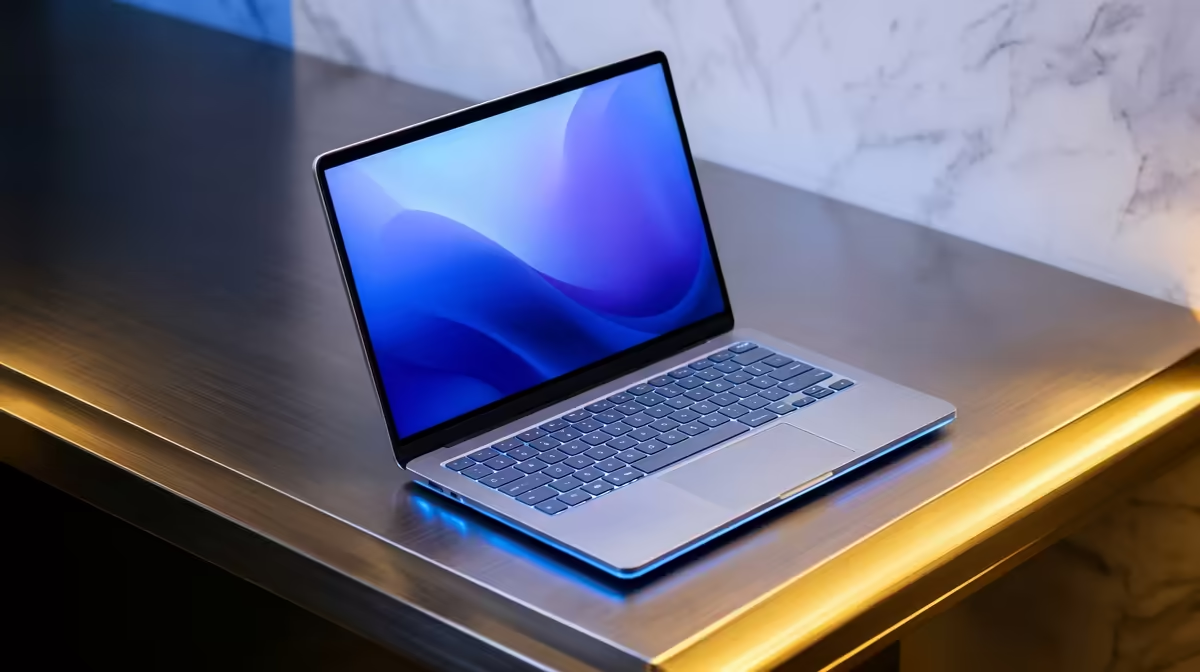
Is your student laptop starting to feel a bit... sluggish? One minute it’s flying through lecture notes, the next it’s chugging on a simple spreadsheet. Before you blame the Wi-Fi or consider a pricey upgrade, what if you could pinpoint the exact problem? Learning how to test your SA student laptop’s performance is the first step to unlocking its true potential, saving you time, frustration, and maybe even some hard-earned cash. Let's get under the hood. 🔧
Why You Should Test Your Laptop's Performance
Benchmarking isn't just for hardcore gamers with RGB-everything. For a South African student, a quick laptop performance test can reveal exactly why your machine struggles to keep up. Is it a slow hard drive causing those agonisingly long loading times? Or maybe the CPU can't handle multitasking with Discord, Spotify, and 20 Chrome tabs open.
Understanding these bottlenecks helps you make smarter decisions. Sometimes a simple, affordable upgrade is all you need. Even the most powerful machines from our best gaming laptop deals can benefit from a regular performance check-up to ensure they're running at peak efficiency.
The Pro's Toolkit: Free Software to Benchmark Your Rig
You don't need a degree in computer science to test your machine. A few free, trusted applications are all it takes to get a clear picture of what your laptop is capable of.
For Your CPU: Cinebench R23
Think of this as a heavy lifting competition for your processor. Cinebench makes your CPU render a complex 3D scene and gives it a score. A higher score means better performance for tasks like video editing, coding, and heavy multitasking. It’s a fantastic way to see if your processor is pulling its weight, especially on modern multi-core chips found in the latest AMD laptops.
For Your GPU: Unigine Heaven
This is the ultimate test for your graphics card. Heaven runs a beautiful, demanding 3D world and measures your Frames Per Second (FPS). It's a great indicator of how well your laptop will handle games like Valorant or Apex Legends, and even GPU-accelerated tasks in creative apps. If you want to know if your machine can game after class, this is your go-to.
Watch Those Temps! 🌡️
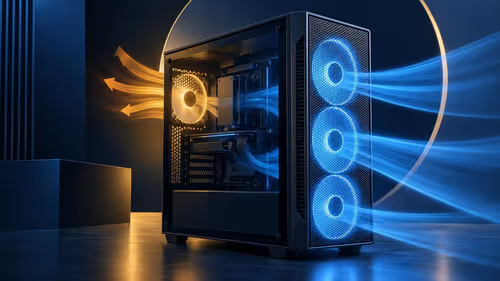
Run a free tool like HWMonitor while benchmarking. If your CPU or GPU temperatures climb above 90°C, your laptop might be "throttling"—slowing itself down to prevent overheating. This could be the real source of your performance issues!
Making Sense of the Numbers
So you've run the tests... now what? Don't get lost in the jargon. Here’s a simple breakdown:
- Cinebench Score: Compare your score online to similar laptop models. If yours is significantly lower, check for background processes or overheating.
- Unigine Heaven FPS: A consistent 60+ FPS at 1080p (Full HD) on medium settings is a great sign for modern esports titles. If you’re dipping below 30 FPS, you'll need to lower the game's graphical settings for a smooth experience. Many of today's Intel laptops on special offer brilliant integrated graphics that can easily handle this.
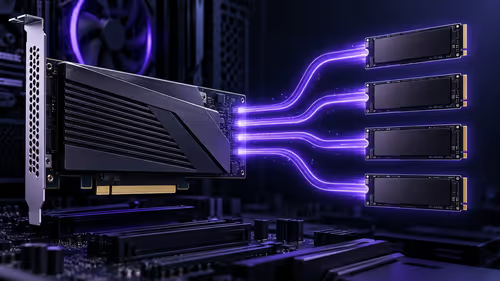
- Is an Upgrade Needed? If your tests reveal a major weakness, like a slow mechanical hard drive, the solution might be simpler than you think. An SSD upgrade is often the single biggest performance boost you can give an older laptop. ✨
Ultimately, running a performance test on your student laptop gives you power. The power to diagnose problems, make informed upgrade decisions, and ensure your tech is an asset to your studies, not a hindrance.
Ready for a Real Performance Boost?
Your current laptop has served you well, but varsity and life demand more. Stop waiting for apps to load and start getting things done with our incredible range of student-friendly machines. Browse our latest laptop specials for performance that leaves lag in the dust.